


If you use a Mouse with your Mac or MacBook and are not satisfied with how the Mouse behaves when you ‘right-click’ on it, then you can change a setting called Secondary Click.
The Secondary Click setting lets you choose whether the left or right side of your mouse performs that right-click action. This is useful for those who have switched to the Mac from a Windows PC or left-handed individuals who want to change the mouse orientation to suit their needs.
Change Secondary Click Setting on Mac
- Connect your Mouse to your Mac.
- Click on the Apple logo in the top-left corner.
- From the dropdown menu, click on System Settings.
- In the System Settings window, scroll down on the side pane and click on Mouse.
- On the Mouse Settings page, click on the button next to the Secondary Click option.
- Select between ‘Click Right Side’ or ‘Click Left Side’ according to your preference.
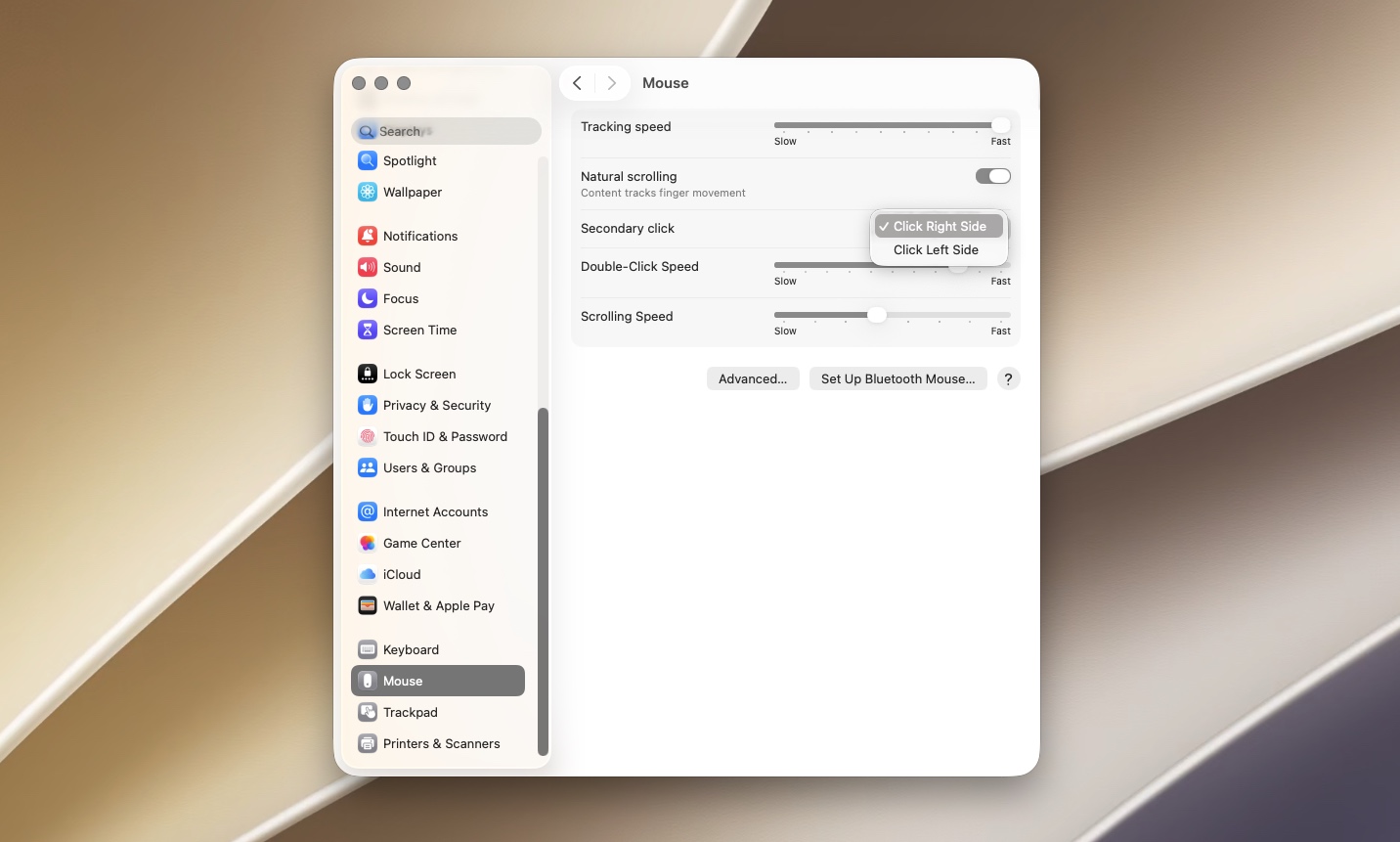
This is how you change Secondary Click settings on your Mac and switch right-click from right side to left side of the mouse.
Disclosure: iOSHacker may receive a commission if you purchase products through our affiliate links. For more visit our privacy policy page.

