


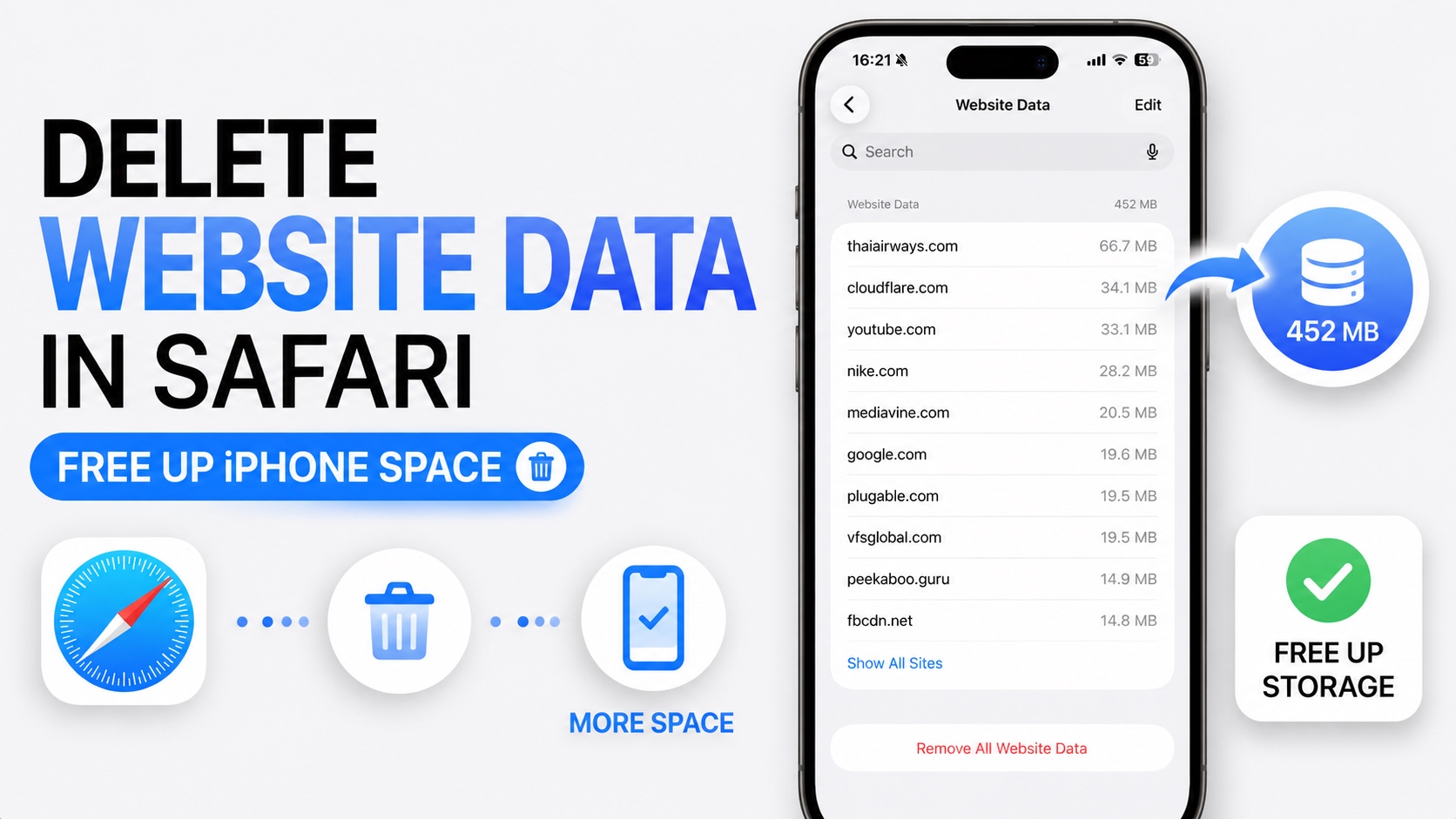
If Safari is taking up too much space on your iPhone, then it is time to clean up website data. Cleaning Safari Website Data on an iPhone can free up significant amount of storage space, ranging from a few hundred MBs to GBs.
First check how much iPhone storage is being taken by Safari. For this go to Settings -> General -> iPhone Storage and scroll down until you see Safari. If Safari is taking up a significant amount of storage and you would like to free it up, then proceed to the steps below.
Delete Website Data in Safari to Free Up iPhone Storage
- Launch Settings and go to Apps.
- Here find and tap on Safari.
- Now scroll down and tap on Advanced.
- Tap Website Data and then tap on Remove All Website Data.
You can also delete website data for specific websites only. Simply find the website and swipe left on it. Then tap on the Delete option.
When you visit websites on your iPhone they store cached images, videos, login information, and other files to improve loading speeds. Over time, this data can accumulate and consume hundreds of megabytes or even several gigabytes of storage. Regularly cleaning them can improve your iPhone performance in addition to freeing up storage.
Regularly clearing Safari website data can help:
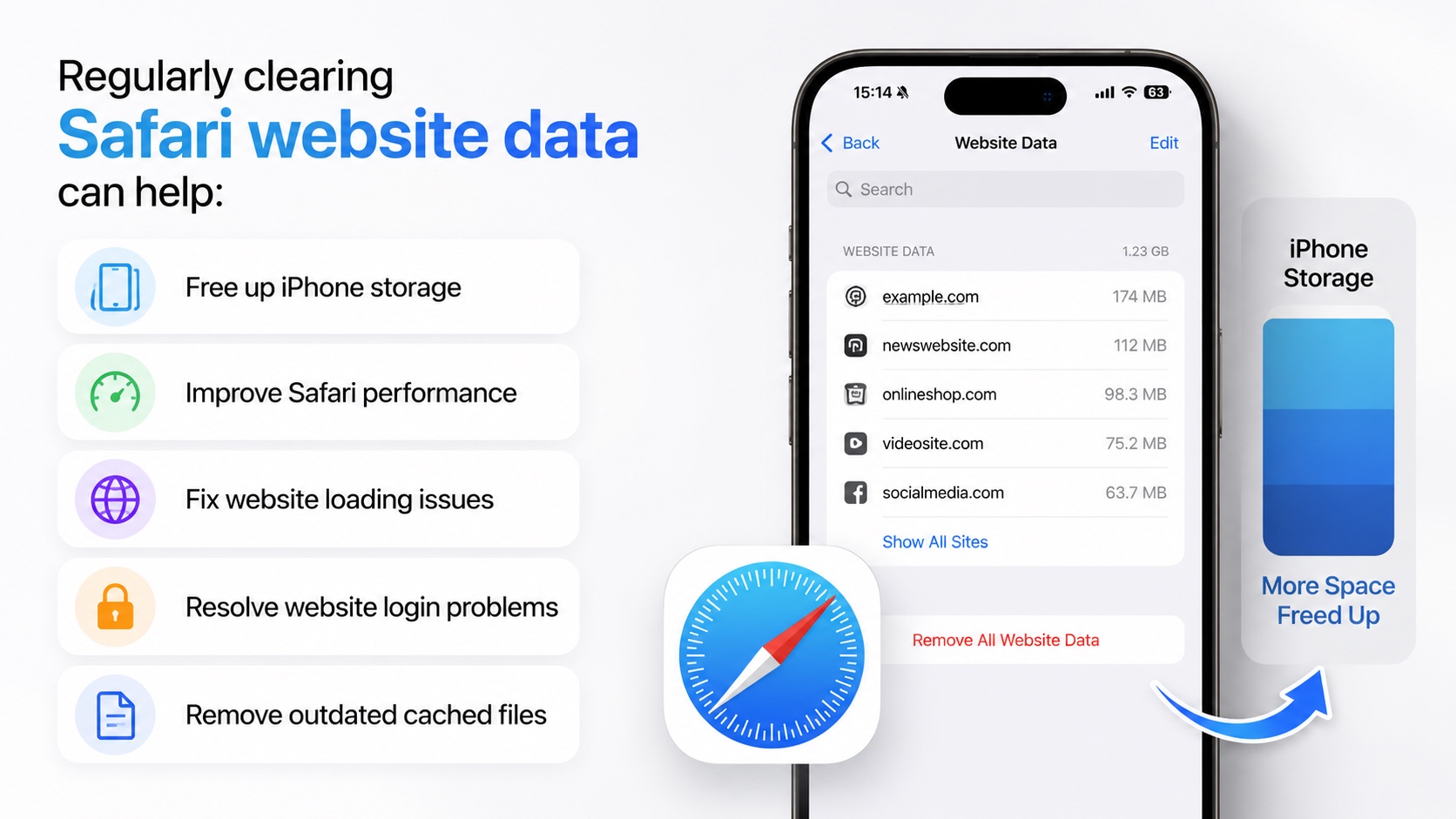
- Free up iPhone storage
- Improve Safari performance
- Fix website loading issues
- Resolve website login problems
- Remove outdated cached files
And that’s how you can delete website data in Safari and reclaim storage space on your iPhone.
