


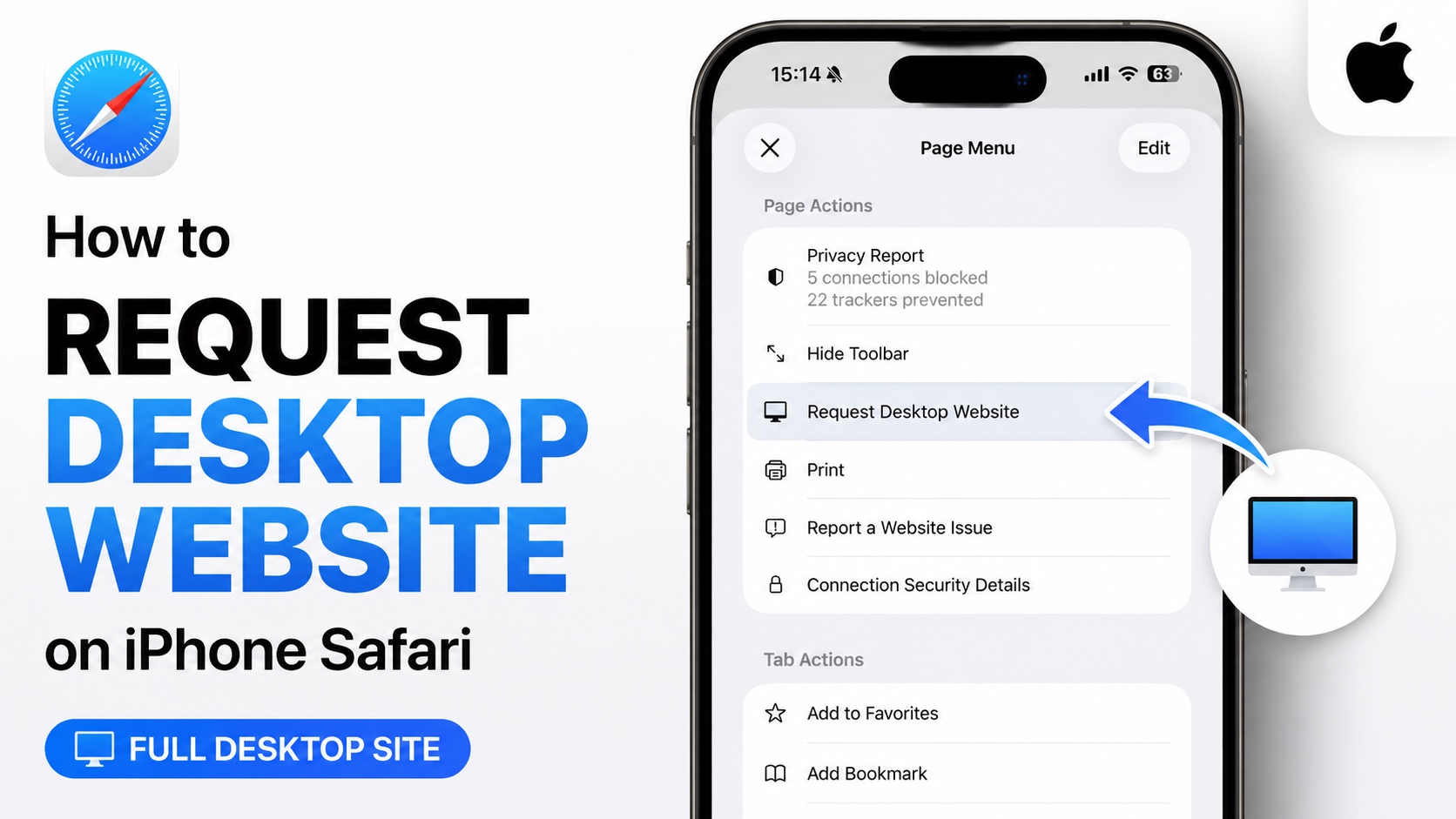
If you want to know how to request desktop website on iPhone Safari, then this guide is for you. Most websites these days offer a mobile version of their website, which automatically loads up when you access it from a mobile device like an iPhone.
Sometimes you need to see the desktop website. This could be because you are unable to access certain features that are not available on the mobile version.
The good news is it is very easy to request desktop website on iPhone’s Safari browser. All you have to do is follow a few simple steps.
Request Desktop Website in Safari

- Open Safari and load up the website you want to request desktop version of.
- Tap on the Page Settings button located on the left side of the address bar. It looks like a rectangle along with two lines.
- From the menu that appears tap on the three dot button (…).
- Next, from the page menu tap on the Request Desktop Website option.

As soon as you tap on Request Desktop Website option, Safari will reload the website and show you the desktop version.
Always use Desktop Website for a website
What if you always want a website to load its desktop version. Well, you can easily do this too in Safari. Here’s how.
- Open Safari and load up the website.
- Tap on the Page Settings button located on the left side of the address bar. It looks like a rectangle along with two lines.
- From the menu that appears tap on the three dot button (…).
- Now scroll down to see Website Settings section.
- Here, enable the toggle for Request Desktop Website.
From now on Safari will automatically load the desktop version of the website, without requiring you to request it first.
Make Safari load desktop version for all websites
You can also make Safari always load desktop version of websites whenever possible. Here’s how you can enable this setting.

- Open Settings and go to Apps.
- Here tap on the Safari option.
- Now scroll down and tap on Request Desktop Website option.
- Enable the toggle for All Websites.
From now on, Safari will automatically request desktop versions of websites and load them whenever possible.
