


Do you want to learn how to mute or unmute your iPhone 17 or iPhone 17 Pro? Then this guide is for you. If you have upgraded from an iPhone 14 or older, then you would noticed iPhone 17 does not come with a dedicated mute/unmute switch.
But there’s no need to worry, as iPhone 17 offers some very convenient ways to mute or unmute the device. In this article, we have shared multiple methods of putting your iPhone in silent mode.
Mute or Unmute iPhone 17
Use the Action button
iPhone users can set their device’s Action Button to put their device in silent mode. You can quickly do it by pressing and holding the Action button.
If your device is not configured to use the Action button as a mute/unmute switch, then you can select this setting by following these steps.
- Open the Settings app.
- Tap on the Action Button option.
- On the next screen, swipe left or right and select the Silent option.
- Long press on the Action button to put your iPhone in silent mode. Repeat this step to bring it out of silent mode.

Use Control Center
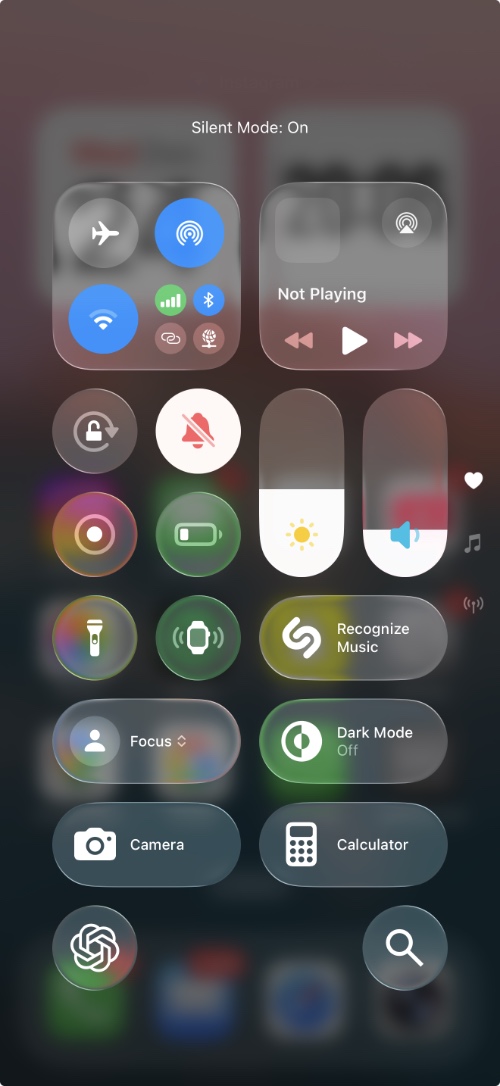
You can put your iPhone to Silent through the Control Center. To do this, simply swipe down from the top-right corner. From the Control Center, tap on the bell icon. When the bell icon is crossed out, it means the silent mode is activated.
This method is perfect if you want quick visual confirmation. If you don’t see the silent button with a bell on it, you can quickly add it by long pressing on an empty area and then tapping on add a control option.
Use Settings
You can also put your iPhone in Silent mode from Settings. Here’s how.
- Open Settings.
- Tap on the Sounds & Haptics option.
- Turn the Silent Mode switch on or off.
That’s it, this is how you can turn on the Silent mode on your iPhone 17 or iPhone 17 Pro using the Action Button, Control Center, and the Settings app.


