


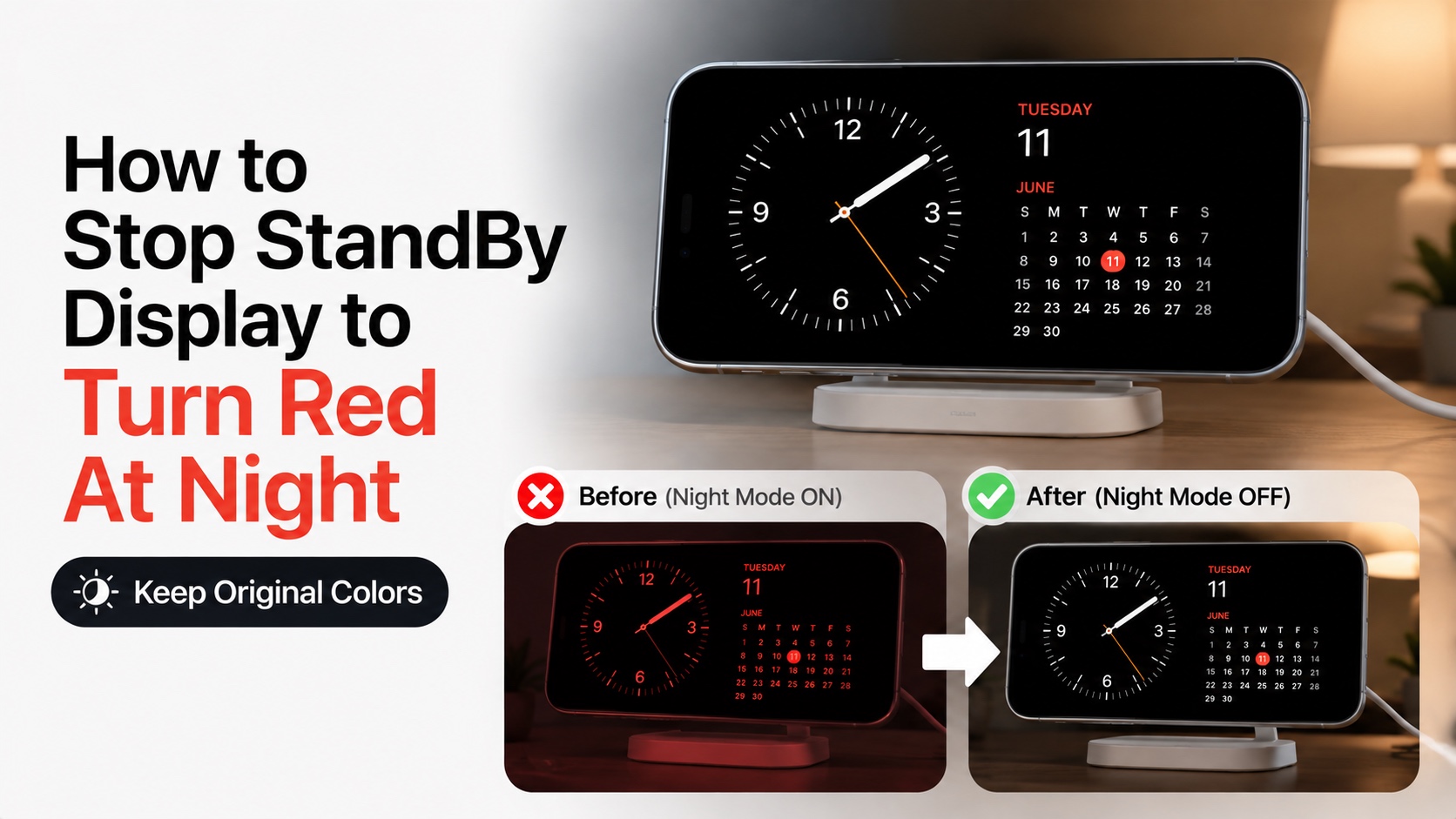
iPhones have a cool feature called StandBy mode. This feature automatically turns on when you place your iPhone on its side while charging. When StandBy display shows up you see information like widgets, photo frames, and clocks.
While this is a really useful feature that also looks cool, there’s one thing that annoys many people. The StandBy display turns red at night whenver your iPhone’s ambient light sensor detects darkness or low light in the room.
The good news is you can prevent this from happening and keep StandBy showing in its original colors even in dark environments.
Turn off red tint on StandBy Mode on iPhone
Here’s how to turn Night Mode off.
- Launch the Settings app.
- Here find and tap on the StandBy option.
- Next tap on the Display option.
- On the Display Setting page, find the Night Mode toggle. Its located under ‘At Night’ section.
- Turn this toggle off to turn off the red tint functionality.
With the Night Mode toggle turned off, your iPhone’s StandBy screen will no longer turn red at night no matter how dark your environment gets.
Of course, you can reverse this and get the Red tint back by following the same steps and enabling the toggle for Night Mode again.


