


Do you know you can lock and protect individual sensitive notes without locking the whole Notes app. This is perfect if you want to protect notes that have your passwords, financial information, journal entries, and more.
Read on to learn how you can lock a note, unlock it, and remove the lock feature if you no longer need it.
All of your locked notes will automatically be locked on devices with synced notes feature enabled.
Lock & unlock individual notes
- Launch the Notes app.
- Open an existing note or create a new note by tapping on the Compose button.
- Now tap on the More (…) button located in the top-right corner.
- From the menu tap on the ‘Lock’ button.
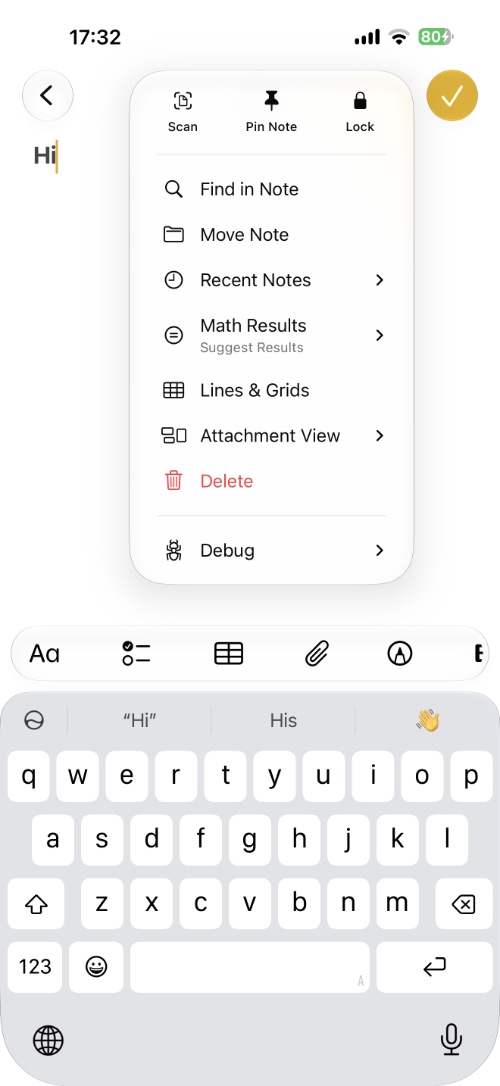
This will put a lock on the note and it can only be accessed with Face ID, Touch ID or device passcode.
To unlock a locked note, simply open it and authenticate. Once verified you will be able to access and edit the note.
Remove Lock in Notes app
If you want to remove the lock feature entirely from one of your notes, then you can follow these steps.
- Launch the Notes app.
- Find the note that you want to unlock.
- Unlock the lock by tapping on it and authenticating.
- Tap on the More (…) button from the top-right corner.
- Tap on the ‘Remove’ button with a crossed padlock on it.
Use a custom password to unlock notes
By default, iOS uses your iPhone’s passcode to lock the notes, However if you want to use a custom password instead of using your iPhone’s passcode to unlock notes, you can go to Settings -> Apps.
Here tap on Notes. On the next page tap on Password.
Next tap on Use custom password, authenticate, and then choose a new password of your choice.


