


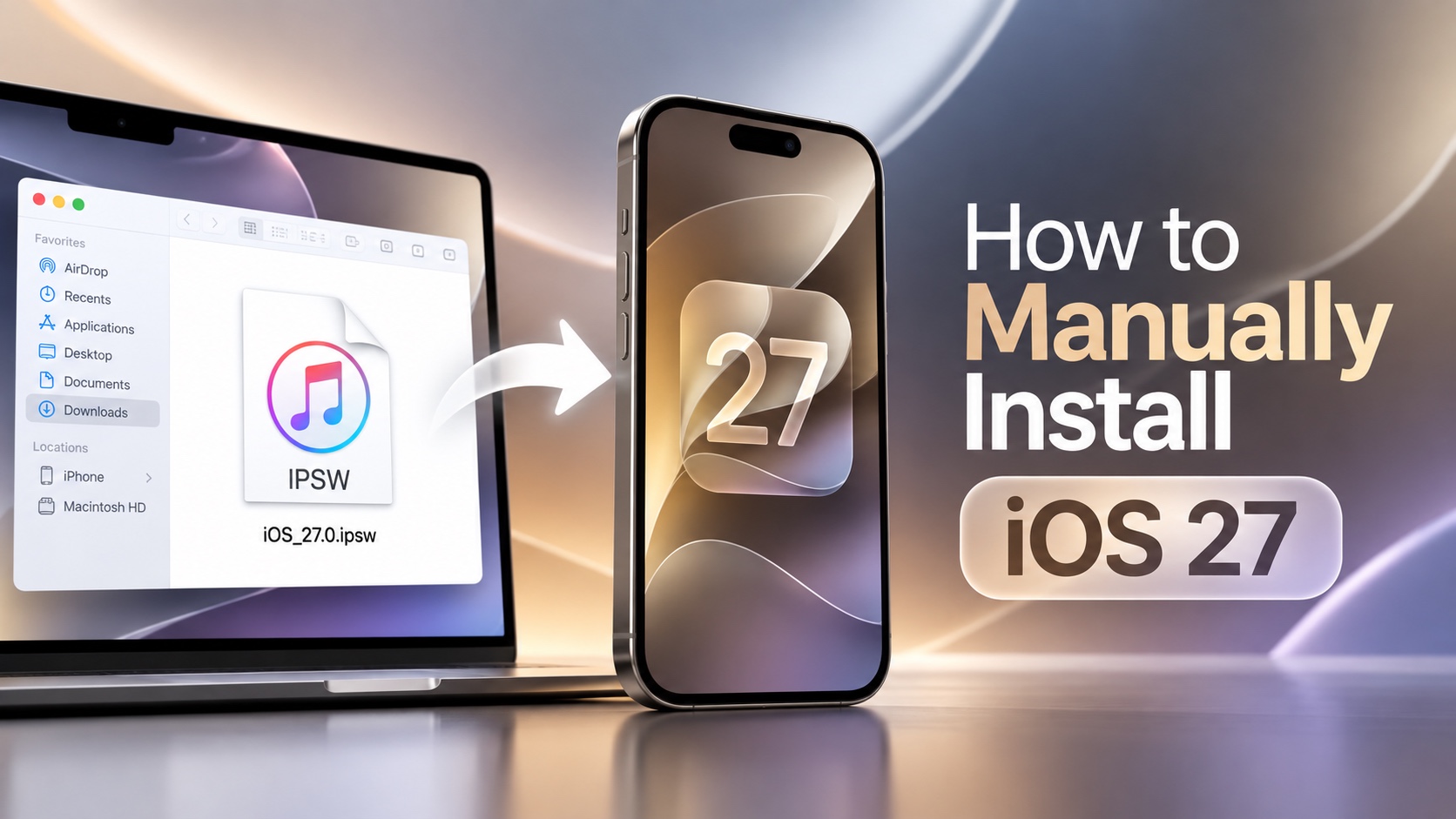
If you want to manually install iOS 27 on your iPhone through a computer instead of downloading the update over the air, then you can follow this guide. You can install iOS 27 manually using Finder on Mac and iTunes on Windows PC.
You will also need the correct iOS 27 IPSW Firmware File, which we have linked below.
Manual installation is particularly useful for those who are troubleshooting an update, need to reinstall iOS, or want to avoid errors that might occur during OTA installs.
What you need
Before you begin, make sure you have the following things:
- A Mac or Windows PC (with iTunes or Apple Devices)
- A USB cable
- A stable Internet connection
- The correct IPSW file (Download iOS 27 IPSW here)
- Enough free storage on your computer
- Apple Apple Account credentials
Guide to manually install iOS 27
- First of all, back up your iPhone by going to Settings -> Your name -> iCloud -> iCloud Backup -> Back up now.
- Turn off Find My by going to Settings -> Your name -> Find My -> Find My iPhone -> Off.
- Now connect your iPhone to computer using a USB cable and open Finder or iTunes/Apple Devices software if you are Windows.
- After your iPhone is detected, press and hold the Option key on Mac or the Shift key on Windows and click on the Update button.
- A file selection window will appear. Select the iOS 27 IPSW file you downloaded earlier.
- Finder or iTunes will now verify this file from Apple’s servers and start the installation process. Your iPhone might restart a number of times during this process.
If you are installing 27 manually because you encountered an issue with your device earlier, then you will need to put it in Recovery Mode and then Restore the device.
To put your iPhone in Recovery Mode, follow these steps.
- Connect iPhone to computer with USB cable.
- Quickly press and release the Volume Up button.
- Quickly press and release the Volume Down button.
- Press and hold the Side button. Keep holding it until the Recovery Mode screen (one with a computer on it) appears.
Once your device is in Recovery Mode, you can follow the manual iOS 27 installation guide above, however, this time you need to select Restore instead of Update.
Note: During Restore, your iPhone’s data will be erased. Make sure you have a fresh backup of your iPhone before restoring it.


