


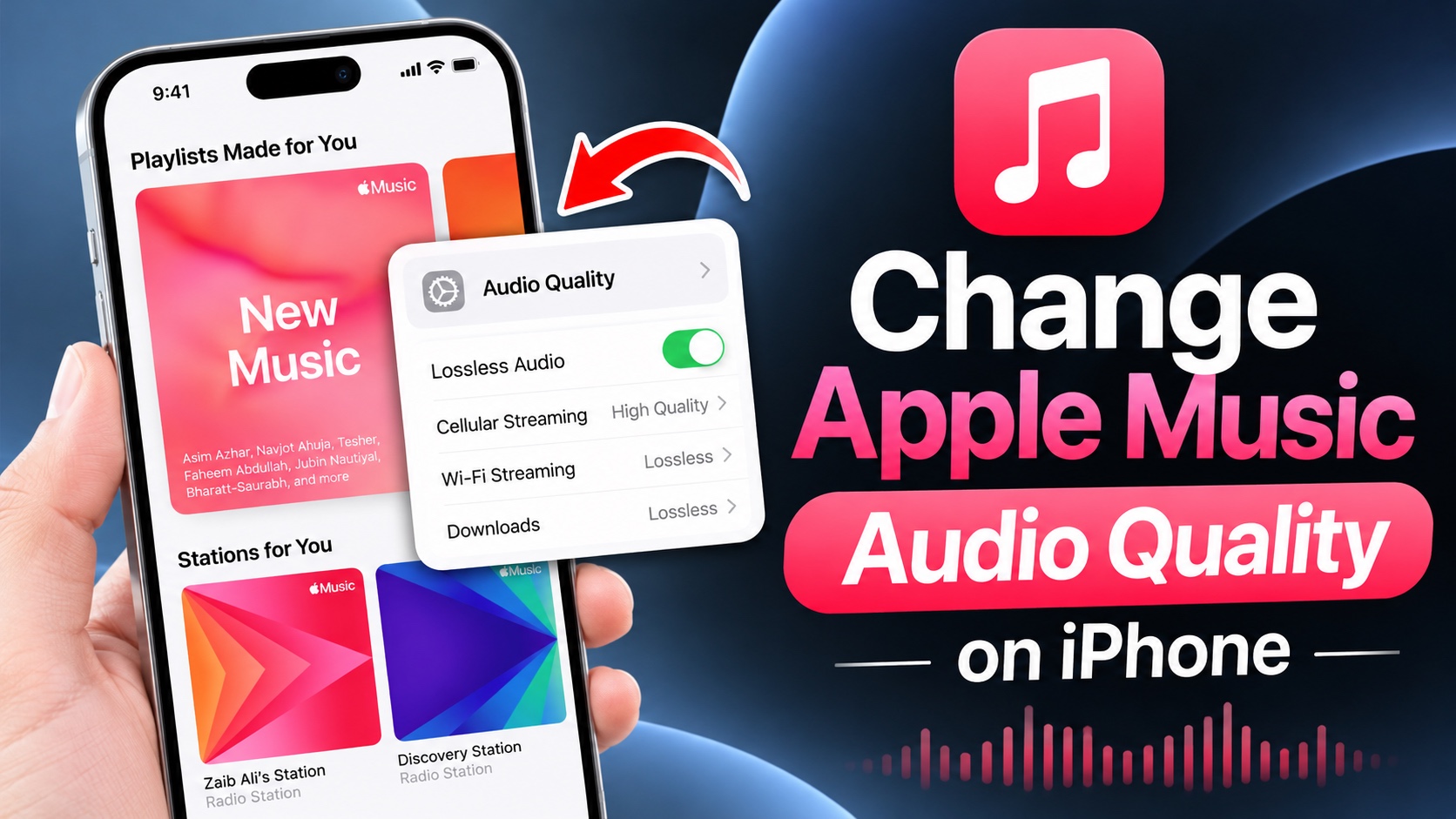
Apple Music audio quality settings can be changed quite easily. By changing these settings you can enjoy lossless audio quality or save mobile data by streaming music at a lower quality.
In this article, you will learn how you can change Apple Music Streaming and choose different settings for Wi-Fi, Cellular Data, and Downloads.
Change Apple Music Streaming Quality
- Open the Settings app and go to Apps.
- Here, find and tap on the Music option.
- In the Music settings, scroll down and tap on the Audio Quality option.
- Here, you can customize the quality of music streamed over cellular data and Wi-Fi, as well as the quality of downloaded songs.
- Tap on Cellular Streaming and choose your desired option. Do the same for Wi-Fi Streaming and Downloads options.

You can choose between the following options.
- High Quality: AAC 256 kbps
- Lossless: ALAC up to 24-bit/48 kHz
- Hi-Res Lossless: ALAC up to 24-bit/192 kHz
The setting you choose not only affects your audio listening experience but it can also significantly increase the size of the songs.
Here’s how much a 3 minute song will be approximately with each setting:
- 6MB with High Quality
- 36MB with Lossless
- 145MB with Hi-Res Lossless
The setting you choose will ultimately depend on how much cellular data you have available and how much storage space you can spare for downloads on your device.
Disclosure: iOSHacker may receive a commission if you purchase products through our affiliate links. For more visit our privacy policy page.

