


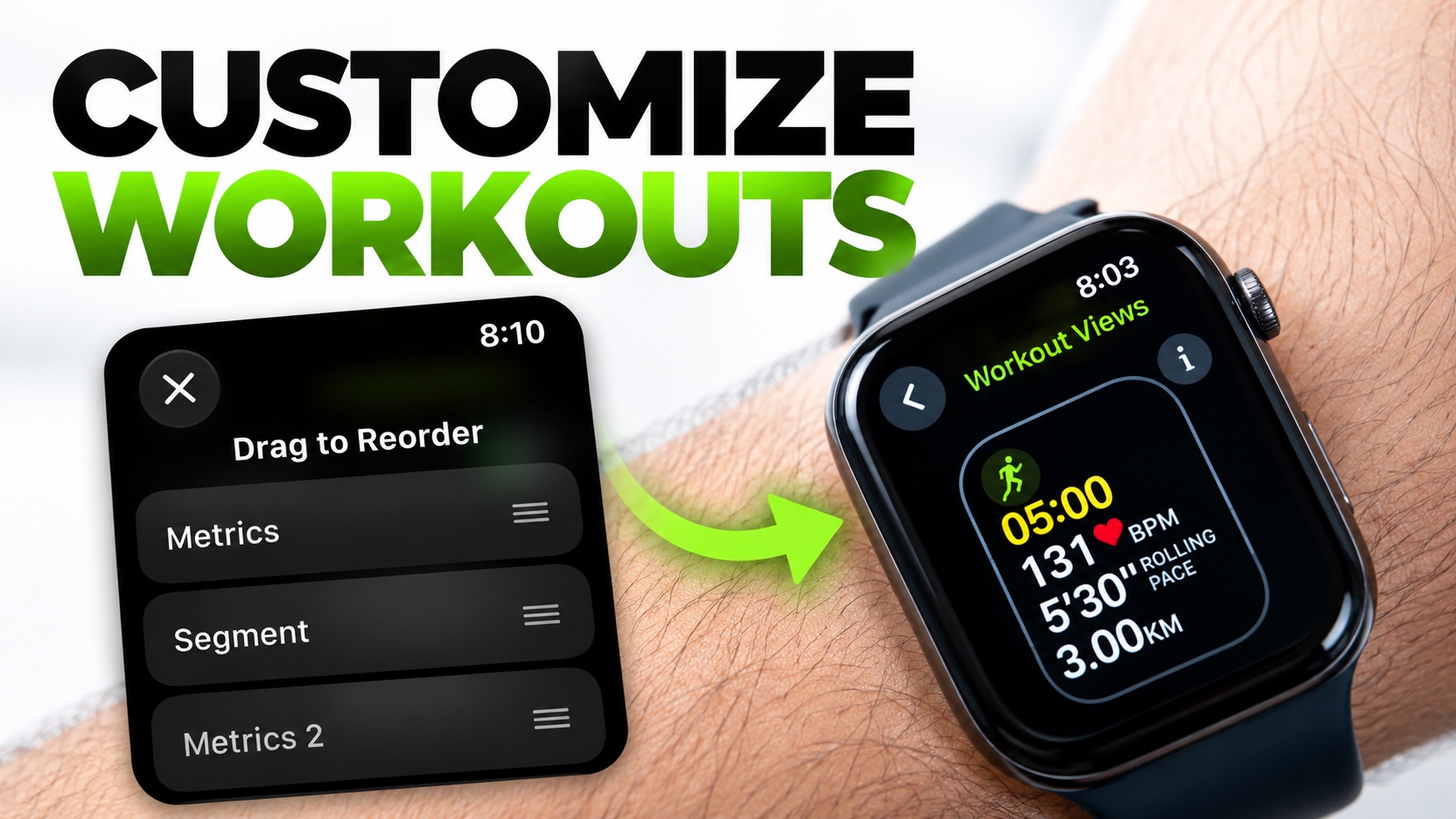
In this tutorial, we show you how you can customize the workout screen and make the Workout Views more useful for you during workouts. You will also learn how to change metrics you see during a workout.
Whether you want to track your calories burned, heart rate, pace, distance, or workout intervals, your Apple Watch lets you change the workout views to suit your needs.
- Wake up your Apple Watch and open the Workout app.
- Here find the specific Workout you want to change Workout Views for. You can select different workout views for each workout type.
- After selecting the Workout you wish to customize tap on the Workout Views button located in the top left corner.
- Scroll through the list and turn on the ‘Include’ toggle found next to the Workout Views that you want to include for this specific workout type.
- You can also customize each Workout View by tapping ‘Edit’ next to it and choosing which metrics to display during your workout.
- After you are done tap on the Back button to return to the main Workout app page. Run the workout you just edited to see your new workout views.
Reorder Workout Views
You can also reorder the Workout Views for each workout type to see the most important views first. Just tap on the Workout Views button on the workout type you want to customize, then scroll all the way down.
Here tap on the Reorder button and move the workout views you want to see first towards the top.
Disclosure: iOSHacker may receive a commission if you purchase products through our affiliate links. For more visit our privacy policy page.


