


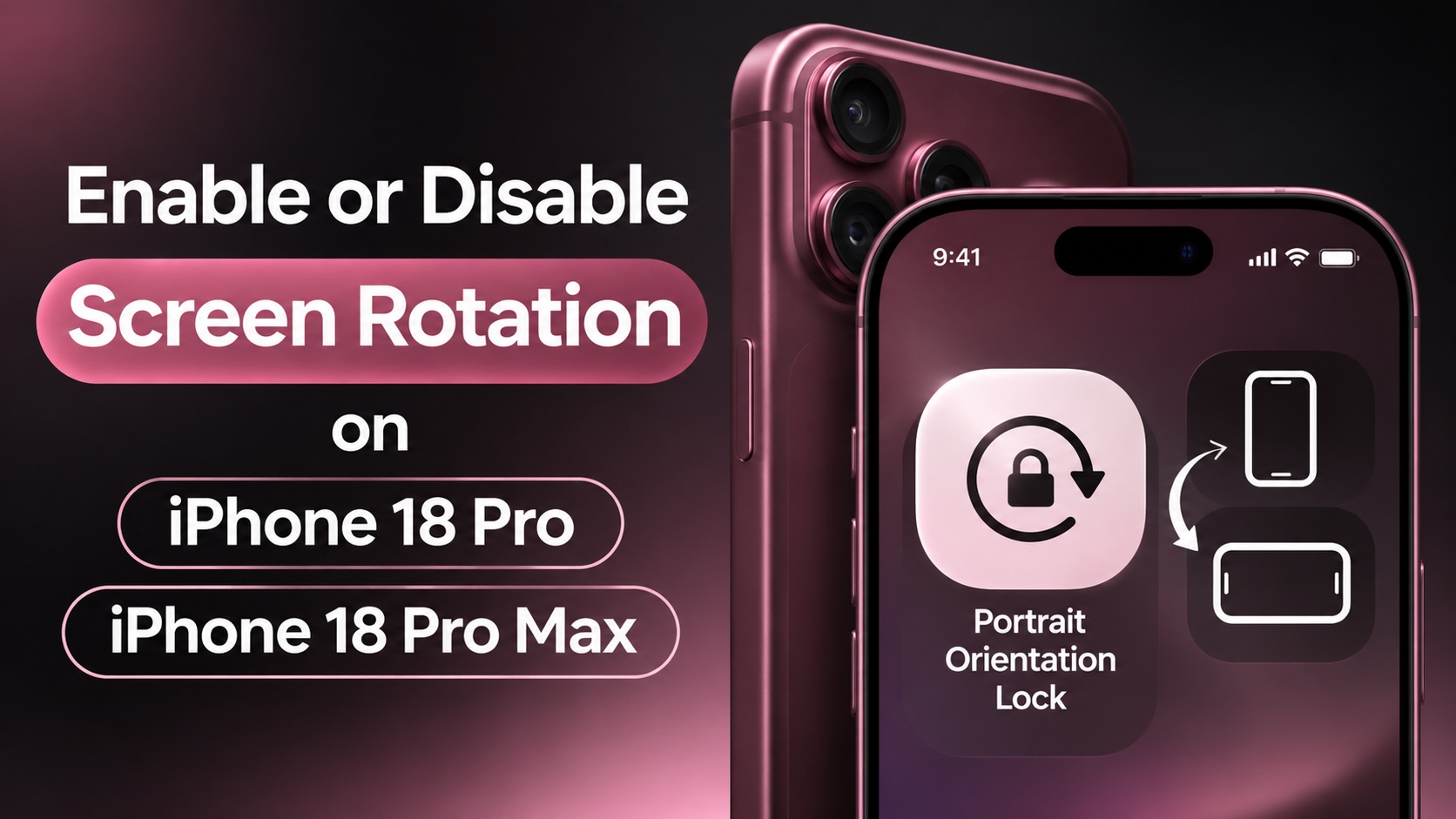
Is your iPhone 18 Pro screen not rotating when you turn your phone sideways? Or perhaps the screen keeps rotating when you don’t want it to.
In this guide, we have shared instructions on how to enable or disable screen orientation lock on your iPhone 18 Pro and iPhone 18 Pro Max using the Control Center.
Enable or Disable Screen Rotation
- Unlock your iPhone and swipe down from the top right side of the screen to access Control Center.
- Here find and tap on the Portrait Orientation Lock button. It has a padlock icon surrounded by a circular arrow.
Note: If you don’t see the Orientation Lock button, then long press on an empty area and tap on ‘Add a Control’ option. Then add this button to your Control Center. - If the Portrait Orientation Lock is turned on, your iPhone’s screen orientation is locked in portrait mode. Your screen will not rotate even if you turn your iPhone.
- To turn screen rotation on, tap on the Portrait Orientation button to turn this feature off.

Now, open an app that supports landscape mode and turn your iPhone sideways. Your screen should automatically rotate.
That’s how you can enable of disable Orientation Lock on your iPhone 18 Pro and iPhone 18 Pro Max.
Disclosure: iOSHacker may receive a commission if you purchase products through our affiliate links. For more visit our privacy policy page.
