


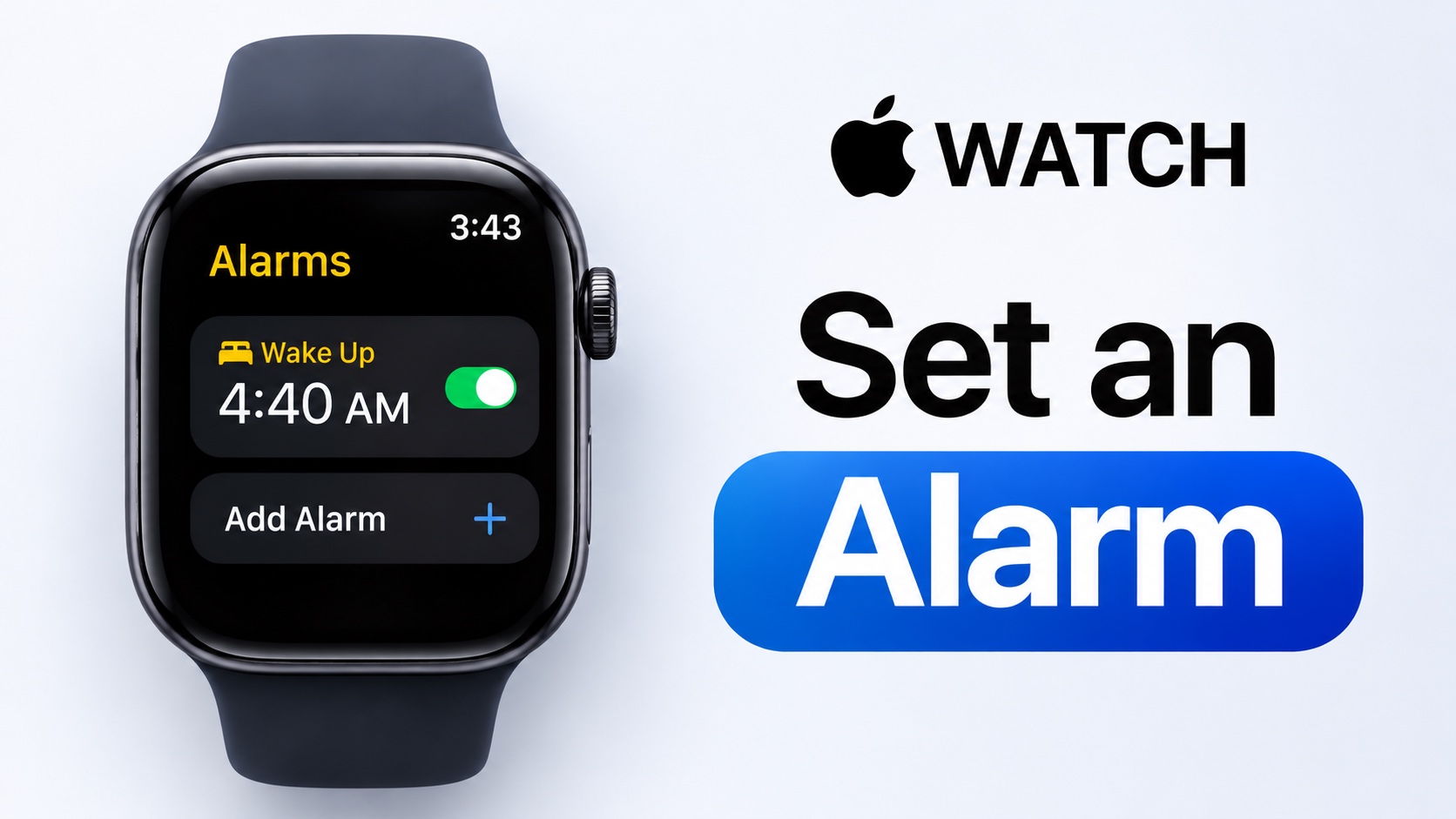
In this tutorial, we show you how to set an alarm on your Apple Watch and edit existing alarms to change their time, snooze settings, labels, and more.
Apple Watch alarms work independently from an iPhone. This means an alarm created on the Apple Watch will only appear and ring on the Watch.
Create an alarm on Apple Watch
Setting an alarm on any Apple Watch model is simple. Here are the easy steps you can follow to set up an alarm on a Watch running watchOS 27 or watchOS 26.
- Press the Digital Crown to access the Dynamic App Grid screen.
- Swipe up to access the Home Screen and open the Alarms app.
- Scroll down and tap on the ‘+’ button to add a new alarm.
- Use the hour and minute wheels to select the time you want the alarm to go off. You can tap on the AM or PM options to change them in case you are using a 12-hour clock.
- After selecting the desired time, tap on the checkmark button from the top.
Editing an existing alarm
You can change various settings for an Apple Watch alarm. This includes its time, repeat on specific days setting, adding an alarm label, enabling or disabling snooze and its duration, and whether an alarm can go off when your Apple Watch is silent.
Here’s how you can edit an alarm.
- Open the Alarm app.
- Tap on the alarm you want to edit.
- Tap on the setting you want to change on an alarm.
Here you can change the following settings.

- Change Time: Change the ringing time for the alarm.
- Repeat: Select on which days the alarm should ring.
- Label: Add a label to the alarm.
- Snooze: Enable or disable the Snooze feature.
- Snooze Duration: Change snooze duration between 1 minute and 15 minutes.
- Break Through Silent Mode: Select whether the alarm should audibly ring when the Apple Watch is in Silent mode.
