


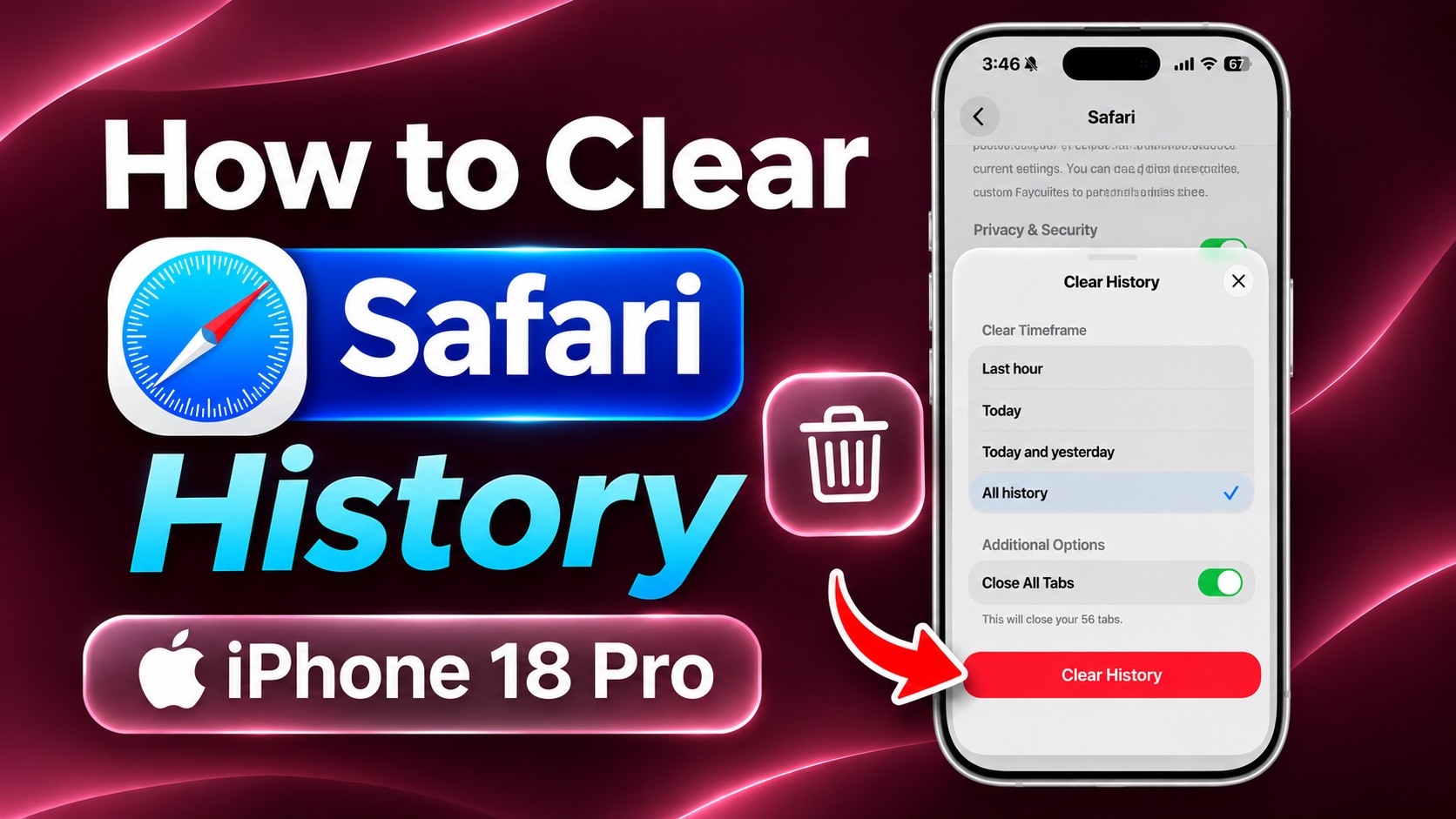
If you want to clear Safari browsing history on your iPhone 18 Pro or iPhone 18 Pro Max, then you are in the right place. Here we will share instructions on how to delete complete Safari history or remove individual websites.
We will also show you how you can clear cache and cookies from your iPhone’s Safari without deleting website history.
Clear all Safari history on iPhone 18 Pro
You can clear all of your iPhone’s Safari history browsing history, and other data by following the steps below.
- Open Settings and go to Apps.
- Scroll down and tap on Safari.
- Under the History and Website Data section tap on Clear History and Website Data.
- Choose how much browsing history you want to delete from options including last hour, today, today and yesterday, and all history.
- Tap Clear History button at the bottom.
And just like that, all of your Safari web browsing history, cookies, and cache will be deleted, giving you a fresh start.
Clear History directly from Safari
You can also clear Safari history directly from the Safari browser. Here’s how you can do it.
- Open Safari and tap on the Bookmarks button.
- Select the History tab.
- Tap on the More button and then select Clear History.
- Choose the timeframe you want to clear history for and tap the Clear History button.
Clear individual websites from history
If you only want to remove individual websites from your browsing history, then you can follow these steps.
- Open Safari and tap on Bookmarks button.
- Tap on History tab.
- Tap on the More button.
- Select the websites you want to remove and tap on the Trash button.
The selected websites will now be removed from your browsing history.
Clear Safari Cache and Cookies only
If you want to keep your website browsing history and only want to delete cache and cookies, then you can follow these steps.
- Open Settings and go to Apps.
- Here tap on Safari.
- Scroll down and tap on Advanced.
- Now tap on Website Data.
- Tap on Remove All Website Data and select Remove Now to confirm.
That’s it, this is how you can clear all Safari website history, clear individual websites only, and delete cookies and cache only. If you have any questions share them with us in the comments below.

