


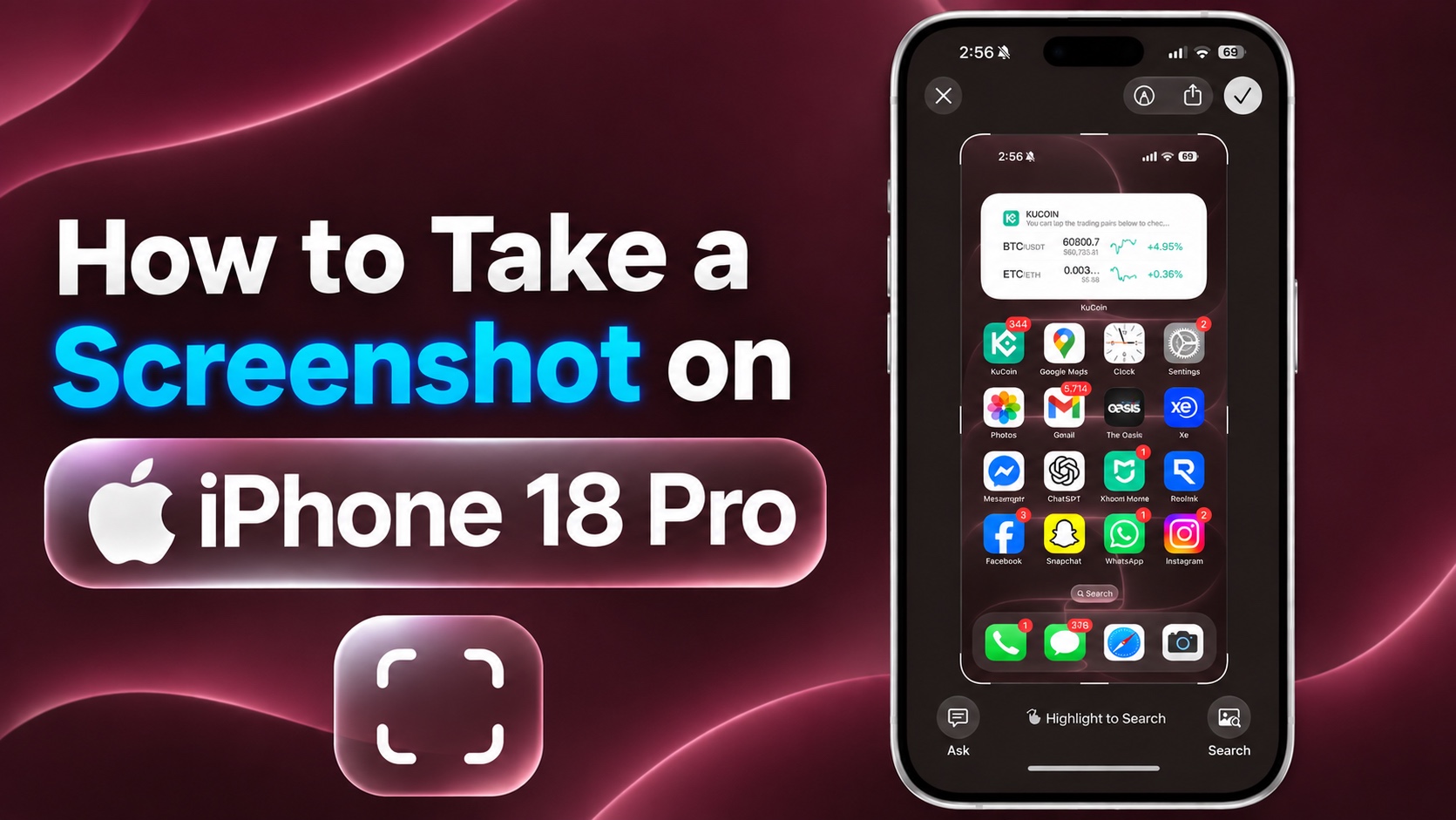
In this guide, we show you how you can take a screenshot on iPhone 18 Pro or iPhone 18 Pro Max. This guide is for anyone who has recently moved to an iPhone or has upgraded from an older model and wants to know how to take a screenshot.
Here, we will show you how to capture a full-page screenshot, edit screenshots, and find all your saved screenshots in one place.
Taking a screenshot on iPhone 18 Pro
Press the Side and Volume Up buttons at the same time. You have to quickly press and release both buttons simultaneously.
When you do this you will see a flash on the screen indicating the screenshot has been taken.
After the flash you will enter the screenshot preview and editing screen. You can save and exit the screenshot screen by tapping on the Done button in the top right corner.
You can also edit the screenshot by tapping on the markup button located at the top.
Take full-page screenshots on iPhone 18 Pro
You can take full-page screenshots on your iPhone 18 Pro and iPhone 18 Pro Max. This is particularly useful if you want to take a screenshot of a full webpage or a document and save it as PDF or JPEG.
Take a screenshot of a long webpage or document. Then tap on the ‘Full Page’ option from the top. You can preview the whole document by scrolling through the preview in the sidebar.
After you are done tap on the Done from the top-right corner and choose whether you want to save it as PDF or JPEG.
Find your screenshots
Your screenshots are automatically saved in the Photos app. You can find them in your iPhone’s camera roll.
The Photos app also saves all your screenshots in a separate folder called Screenshots. You can access it by tapping on the Collections tab from the bottom and scrolling down.
When you get to the Media Types section scroll sideways through the list and tap on Screenshots. You will find all your screenshots there.

