


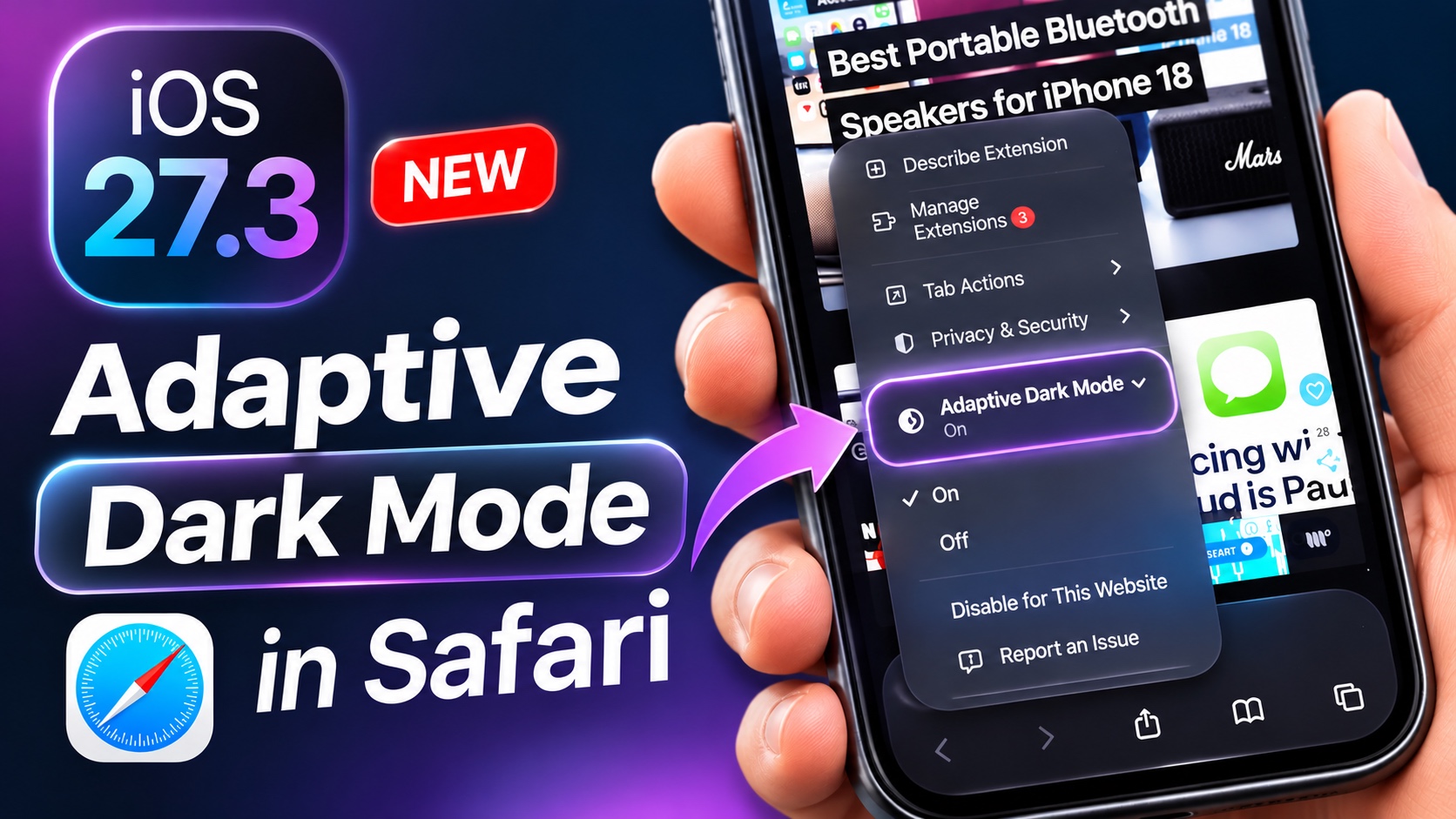
Don’t you just hate when you are using Dark Mode on your iPhone and some websites continue to display bright white backgrounds when you open them. Safari in iOS 27.3 has finally fixed it by adding Adaptive Dark Mode.
The new Adaptive Dark Mode feature in Safari automatically transforms websites that do not have their own Dark Mode into a darker appearance.
In this article, we have shared instructions on how you can enable or disable Adaptive Dark mode in iOS 27.3 or later.
- First, make sure Dark Mode is enabled on your iPhone by going to Settings -> Display & Brightness.
- Now open any website in Safari. You should see a new menu at the top prompting you to try Adaptive Dark mode.
- You can also tap on the Page Menu button on the left side of the address bar and then scroll through the menu. Here tap on Adaptive Dark Mode and then select On.
iOS also lets you configure Safari’s Adaptive Dark mode from the Settings app. Go to Settings -> Apps -> Safari and scroll down. Tap on Adaptive Dark Mode and choose Off or On options depending on your preference.
That’s it, this is how you can enable or disable Adaptive Dark Mode on iOS 27.3 or later.
This is a particularly useful feature if you prefer browsing in Dark Mode but frequently visit websites that don’t offer a dark appearance.

