


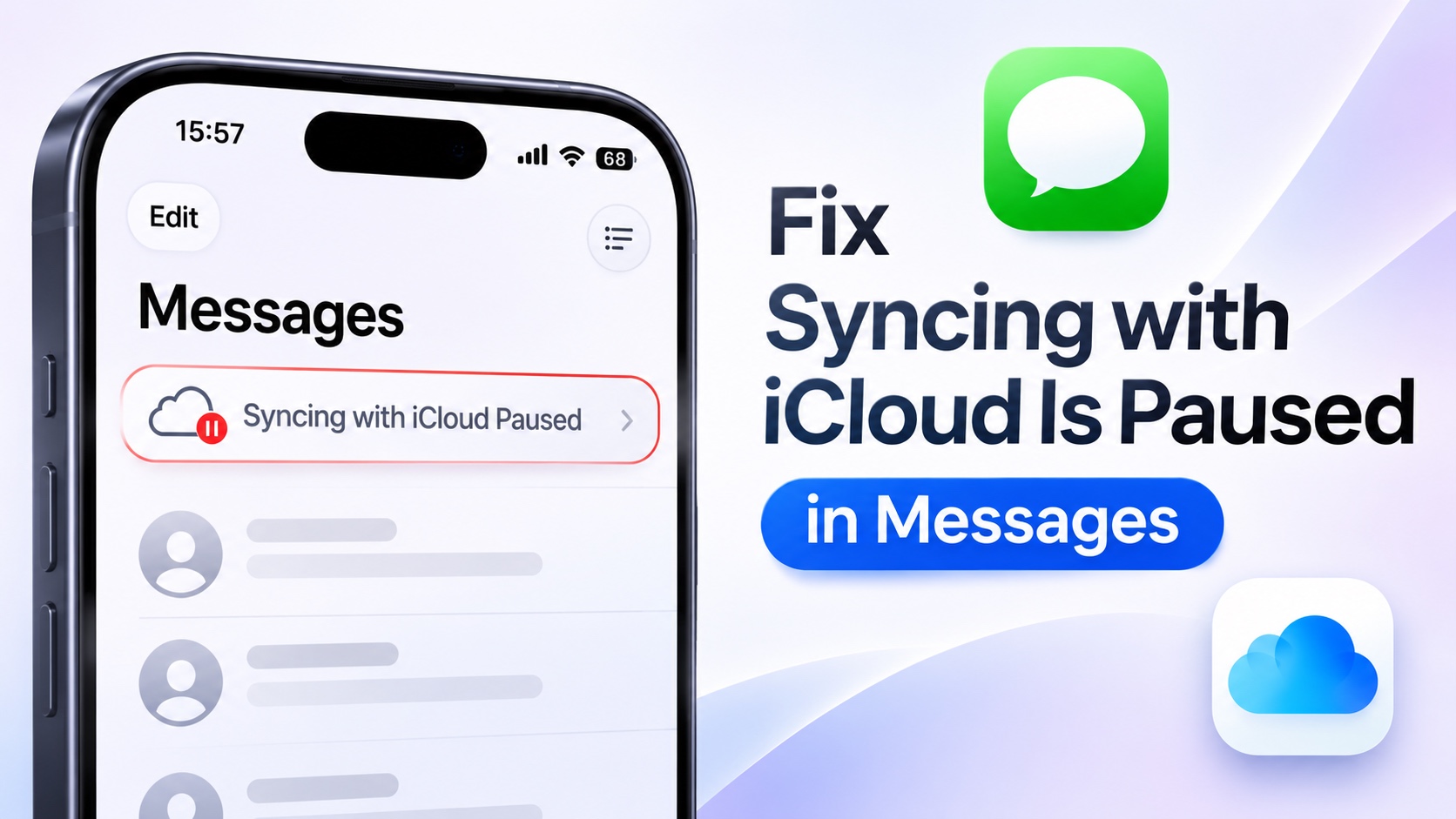
If you are facing the issue where you see the Syncing with iCloud Paused error inside the Messages app, then this guide is for you. Here we have shared multiple solutions that will let you get rid of this problem.
This message appears when your messages aren’t currently syncing with iCloud, which can prevent your conversations from appearing across your other devices like an iPad or Mac.
Follow these fixes and resolve the syncing with iCloud is paused issue on your iPhone or iPad.
Check your Internet connection
Internet is required for messages to sync with iCloud. Make sure your iPhone and other devices have an active Internet connection.
On your iPhone go to Settings – Wi-Fi and make sure your device is connected. If it’s already connected turn Wi-Fi off and back on. If the problem is not resolved try connecting to a different Wi-Fi network and then check again.
Check Messages in iCloud Settings
You should check Messages in iCloud setting to make sure the feature is enabled.
- Open Settings and tap on your name from the top.
- Now tap on iCloud.
- Now tap on See All under Saved to iCloud.
- Find Messages in iCloud option and tap on it.
- Now make sure Use on this iPhone (or Sync this iPhone) is enabled.
- If you see the Sync Now option then tap on it to manually start syncing your messages.
Check iCloud Storage
One common reason for messages to stop syncing to iCloud is because your iCloud Storage is full.
You can check this by going to Settings -> Tap on your name -> iCloud and then see your iCloud Storage.
If it is full, then remove unnecessary files, delete old backups or upgrade to a higher iCloud+ storage plan.
Turn off Low Power Mode
Low Power Mode pauses many background activities that include iCloud Syncing. To turn it off go to Settings -> Battery -> Power Mode and turn off Low Power Mode.
Check Apple Account
For the Messages syncing to work all of your Apple devices need to be on the same Apple Account. You can check this by going to Settings -> Tap on your name and check the Apple account under your profile picture. Do the same on your iPad and Mac.
You should also make sure your Apple Account can send or receive iMessage. To do this follow these steps.
- Open Settings and go to Apps.
- Find and tap on Messages.
- Tap on Send & Receive and make sure you are signed in with correct Apple Account.
Turn iMessage off and on
Turning iMessage off and back on can help solve syncing issues.
- Open Settings and tap on Apps.
- Find and tap on Messages.
- Here turn off the toggle for iMessage and wait a few minutes.
- Turn the iMessage toggle back on.
Restart your iPhone and Update Software
If nothing has worked so far, then try restarting your iPhone. On a newer iPhone model press and hold the Side button and Volume Up or Down buttons together and then slide to power off. Wait a few seconds and turn the device back on.
Also make sure you are running the latest version of iOS by going to Settings -> General -> Software Update and installing any available updates.
That’s it, this is how you can fix the Syncing with iCloud Paused error on your iPhone and get iCloud syncing again. Let us know if any of these solutions solved the problem for you.
