


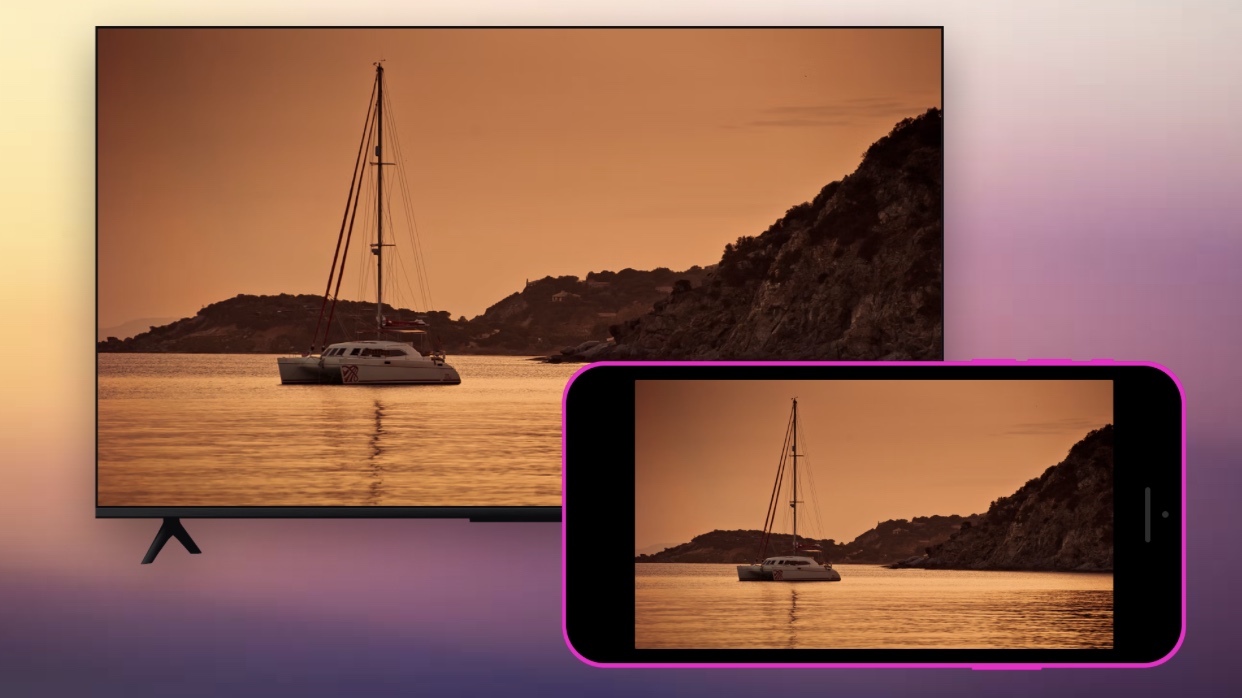
Have you ever found a video on your iPhone that you wanted to watch on your TV instead? Maybe you recorded a family moment, downloaded a video, or wanted to show your friends something on a larger screen. Whatever the reason, mirroring your iPhone to a TV can make sharing content much easier.
The good news is that you don’t always need an Apple TV or a complicated setup to get started. Depending on your television, you can use Apple’s built-in AirPlay feature, a compatible screen mirroring app, or a wired connection.
Here’s how to mirror your iPhone to a TV using three different methods, along with some tips for fixing common connection problems.
1. Mirror Your iPhone to TV Using AirPlay
If you have an Apple TV or a Smart TV that supports AirPlay, this is usually the simplest method to try. AirPlay is Apple’s wireless technology for streaming content and mirroring the screen of an iPhone or iPad to a compatible display.
Before getting started, make sure your iPhone and TV are connected to the same Wi-Fi network and that AirPlay is enabled on your television.
How to Use AirPlay for Screen Mirroring
Follow these steps to mirror your iPhone screen:
- Turn on your TV and make sure AirPlay is enabled if your television has this option.
- Connect your iPhone and TV to the same Wi-Fi network.
- Open Control Center on your iPhone. On most recent iPhones, swipe down from the upper-right corner of the screen.
- Tap Screen Mirroring.
- Select your TV or Apple TV from the list of available devices.
- If a passcode appears on the TV screen, enter it on your iPhone.
Once connected, your iPhone screen should appear on your television. You can open photos, browse compatible apps, display presentations, and show other content on the larger screen.
To end the session, open Control Center, tap Screen Mirroring, and select Stop Mirroring.
What If Your TV Doesn’t Appear?
If your television doesn’t show up in the device list, check that both devices are connected to the same network. Make sure the TV is turned on, AirPlay is enabled, and both devices have up-to-date software.
The main limitation of this method is compatibility. Not every Smart TV supports AirPlay, even if it has built-in Wi-Fi and streaming apps. If your television doesn’t support Apple’s technology, you’ll need another way to connect your iPhone to the big screen.
2. Use DoCast to Mirror Your iPhone to a TV

If your TV doesn’t support AirPlay, a compatible screen mirroring app is another option to consider. One example is DoCast, an app for iPhone and iPad that supports screen mirroring and media casting to compatible TVs and streaming devices.
This can be useful if you want to display content from your phone without connecting a cable. Depending on your setup, DoCast supports compatible devices using technologies such as Chromecast, Fire TV, Roku, and DLNA.
Before installing the app, check whether your television or streaming device is supported.
How to Set Up DoCast
Here’s how to get started:
- Download DoCast from the App Store.
- Connect your iPhone and compatible TV or streaming device to the same Wi-Fi network, as required by your setup.
- Open DoCast on your iPhone and follow the instructions to discover and connect to your TV.
- Select the screen mirroring feature in the app.
- Adjust the available settings if necessary and start mirroring.
- Open the content you want to display on your iPhone.
Once the session starts, you can use your iPhone to navigate between screens and display compatible content on your television. When you’re finished, stop the mirroring session in the app.
When Is DoCast Useful?
Consider this scenario: you’ve recorded a video on your iPhone and want to show it to your family. Passing your phone around works, but everyone would have a better view if the video were displayed on the TV.
A screen mirroring app can help in situations like this, as well as when you want to share photos, browse content, or display something from your phone on a larger screen.
DoCast also offers media casting, which can be useful when you want to cast supported videos or photos rather than mirror your entire screen.
Keep in mind that compatibility depends on your TV or streaming device. Additionally, some streaming services restrict screen mirroring of protected video content, so mirroring may not work with every movie or TV show.
You can find more information about supported devices and features on the official DoCast website.
3. Connect Your iPhone to a TV Using an HDMI Adapter
If you prefer a wired connection, you can connect your iPhone directly to a TV using a compatible adapter and HDMI cable.
This method is particularly useful when wireless connections aren’t available or you need a connection that doesn’t depend on Wi-Fi.
How to Connect an iPhone to a TV With HDMI
To get started, you’ll need an adapter compatible with your iPhone’s charging port and an HDMI cable.
- Connect the compatible adapter to your iPhone.
- Plug one end of the HDMI cable into the adapter.
- Connect the other end of the cable to an available HDMI port on your TV.
- Use your TV remote to select the corresponding HDMI input.
- Check whether your iPhone screen appears on the television.
The exact adapter you need depends on your iPhone model. Some iPhones use USB-C, while older models use Lightning, so make sure you choose the appropriate accessory.
A wired connection avoids wireless network discovery issues, although adapter compatibility and protected content restrictions can still affect playback.
The main downside is convenience. You’ll need a cable and adapter, and your iPhone will remain physically connected to the television while you use it.
Screen Mirroring vs. Casting: What’s the Difference?
Although screen mirroring and casting are often used interchangeably, they don’t always mean the same thing.
Screen mirroring duplicates your iPhone display on the TV. Whatever appears on your phone can also appear on the larger screen, subject to app restrictions.
Casting sends supported media directly to a compatible TV or streaming device. Depending on the technology and app, the video can play on the TV without continuously duplicating your entire phone screen.
Which option should you choose? If you want to show photos, browse through content, or demonstrate how an app works, screen mirroring may be more suitable. If you only want to watch a supported video, casting may be more convenient.
Some streaming platforms restrict protected video from being mirrored. If a movie displays a black screen or refuses to play, check whether the service supports your chosen connection method.
How to Fix iPhone-to-TV Mirroring Problems
Even when you follow the instructions correctly, you might occasionally have trouble connecting your iPhone to a TV. Here are a few things to check before trying a different method.
Make Sure Both Devices Are on the Same Wi-Fi Network
Many wireless mirroring methods require your iPhone and TV to use the same local network. Guest networks or router settings that isolate connected devices can prevent them from discovering one another.
Check Your TV’s Compatibility
A Smart TV doesn’t necessarily support AirPlay or every other wireless mirroring technology. Check your television’s specifications and confirm that your chosen app or streaming device supports the connection method you want to use.
Restart Your Devices
If the TV doesn’t appear in the available devices list, try restarting your iPhone and television. You can also close and reopen the mirroring app and reconnect to your Wi-Fi network.
Check for Software Updates
Outdated software can sometimes cause connection problems. Check for available updates for your iPhone, television, streaming device, and mirroring app.
Look for Content Restrictions
If your iPhone screen mirrors successfully but a particular video doesn’t display, the problem may be related to content protection rather than the connection itself. Try another video or check the streaming service’s supported playback options.
Which Method Should You Choose?
The best way to mirror an iPhone to a TV depends on the equipment you already have and what you want to display.
- AirPlay: A convenient choice if you have an Apple TV or an AirPlay-compatible Smart TV.
- DoCast: An alternative worth considering if you want wireless screen mirroring or media casting with a supported TV or streaming device.
- HDMI adapter: A practical option if you prefer a wired connection or cannot use wireless mirroring.
Before buying additional hardware or installing an app, check your TV’s compatibility. This can help you avoid unnecessary expenses and choose the simplest solution for your setup.
Final Thoughts
Mirroring your iPhone to a TV is a useful way to enjoy content on a larger screen, whether you’re sharing photos with family, showing a presentation, or watching a compatible video.
AirPlay is an excellent starting point if your TV supports it. If it doesn’t, you can explore compatible screen mirroring apps such as DoCast or use an HDMI adapter for a wired connection.
The important thing is to choose a method that works with your devices and the type of content you want to display.
If you’d like to try an app-based approach, you can learn more about DoCast or download it directly from the App Store.

