


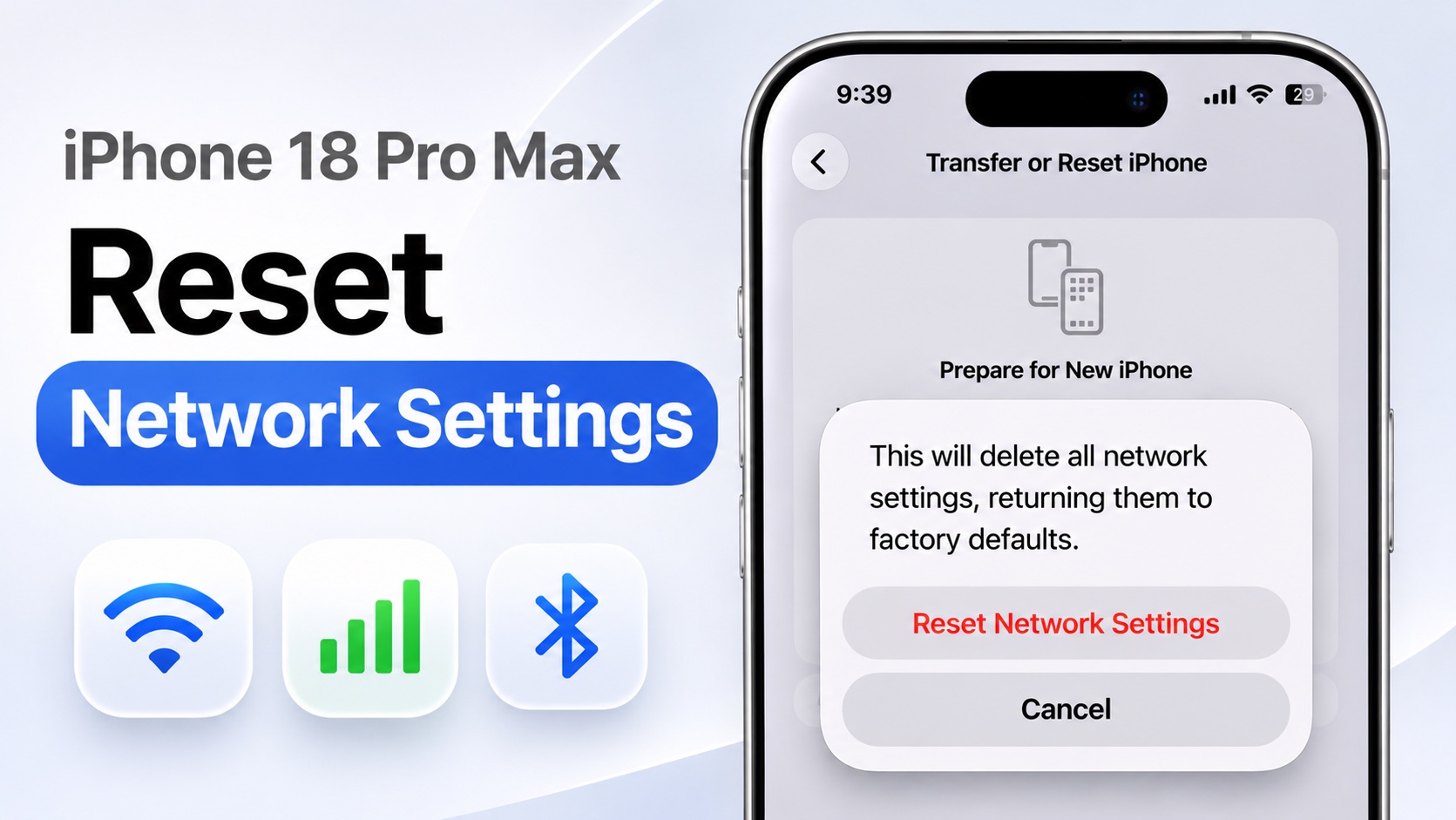
In this guide, we have shared detailed instructions on how you can reset Network Settings on your iPhone 18 Pro and iPhone 18 Pro Max, its impact and benefits.
Resetting Network Settings can help fix common connectivity problems with your device including Wi-Fi issues, Bluetooth connectivity problems, connecting to Mobile Data, or cellular network issues.
Just follow these steps to reset Network Settings on your device.
Reset Network Settings on iPhone 18 Pro
- Open the Settings app.
- Go to General.
- Scroll down and tap on Reset iPhone.
- Here tap on Reset.
- From the list of options tap on Reset Network Settings and enter your passcode.
- Confirm by tapping on Reset Network Settings again.
Now your iPhone will reboot, after which your iPhone’s network settings will be reset.
Remember, here’s what happens when you reset Network Settings on your iPhone 18 Pro.
- Wi-Fi networks and passwords are removed and you will need to connect to them again.
- Cellular network settings will return to their defaults.
- Previously used VPN and APN settings will be removed.
- Cellular Data Roaming may be turned off.
- Your iPhone’s name will be reset to just iPhone.
If you’re experiencing Wi-Fi connectivity problems, Bluetooth issues, or cellular network problems, this can be a useful troubleshooting step.
Disclosure: iOSHacker may receive a commission if you purchase products through our affiliate links. For more visit our privacy policy page.

