


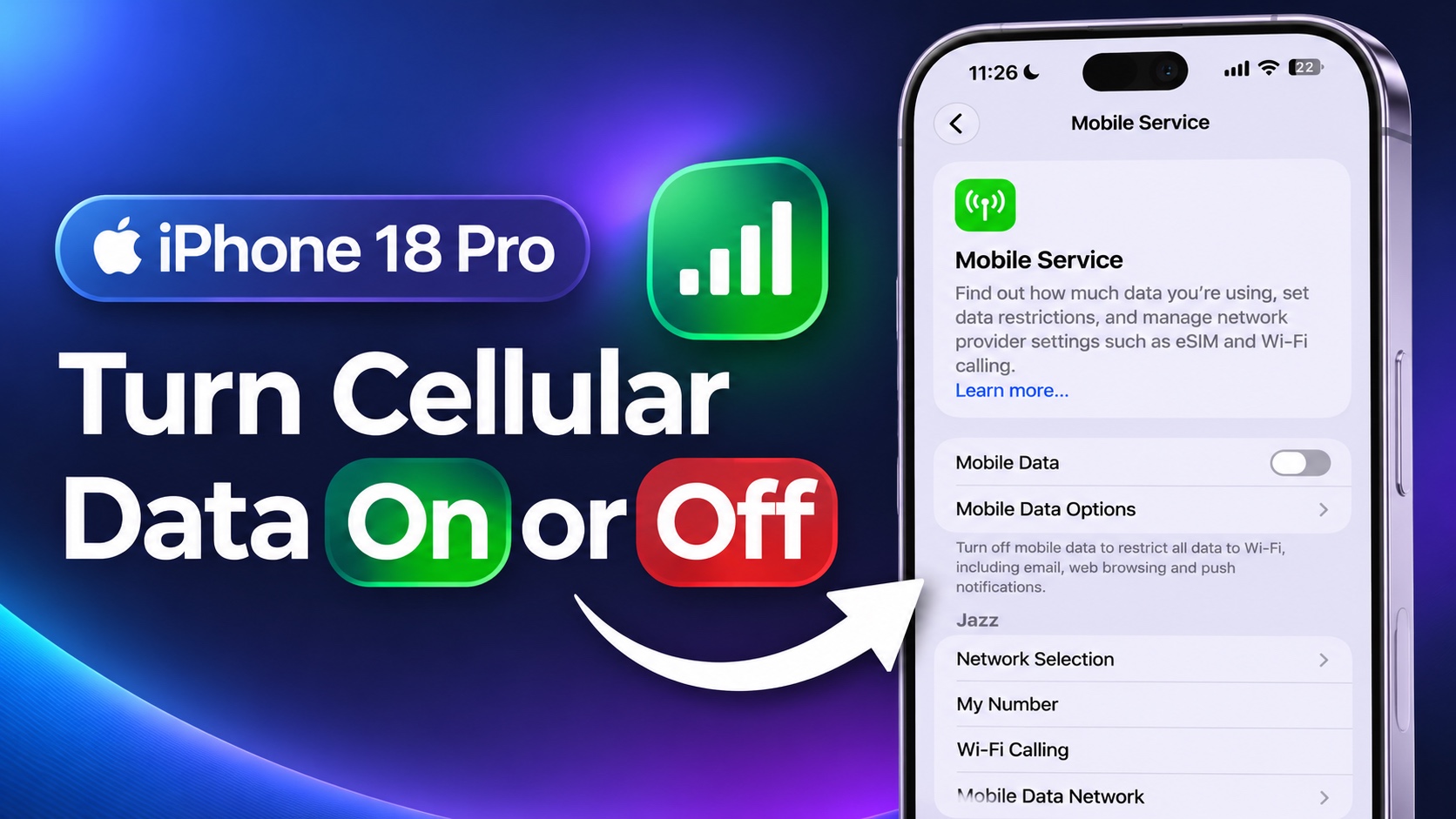
Turning Cellular Data on or off can save your data allowance, avoid unexpected data usage or allow you to switch back to Wi-Fi.
In this tutorial, we will show you how you can enable or disable Cellular Data or Mobile Data on your iPhone 18 Pro or iPhone 18 Pro Max running iOS 27 or later.
Apple uses Cellular Data and Mobile Data interchangeably. The feature is called Cellular Data in certain regions while it is named Mobile Data in others.
- Unlock your iPhone and open Settings.
- Tap on Cellular Data or Mobile Data depending on your region.
- If you have the Mobile Data option, then turn its toggle off to turn off cellular data. Enable this toggle to turn cellular data on.
- If you have the Cellular Data option, then tap on it, and select the Off option on the next page. To turn on Cellular Data select the phone number you want to use cellular data from.
That’s it, this is how you can turn on or turn off Cellular Data on your iPhone 18 Pro or iPhone 18 Pro Max.
You can also prevent certain apps from using Cellular Data on your device while keeping it enabled. Simply go to Settings -> Cellular Data/Mobile Data and scroll down. Here you will find a list of apps with a toggle next to it. Turn off the toggle next to the app’s name to turn cellular data off for this particular app.

