


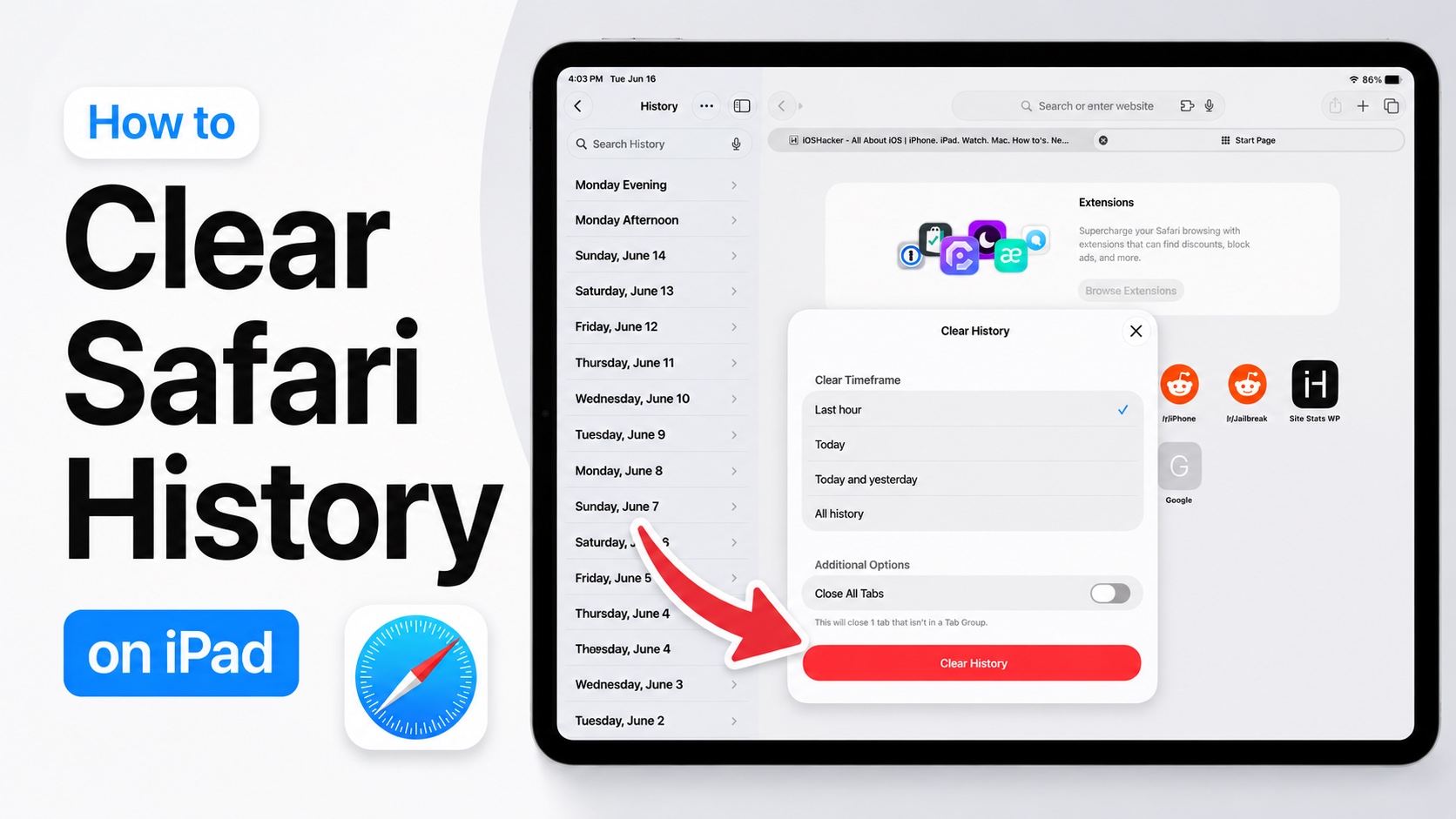
Do you want to clear Safari web browsing history on your iPad because it feels cluttered? Or perhaps you want to remove Safari history due to privacy reason. No matter what your reason is, in this quick tutorial we will show you how to clear Safari history on iPad in just a few taps.
Here we will show you how you can clear Safari history from Settings, from inside Safari browser, and how you can only remove certain websites from Safari history.
Remove Safari History on iPad
- Open Settings.
- Go to Apps.
- Tap on Safari.
- Scroll down and tap on History and Website Data.
- Select your desired Timeframe and hist Clear History.
Safari will immediately remove your browsing history and website data. It will also remove things like cache, making the iPad less cluttered and freeing up storage.
You can also clear Safari history right from the Safari browser. For this open a new tab, tap on the side bar button to reveal Safari side bar. Then tap on History option. Next, tap on the three-dot button from the top and choose Clear.
Remove a single website from Safari history

If you only want to remove data from certain websites, then follow these steps.
- Open Safari and open a new tab.
- Tap on the side bar button to access Safari side bar.
- Here tap on the three-dot button and then tap on Select websites.
- Choose the website(s) that you want to remove from your device’s history.
- After selecting it tap on the Trash button.
That’s it, this is how you can clear Safari history on iPad. We showed you how to clear Safari history for a specific timeframe or remove a single website from your browser history.


