


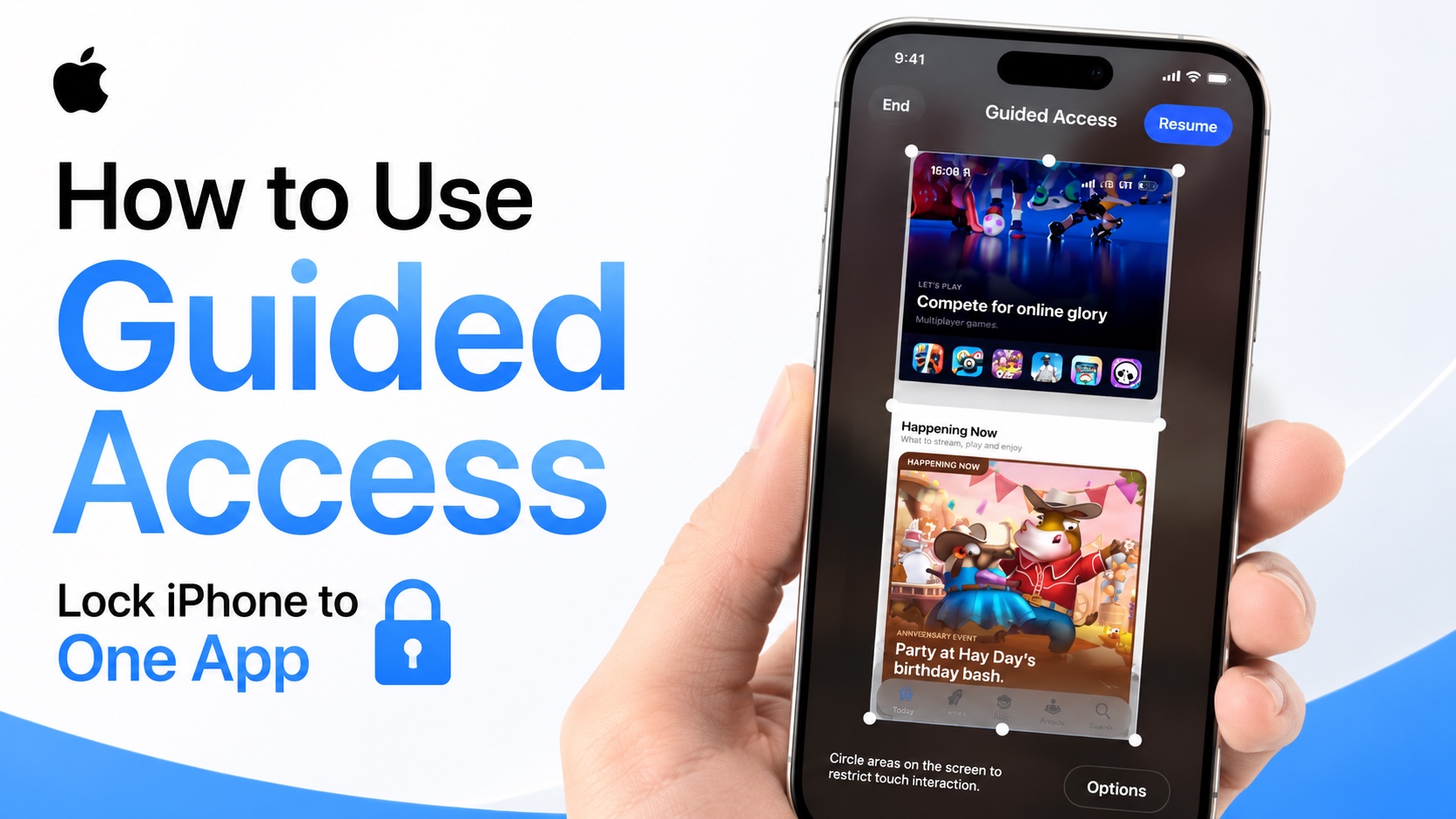
Handing over your iPhone to someone can feel risky when you are concerned they might open other apps, browse your photos or other sensitive data. iOS offers a solution to this problem with Guided Access.
This is a powerful feature that lets you limit your iPhone to one app only, preventing others from exiting the current app and opening another one.
You can even restrict certain parts of the app by highlighting them on the screen. For example, you can draw a circle around the navigation bar or the search button when guided mode is activated. When this is done the other person won’t be able to access those parts of the app.
Enable and Use Guided Access on iPhone
Here’s how you can enable and access this feature.
- Open the Settings app.
- Go to Accessibility.
- Here, scroll down and tap on Guided Access.
- Now tap on Passcode Settings and then choose Set Guided Access Passcode.
- Enter a passcode that will be used to end Guided Access sessions. Face ID or Touch ID can also be enabled for quicker access.
After enabling Guided Access, you can quickly enable it by triple pressing the Side button. The featured can only be triggered inside an app. When you do, you will either get a popup with other Accessibility controls or it will get triggered instantly, depending on your iPhone settings.
From the Guided Access Setup screen you can tap on the Session Settings button and enable or disable things like:
- Side Button
- Volume Buttons
- Motion
- Software Keyboards
- Touch
- Time Limit
One of the best Guided Access features is the ability to disable certain parts of the display. Simply draw a circle around any button or area you want to disable. The selected area will become grayed out and won’t respond to touch.
Guided Access is useful when:
- Letting children use your iPhone.
- Showing a presentation or demo.
- Watching videos without accidental interruptions.
- Lending your phone to someone temporarily.
- Preventing unintended touches while gaming.
That’s it, this is how you can enable and use Guided Access feature on your iPhone and restrict your iPhone to one app only. You can follow these steps on all recent versions of iOS including iOS 27, iOS 26, iOS 18, iOS 17 or older.


