


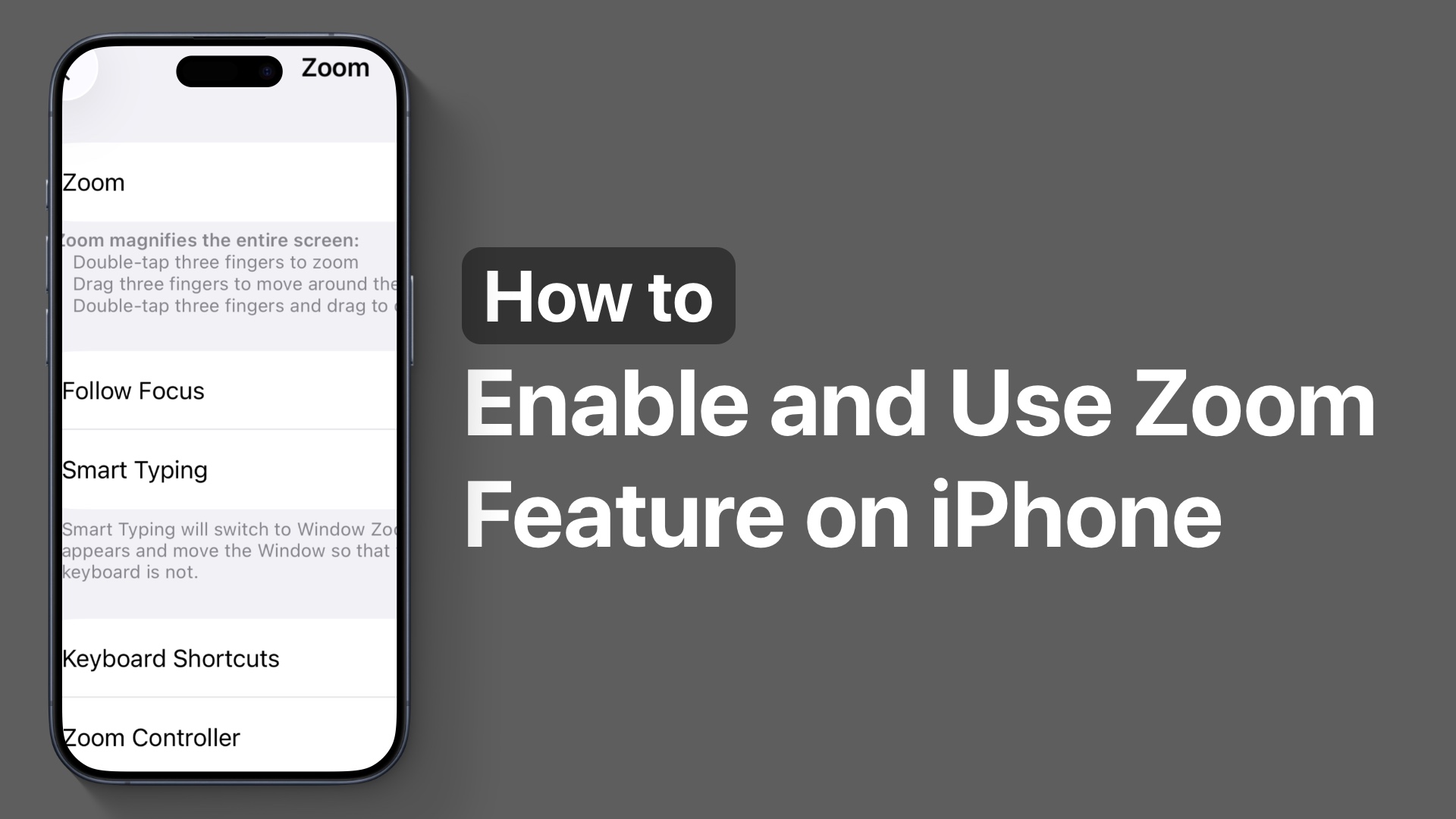
Do you know your iPhone has a handy Zoom feature that lets you zoom in on the screen and easily read small text or magnify something? In this tutorial, we will show you how you can activate the Zoom feature on your iPhone and use it to improve your iPhone experience.
Turn on and use Zoom feature on iPhone
- Open Settings and tap on Accessibility.
- Tap on the Zoom option.
- Turn on the toggle for Zoom at the top.
- Double-tap on the screen with three fingers to enter the Zoom feature.
- Double-tap with three fingers again to exit the Zoom feature.

You can also drag on the screen with three fingers to move around the screen while in Zoom mode.
To change the zoom level and to further zoom in or zoom out, you have to double-tap on the screen with three fingers and then drag up to zoom in and drag down to zoom out.
Configuring the Zoom feature
On the Zoom settings page, you can change various settings like the following.
Follow Focus: It follows your typing cursor and movements automatically when you are in the zoom mode.
Zoom Region: This lets you choose between the full-screen zoom and window zoom, which magnifies the screen in a floating window instead of zooming in on the whole display.
Maximum Zoom Level: It lets you configure the maximum level of zoom your device will go into when you drag up with three fingers.
There are several other options that you can configure. Play around with them to make Zoom feature work according to your needs.


