


If your iPhone has stopped receiving text messages, then you are in the right place. In this guide, we will share instructions on how you can fix the iPhone not receiving text messages issue. So no matter if the issue is with SMS, MMS, or iMessage, we will help you get through this problem.
Fix iPhone not receiving text messages
Check Cellular Connection
Make sure your iPhone’s cellular connection is working properly. Access the Control Center and check if Airplane mode is enabled. If it is enabled, then turn it off.
You can also toggle the AirPplane mode on and off to refresh yoru network connection. Doing so can help your iPhone establish cellular connection and potentially solve the text message not receiving problem on your device.
Reboot your iPhone
A simple yet effective way to solve text message issues on an iPhone is to restart your iPhone. Simply press and hold the Volume Up and Side buttons simultaneously and slide to power off. Wait for 10 seconds and turn the device back on.
Make sure your settings are correct
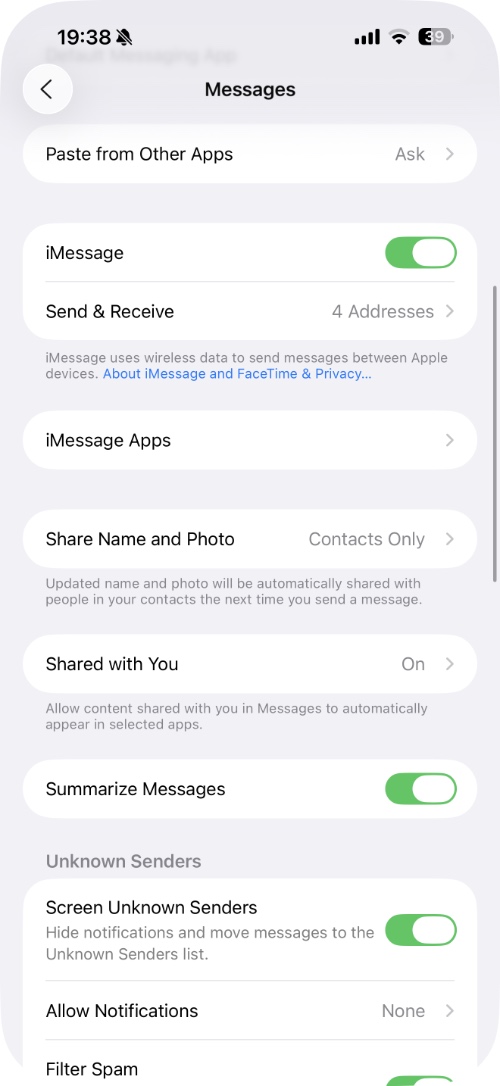
On your iPhone, go to Settings -> Apps -> Messages. Here, make sure the following toggles are enabled.
- iMessage: This toggle turns on the iMessage service on your device.
- Send as Text Message: This toggle sends iMessages as Text Messages if iMessages is unavailable or the other user is on an Android/non-iPhone device.
- MMS Messaging: This toggle lets you receive group texts and messages containing media from non-iPhone users.
Another thing you should make sure of is that your phone number is added to the Send & Receive section of the iMessage settings.
Refresh the iMessage connection
You can fix the text message not working issue on your iPhone by logging out of iMessage and logging back in.
Go to Settings -> Apps -> Messages -> Send & Receive and tap on your Apple account at the bottom. Then hit the Sign out button and sign back in.
Doing this will reset your iPhone’s connection to Apple’s iMessage servers.
Update Carrier Settings
Updating Carrier Settings on iPhone can fix text message/SMS issues with your carrier. To update these settings, go to Settings -> General -> About. If you get a pop-up, tap on Update. This will update your iPhone’s carrier settings. If you don’t receive a pop-up on this screen, then your settings are up to date.
Reset iPhone’s Network Settings
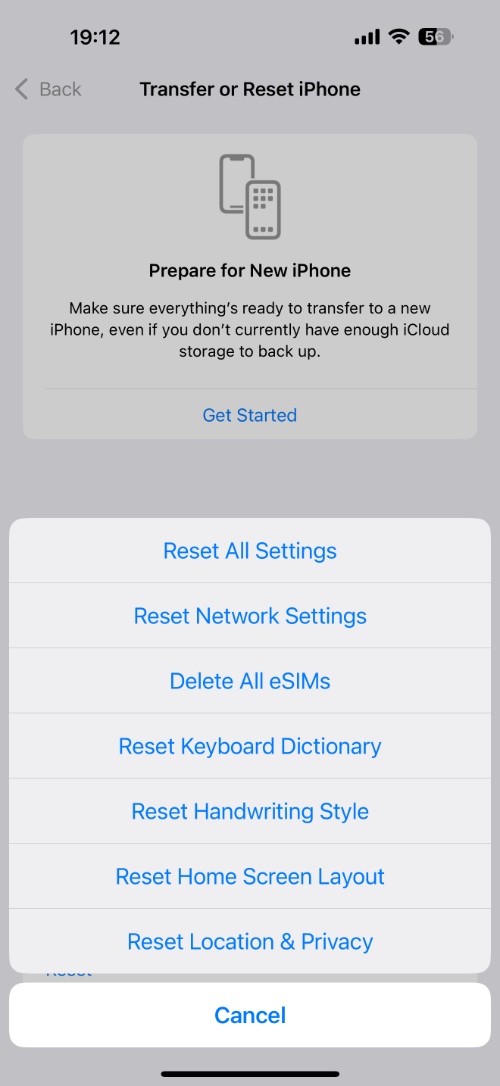
Resetting the iPhone’s Network Settings can solve the text message issue on your device.
It can be done by going to Settings -> General -> Transfer or Reset iPhone -> Reset -> Reset Network Settings.
Update iOS
Older versions of iOS can cause your iPhone’s features to stop working properly. This also includes the Text Message and iMessage features. To update your iPhone, open Settings -> General -> Software Update and install any available updates.
Contact your carrier or Apple Support
If the problem persists, then there could be an issue with your service provider, or it could be a hardware fault. Connect your mobile service provider or schedule an appointment with Apple Support to have your device checked.


