


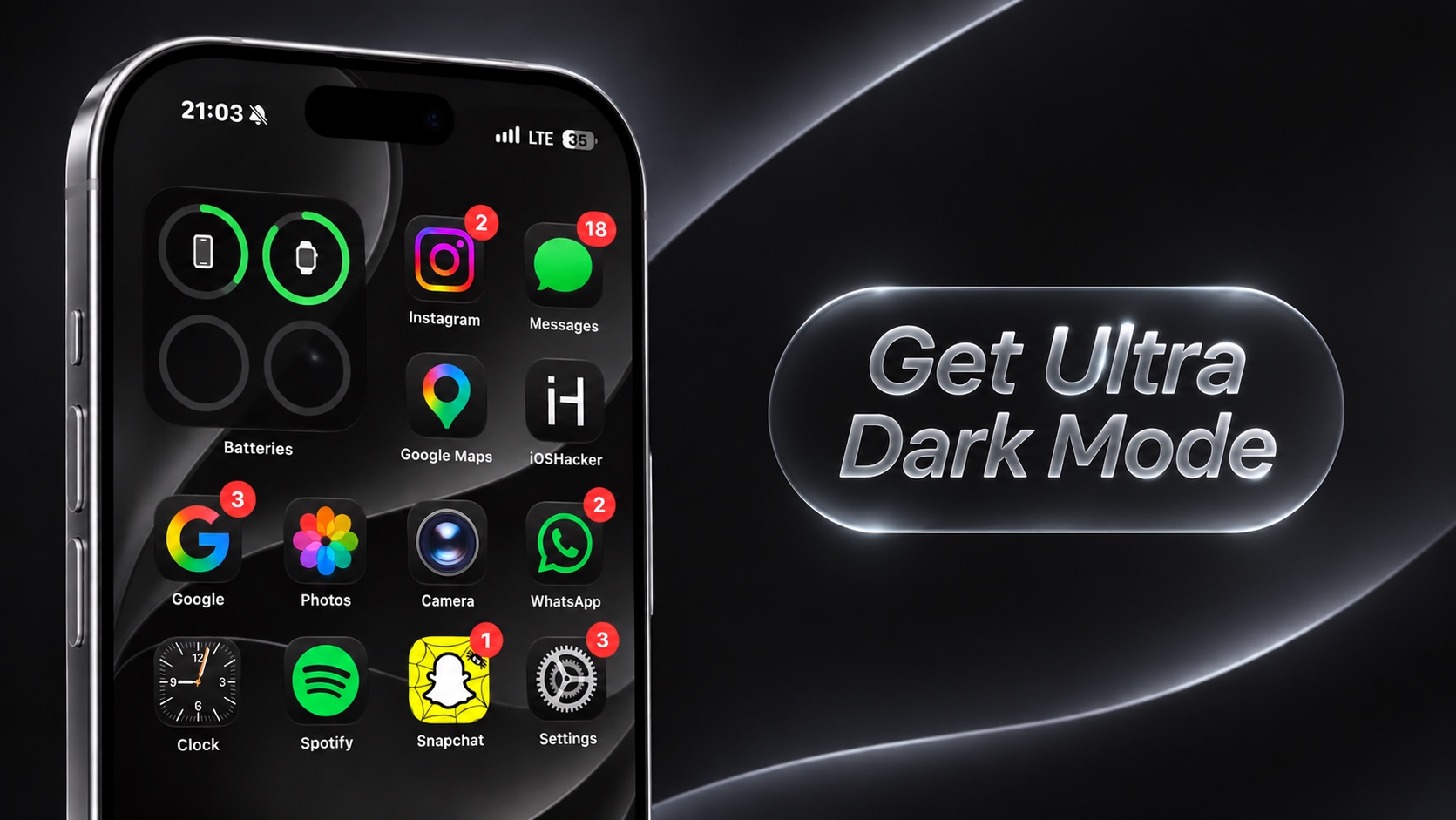
Do you want to take the Dark Mode on your iPhone to the next level. If yes, then we have the perfect tutorial for you. Here, we will show you how you can customize your iPhone’s appearance and get a much darker look across the interface.
You can achieve an Ultra Dark Mode on your iPhone running iOS 27 or later by changing a few settings on your device. Here’s how to do it.
Step 1: Apply a black wallpaper
One of the first things you should do in order to achieve Ultra Dark Mode on your iOS 27 device is to use a black or at least a dark wallpaper.
- Touch and hold on your iPhone’s Lock Screen.
- Swipe Left to add a new wallpaper.
- Apply a black wallpaper from photos or use any of the default wallpapers and apply a black tint over it.
Step 2: Make app icons dark
The next thing you should do is make home screen app icons dark. Here’s how to do it.
- Long press on an empty area on the home screen.
- Tap on the customize button from the top left corner and then tap on Customize.
- Choose Dark to make app icons dark.
You can also make the icons large by tapping on the dedicated button on the top right side of the icons menu. This will also make the app labels disappear, offering a more minimalistic look.
Step 3: Turn on Dark Mode
Now it’s time to turn on Dark Mode. Simply head over to Settings -> Appearance and select Dark Mode.
Make sure Automatic toggle is disabled so your iPhone remains in Dark Mode regardless of the time of the day,
Step 4: Make Liquid Glass Darker
You have to make Liquid Glass darker to achieve the Ultra Dark Mode look. Just head over to Settings -> Appearance and tap on Liquid Glass.
Now love the Liquid Glass customization slider towards the right to make the interface more tinted and less transparent.
Step 5: Adjust Accessibility Settings
Here are a few toggles that you need to turn on to get the Ultra Dark Mode on your device.
- Go to Settings.
- Tap on Accessibility.
- Tap Display & Text Size.
Here turn on the following toggles.
- Enable Reduce Transparency: This makes transparent backgrounds more solid.
- Enable Increase Contrast: This offers better visibility.
- Enable Bold Text (optional): You can enable this toggle to make text stand out more.

