


Do you feel your iPhone’s display is too dark even when you turn up the brightness to the max? In this guide, we will help you identify why your iPhone might be appearing darker and how you can fix this issue in just a few minutes.
Before we begin, make sure your iPhone’s screen brightness is at an appropriate level. Simply access the Control Center and move the slider to the maximum position. If the screen still appears dark, then proceed with the next steps.
Fix iPhone screen too dark even with max brightness
Turn off Night Shift

Night Shift feature automatically shifts the color of your iPhone’s display to the warmer end of the color spectrum at night. This helps you get a better night’s sleep. This feature can also make your iPhone’s display appear yellow or warmer than usual.
You can turn it off by going to Settings -> Display & Brightness -> Night Shift. Here, turn off all the toggles.
Night Shift is good for your eyes and helps you get a good night’s sleep. It is a good idea to turn the schedule feature off and manually turn it on whenever you need to use it.
Turn off True Tone
The True Tone feature adapts the iPhone display based on the ambient lighting conditions. If you are in a room with warm lights, it can make the screen appear warmer and darker. Try turning the True Tone feature off to see if it makes any difference, and make the screen brighter.
Disable Auto-Brightness
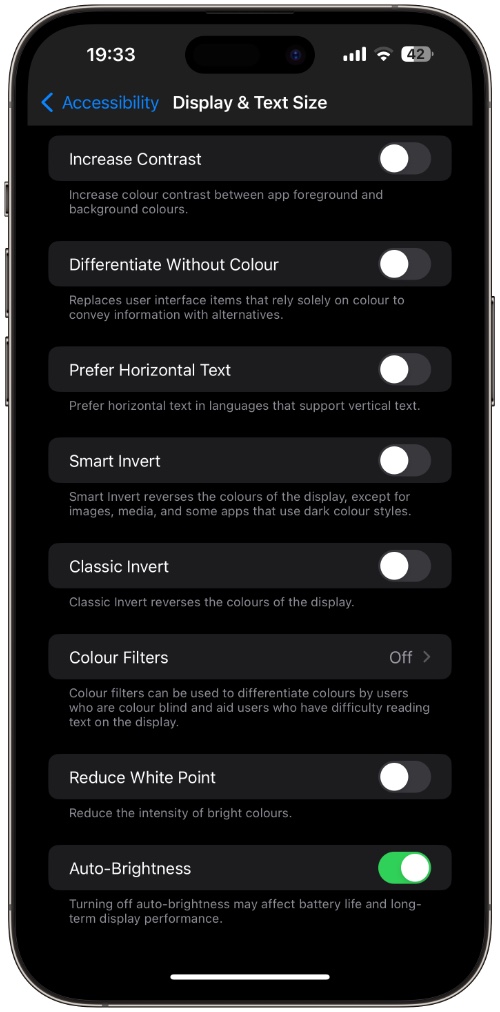
The Auto-Brightness feature may dim your iPhone’s screen based on your environment, even when the brightness is set at the maximum level. If you don’t like this, you can turn this feature off by following these steps.
- Open Settings and tap on Accessibility.
- Now tap on Display & Text Size.
- Scroll down and turn off the toggle for Auto-Brightness.
Disable Low Power Mode
Low Power Mode turns down your iPhone’s brightness to save battery. Try turning it off by going to Settings -> Battery. On iOS 26 or later, go to Settings -> Battery -> Power Mode and turn off Low Power Mode.
Clean the Ambient light sensor
Your iPhone’s screen brightness is controlled by its ambient light sensor. A dirty or covered ambient light sensor can make the screen darker. Clean the Ambient light sensor. It is located near the front camera.
Contact Apple Support
If these steps do not work and your iPhone’s screen is still too dark even with maximum brightness, then it might be a hardware issue. Contact Apple Support or visit your nearest Apple Store to have your iPhone’s display checked.


