


Did you know your iPhone can switch between dark and light modes automatically based on the time of day or a user-specified custom schedule? In this guide, we have shared easy instructions on how you can set this up on your iPhone 17 or iPhone 17 Pro.
Dark mode is easier on the eyes at night and helps save battery on OLED iPhones. With this guide, you can eliminate the need to manually switch themes and make your life more convenient.
Follow the steps shared below to make your iPhone automatically switch between dark and light modes on your iPhone.
Switch between light and dark modes on iPhone 17
- Unlock your iPhone and open the Settings app.
- Scroll down and tap on Display & Brightness.
- At the top, you can manually select between Light and Dark modes. Turn on the toggle for Automatic.
- Now tap on Options.
- From the next page, choose between Sunset to Sunrise if you want to switch themes based on the time of day.
- You can also tap on Custom Schedule. Here you can set your own Light and Dark times.
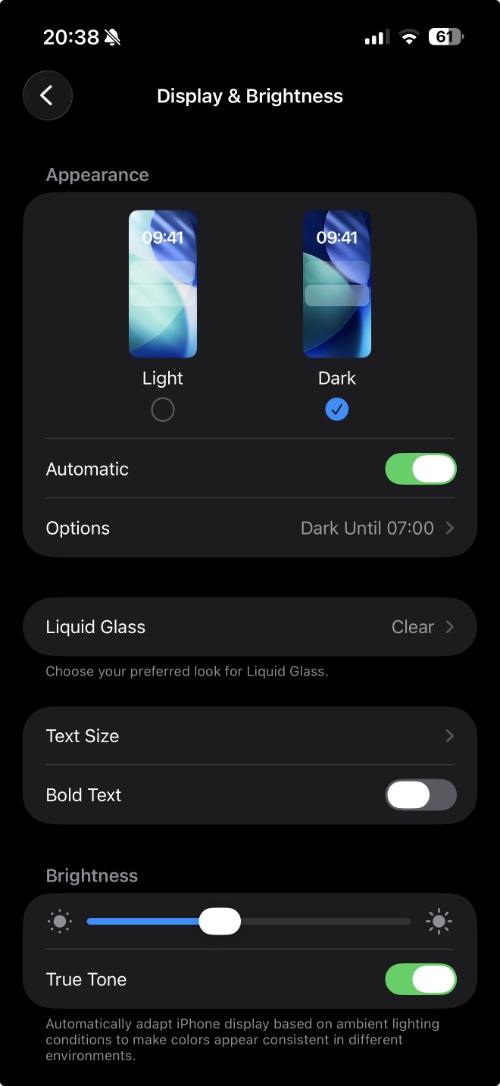
That’s it, this is how you can choose between light and dark modes on your iPhone 17 or iPhone 17 Pro, and automate the process of switching themes on your device.
Disclosure: iOSHacker may receive a commission if you purchase products through our affiliate links. For more visit our privacy policy page.


