


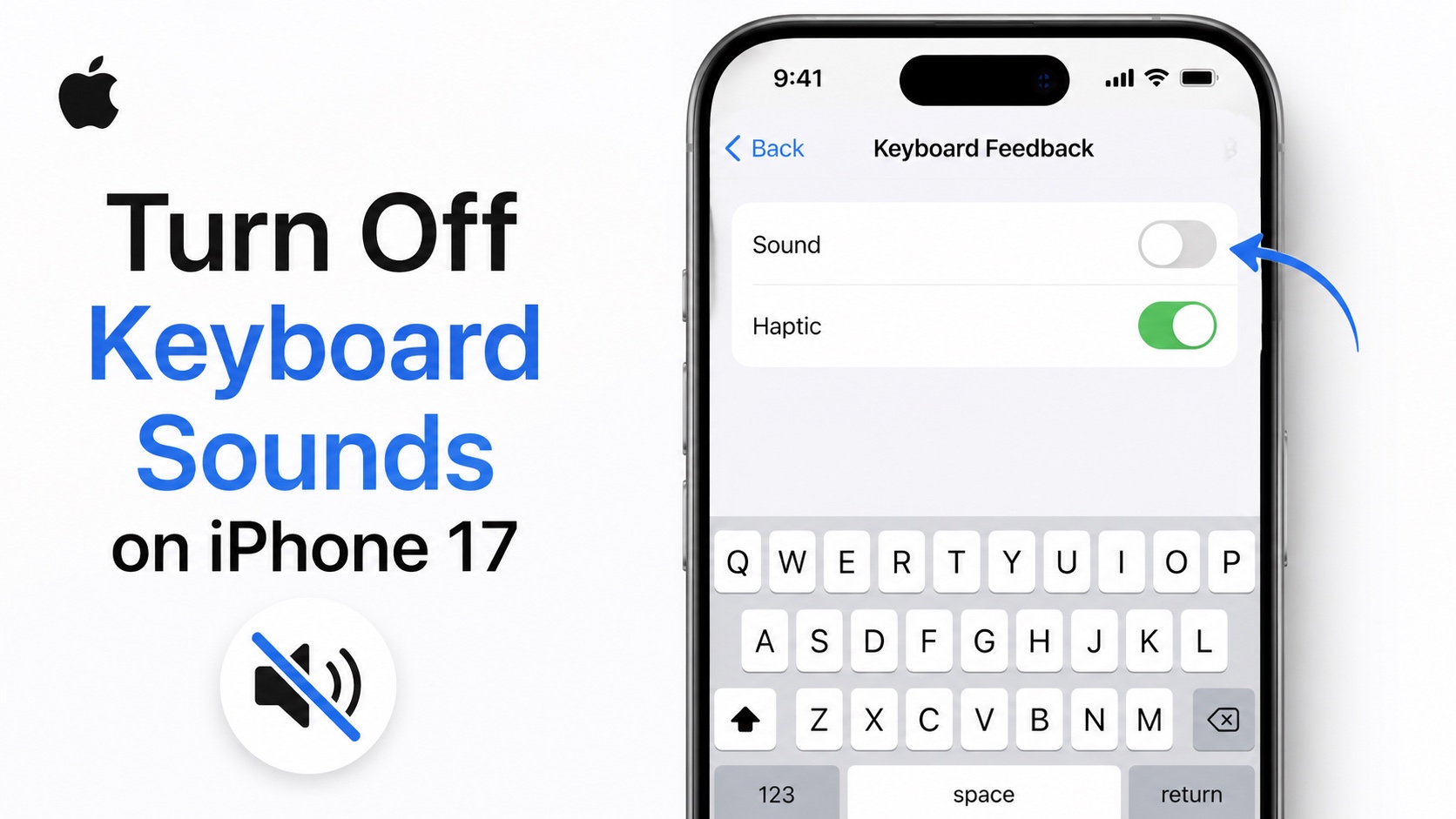
In this guide, we will show you how to turn off keyboard sounds on iPhone 17 and make typing silent and discreet.
By default iPhones have a keyboard sound that makes a clicking sound everything you press on a key. If you want to turn it off, then follow these steps.
Disable keyboard sound on iPhone 17
- Open the Settings app.
- Tap on Sounds & Haptics.
- Here tap on Keyboard Feedback option.
- On the next page turn off the toggle for Sound.
On the Keyboard Feedback page, you also get a toggle for Haptic. You can also turn this off if you want to disable the vibration feedback you get when you type. This will make your typing even more discreet.
That’s it, this is how you can easily turn off keyboard sounds on iPhone 17 or iPhone 17 Pro. You can follow these steps on any version of iOS including iOS 27, iOS 26, iOS 18, or older.
Disclosure: iOSHacker may receive a commission if you purchase products through our affiliate links. For more visit our privacy policy page.


