


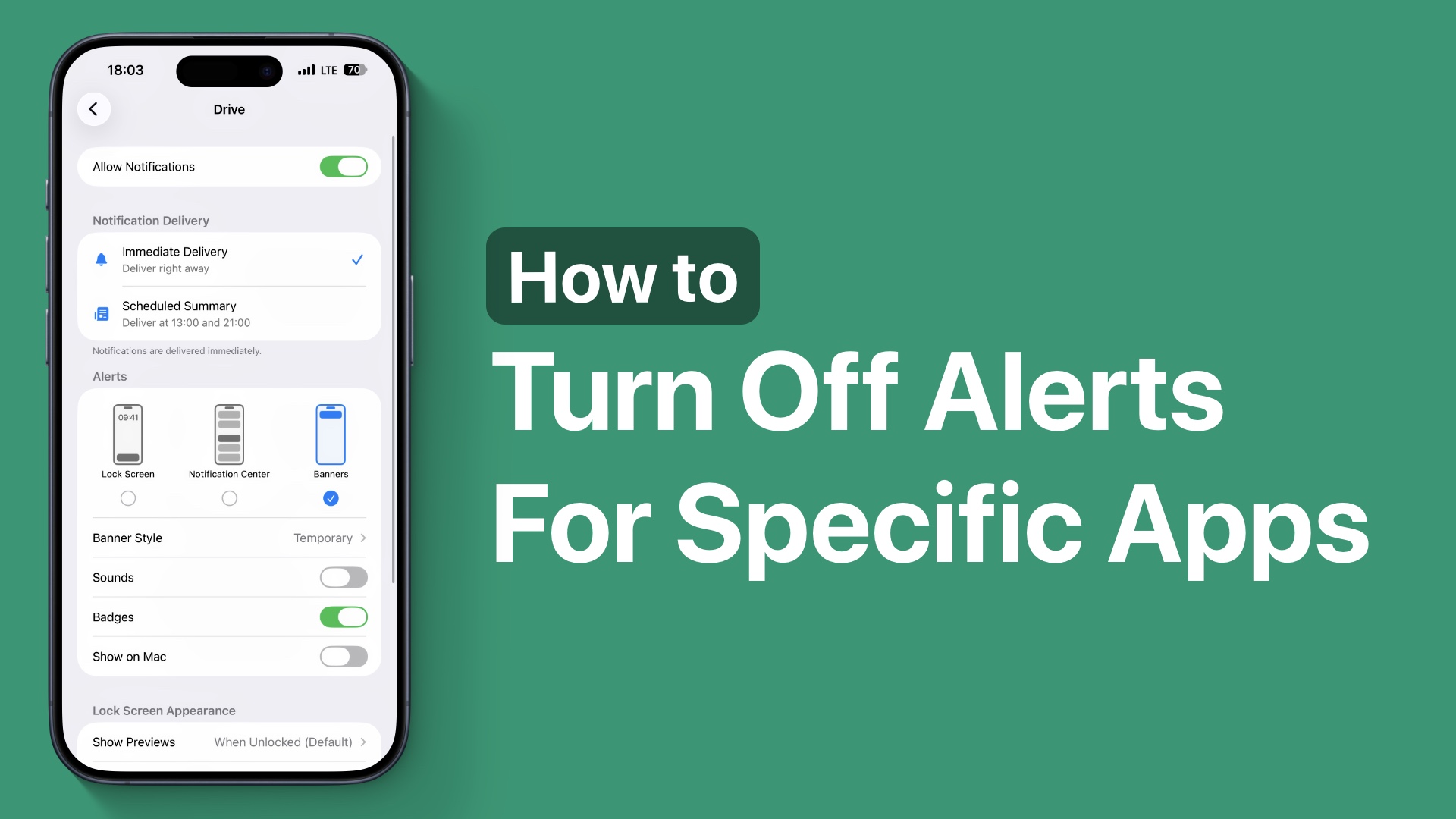
In this guide, you will learn how you can turn off notifications for specific apps or prevent an app from sending you constant alerts on your iPhone.
If you are getting too many notifications on your iPhone from a specific app or if you are tired of constant alerts, sounds, or banners from a particular app, just follow the steps below.
Turn Off Alerts for Specific Apps
- On your iPhone, open the Settings app.
- Scroll down and tap on Notifications.
- Here, from the list of apps, find the app you want to change notification settings for and tap on it.
- On the next page, you will find multiple options. We have explained each one of them below.
- To turn off alerts, completely turn off the toggle for Allow Notifications.
- To put alerts in the Scheduled Summary, select the ‘Scheduled Summary’ option.
Here’s what each option on the Notifications page does.

- Allow Notifications: This setting lets you completely disable alerts for an app.
- Notification Delivery: You can choose the Scheduled Summary option to make iOS only send alerts in the Scheduled Summary instead of immediately delivering them.
- Badges: This toggle lets you enable or disable icon badges for alerts.
- Show Previews: This option shows or hides previews for alerts.
- Notification Grouping: This option lets you choose if you want iOS to group alerts from this app together or not
- Priorize Notifications: You can enable this toggle if you want to see notifications from this app at the top of the lock screen.
- Summarize Notifications: This option, when enabled, summarizes the content of an alert to make it easier to read.
Disclosure: iOSHacker may receive a commission if you purchase products through our affiliate links. For more visit our privacy policy page.


