


iOS 26 brings a brand new screenshot experience to iPhones. With the new update, users get a full-screen preview of the screenshot they have just taken.
In this tutorial, we will show you how you can turn off screenshot full-screen previews in iOS 26 and get iOS 18-style temporary thumbnail previews back.
Turn off full-screen screenshot previews in iOS 26
To turn off the full-screen previews and get the old screenshot thumbnail previews back, follow these steps.
- On iOS 26, open the Settings app and go to General.
- Here, tap on the Screen Capture option.
- Finally, turn off the toggle for Full-Screen Previews.
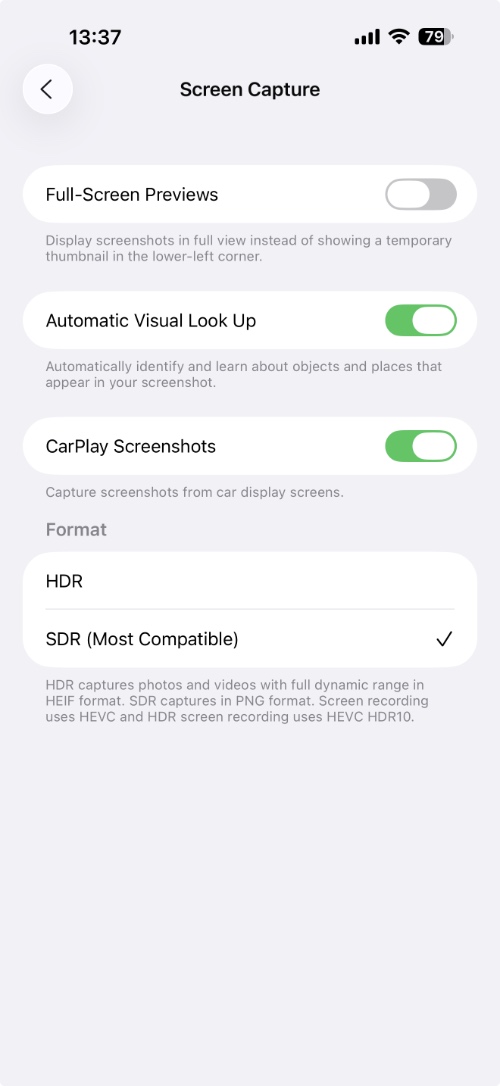
That’s it, by turning this toggle off, you will get the thumbnail-style screenshot previews that appear at the lower left corner of the screen.
While the new screenshot interface gives you access to quick controls for sharing, markup, and Apple Intelligence features, it also feels intrusive. It interrupts you when you are trying to take multiple screenshots quickly, so turning it off also has its benefits.


