


If you have upgraded to iPhone 17 from an older model and are discovering the power of the Action Button, then this guide is for you.
The Action Button replaces the Silent Switch on the side of the iPhone. On the iPhone 17, users get access to a programmable button instead of the fixed Silent switch that could only be used to toggle between silent and ring modes.
You can assign an action of your choice to the Action Button and easily trigger it by double-pressing it.
Here’s how you can set it up.
Using the Action Button on iPhone 17
- Open the Settings app.
- Tap on the Action Button option.
- From the next page, scroll left or right to choose the action of your choice. You can choose from the following options.
- Silent Mode
- Focus Mode
- Camera
- Flashlight
- Voice Memo
- Recognize music with Shazam
- Translate
- Magnifier
- Controls
- Shortcut
- Accessibility
- No Action – select to turn off the Action Button
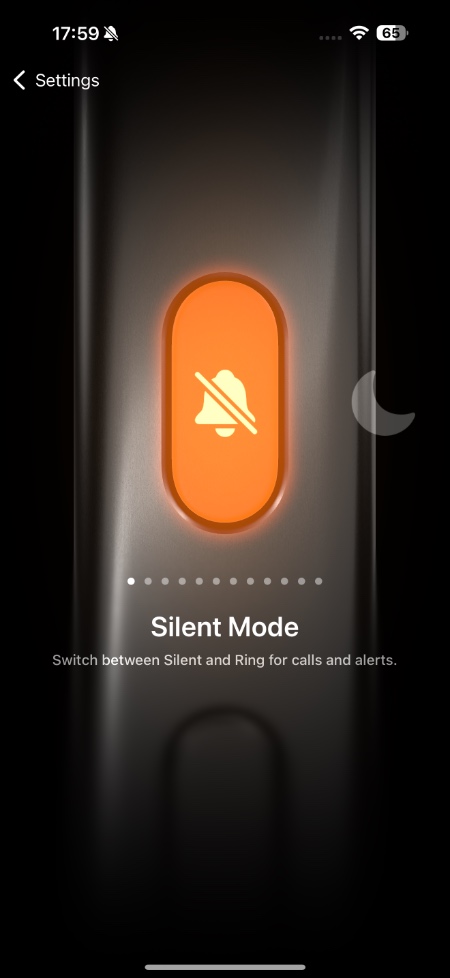
While you can use the Action Button to perform different actions like turning on Silent mode or Focus mode, and launch apps like Camera or Voice memos, you can also assign a Shortcut or a Control to it, making the button even more powerful and useful.
For example, you can use the Action Button to turn on multiple smart lights, open your favorite app, start a workout, or even trigger a custom automation, all with a single press.
That’s it, this is how you can customize the Action Button on your iPhone 17 or iPhone 17 Pro. If you have any questions related to this guide, then let us know in the comments below.


