


Just updated your iPhone to iOS 26? Here are 10 settings that you need to immediately change to make this iOS update even better.
Table of Contents
- 1. Turn off call screening
- 2. Reduce Liquid Glass
- 3. Change Safari Layout
- 4. Find missing messages and disable Unknown Senders feature
- 5. Get classic look of Phone app back
- 6. Change Alarm Snooze Duration
- 7. Turn on Adaptive Power
- 8. Disable Full screen screenshot previews
- 9. Get Clear icons
- 10. Change Camera Settings
iOS 26 is Apple’s major software release that brings a large number of big and small changes and new features to iPhones.
So without any further ado, let’s get right into it.
1. Turn off call screening
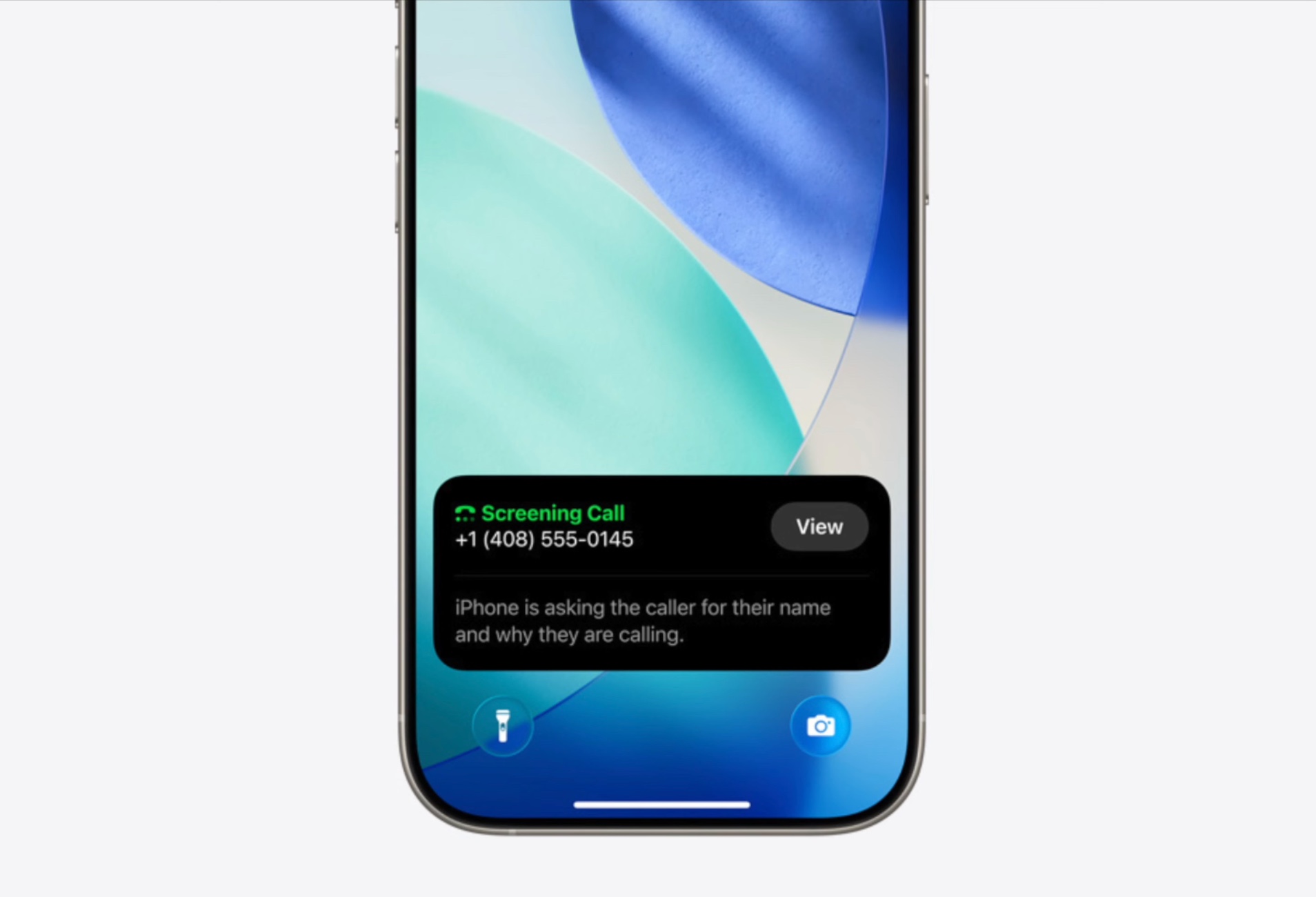
When the Screen Unknown Callers feature is enabled, your iPhone automatically picks up an incoming call from an unsaved number and asks the reason for calling. It displays their response to you, after which you can decide whether you want to pick up the call or not.
If you don’t want to use this feature and want to turn it off, then this guide is for you.
- Start by opening the Settings app on your iPhone.
- Scroll down and tap on the Apps option.
- On the Apps page, find and tap on the Phone option. This page gives you access to controls related to the Phone app.
- Scroll down until you get to the Screen Unknown Callers section.
- Here, select the Never option. When never is selected, calls from unsaved numbers will ring, and missed calls will be displayed on the recents list of the Phone app.
2. Reduce Liquid Glass

Liquid Glass has been controversial in the eyes of many iPhone users. If you’re one of those users and want to get rid of the new design of the Control Center, icons, dock, navigation tabs, and more, then follow these steps to reduce Liquid Glass on your iPhone.
- Unlock your iPhone and open the Settings app.
- Tap on Accessibility and then on Display & Text Size.
- Finally, turn on the toggle for Reduce Transparency.
Right off the bat, you will notice the difference. The background is gone from the Control Center, folder icons and background do not have the glass effect, and even the frost effect on the icon dock is gone. The change can also be seen in the apps that feature Liquid Glass design.
3. Change Safari Layout

With iOS 26, Apple has introduced a completely new look for the Safari browser. While this is nice and simple, some people don’t like it and want to get the old look of the Safari browser back.
If you are one of those people, then you can follow these steps.
- Launch the Settings app and tap on the Apps option.
- Here, find and tap on the Safari option.
- When you are on the Safari settings page, scroll down until you get to the Tabs section.
- Here Compact option might be selected by default. Here you can select Bottom or Top options.
4. Find missing messages and disable Unknown Senders feature
Have you noticed that your Text Messages are missing ever since you upgraded your iPhone to iOS 26? Well, this is because of the new Screen Unknown Senders feature that hides notifications and moves your messages to the Unknown Senders List.
To find your missing messages
- Open the Messages app.
- When you are on the Messages list screen, tap on the menu button in the top left corner of the screen.
- From the menu that appears, tap on the Unknown Senders option. This will take you to the page with your missing text messages.
You also have the option to completely turn off the Screen Unknown Senders feature and get messages from unknown numbers delivered straight to your messages list.
- Launch the Settings app, scroll down, and tap on Apps.
- Here, search for Messages, and tap on it.
- When you are on the Messages settings page, find the Unknown Senders section.
- Here, you have to turn off the toggle for Screen Unknown Senders.
You also have the option to keep this feature enabled, but allow notifications for messages from unknown senders.
For this, enable the Screen Unknown Senders toggle and tap on Allow Notifications.
On the next screen, turn on the toggles for Time sensitive and other. As you can see, the time-sensitive messages are those that contain verification codes and urgent requests.
5. Get classic look of Phone app back

In iOS 26, Apple has redesigned the Phone app and introduced a new Unified look. This look, which is selected by default, replaces the Recents tab with the Calls tab while removing the Favorites and Voicemail options from the button bar.
If you don’t like this new and unified look and want to get the old look of the Phone app back, then follow these steps.
- Launch the Phone app and access the Calls screen by tapping on its button from the bottom bar.
- Now you have to tap on the menu button located in the top right corner of the screen (it has three lines).
- From the menu, simply tap on the Classic option.
As soon as you do this, the Calls tab will disappear and you will get Favorites, Recents, and Voicemail options back, along with the Contacts and Keypad options.
6. Change Alarm Snooze Duration
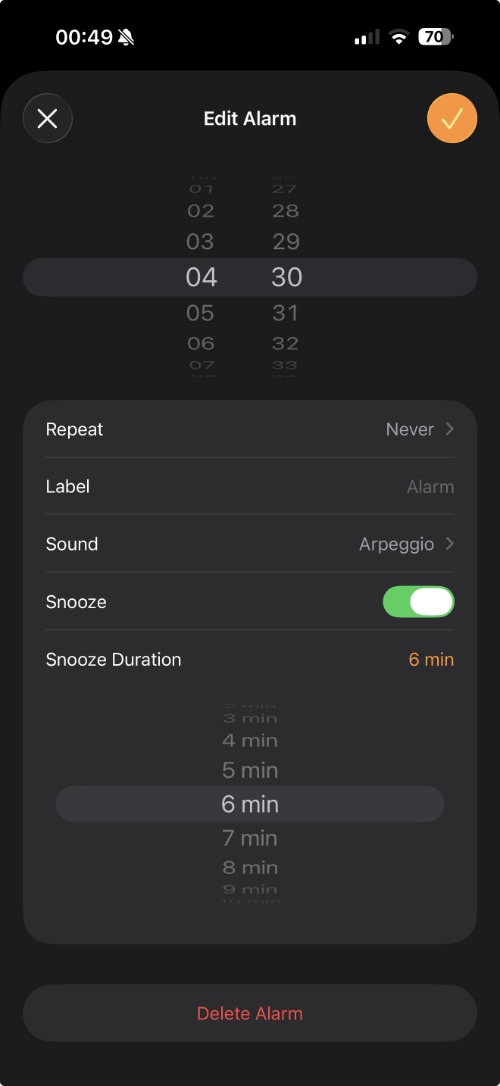
On devices running iOS 26 or later, Apple has finally allowed users to set a custom Snooze duration for their alarms. In this guide, we show you how you can change it.
- Launch the Clock app and either create a new alarm by tapping on the + button or tap on an existing alarm to modify it.
- When you are on the alarm settings page, you can tap on the Snooze Duration option.
- This will let you select from different options. For example, you can select 1 minute, 2 minutes, 3, 4, 5, all the way up to 15 minutes snooze duration.
- After you have selected your desired snooze duration, simply tap on the tick button to save your settings.
7. Turn on Adaptive Power
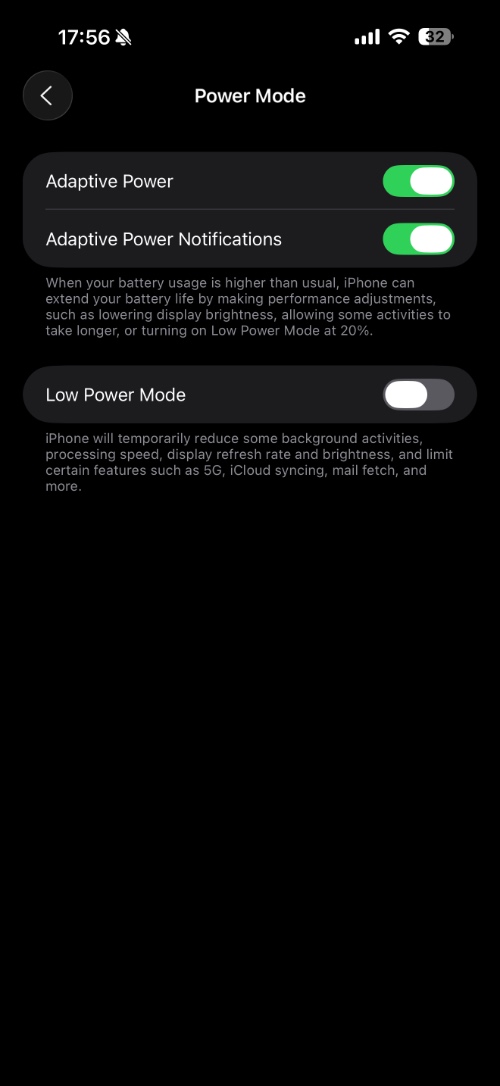
iOS 26 brings a new Adaptive Power mode to improve iPhone’s battery performance. When Adaptive Power Mode is active, your iPhone will automatically turn on Low Power Mode on your device whenever its battery falls below 20% charge.
In addition to enabling Low Power mode at 20%, the Adaptive Power mode will also take steps to extend your battery life by making performance adjustments. This includes lowering display brightness and allowing some activities to take longer.
- Start by launching the Settings app on your iPhone.
- Here, tap on the Battery option.
- Next, tap on Power Mode. This is also where you can turn on low power mode manually.
- Finally, turn on the toggle for Adaptive Power.
8. Disable Full screen screenshot previews

iOS 26 brings a brand new screenshot experience to iPhones. With the new update, users get a full-screen preview of the screenshot they have just taken.
While the new screenshot interface gives you access to quick controls for sharing, markup, and Apple Intelligence features, it also feels intrusive. It interrupts you when you are trying to take multiple screenshots quickly, so turning it off also has its benefits.
- On iOS 26, open the Settings app and go to General.
- Here, tap on the Screen Capture option.
- Finally, turn off the toggle for Full-Screen Previews.
9. Get Clear icons

iOS 26 brings a completely new look for the home screen with the ability to make iPhone icons clear. The new, clear look of the icons and widgets matches the overall clear and translucent aesthetic of the Liquid Glass design of iOS 26.
- Unlock iPhone and long-press an empty area on the home screen.
- When your iPhone’s icons start to wiggle, tap on the edit button at the top.
- Select the customize option from the pop-up menu. This will open the customize menu.
- From here, tap on the ‘Clear’ option. Doing so will immediately make your iPhone’s home screen icon and widgets clear.
10. Change Camera Settings

The camera app has been completely redesigned in iOS 26. The new design gives you faster access to Camera controls that make it easier for you to make changes to Camera settings on the fly.
You can change different settings and access Camera app features by tapping on this button from the top right corner.
You can also change photo resolution settings by tapping on this button on the screen.
When you are in the video mode, you can also change the resolution and set the frame rate for video recording right from the camera app by tapping on this button at the top.
The new design and placement of setting buttons within the app surely make users’ lives easier and make using the Camera app more convenient.
That’s it, this was our look different settings in iOS 26, and the settings you should change right after updating your device to iOS 26.


