


iOS 26 brings a number of new customization features to iPhones. This includes a whole new level of customization features that enable users to change the look and feel of their device’s lock screen.
From changing the look of the lock screen clock to adding a 3D effect to the wallpaper, you get multiple tools to make the lock screen match your personality.
Read on to learn about iOS 26 lock screen customization features, and don’t forget to watch our detailed video on how you can set up these features on your iOS 26-powered device.
iOS 26 Lock Screen Customization features
Make the clock bigger

Perhaps the coolest thing Apple has brought to the lock screen customization menu is the ability to make the clock bigger. To do this, just access the lock screen and long-press anywhere. Next, tap on Customize, and then tap on the clock.
When the clock customization menu appears, make sure you select the first font and dismiss the customization menu. Now, finally, grab the handle found next to the clock and pull it down. This will make the clock bigger.
Move the widgets towards the bottom side
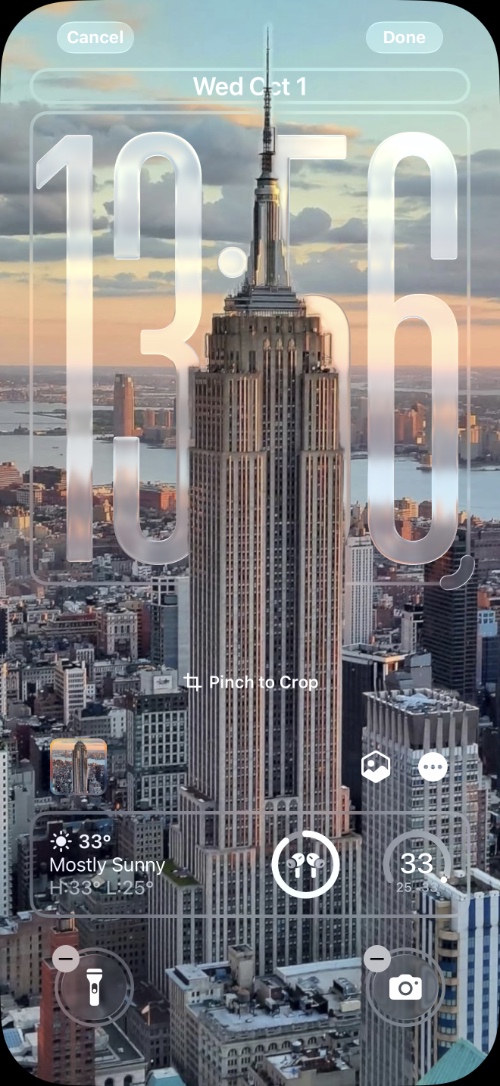
Another thing you can do to improve the look of your lock screen is to move the widgets towards the bottom. This automatically happens when you make the clock larger. However, you can also grab the widgets and move them towards the bottom side, while still keeping the clock’s size small.
Switch between a solid and a glass look for clock
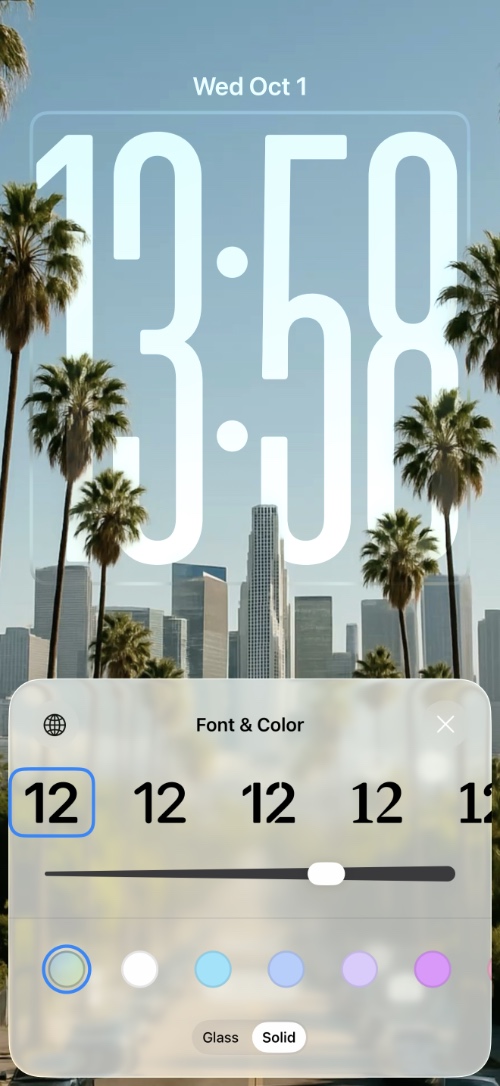
Apple has added new styles for the lock screen clock. You can either make it solid, or if you like, you can make it glass. The glass style will match the clock’s aesthetics with the rest of the liquid glass design of your device.
You can switch between them by entering the lock screen customization mode and tapping on the clock. Then, from the clock customization menu, select either Solid or Glass options.
Spatial Scenes for Wallpaper

Apple has integrated the Spatial Scenes feature into wallpapers. This means you can turn any wallpaper image into a Spatial Scene. When you move your iPhone, the wallpaper photo comes to life and moves in the opposite direction of your iPhone, giving a nice 3D effect. This is made possible thanks to iPhone’s advanced computer vision techniques that are powered by the Neural Engine.
The best part? You don’t need a brand-new photo to enjoy this. Even pictures you took years ago, or shots from another camera, can be turned into immersive spatial scenes.
You can enable a Spatial Scene for a wallpaper by tapping on the Spatial Scene button while on the lock screen customization screen.
Adaptive Time
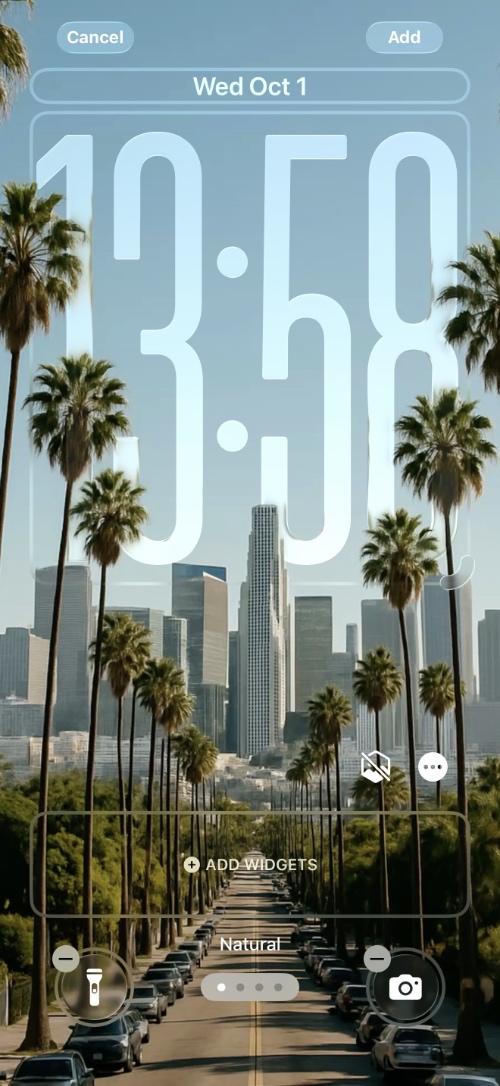
The resizable clock of iOS 26’s lock screen isn’t just fixed in one place. It adapts to your wallpaper and notifications. The time intelligently moves around to make sure the subject in your wallpaper stays visible.
So no matter if your wallpaper has a picture of a family member, a pet, or a building, the clock will go behind it and keep it visible. The overall effect looks pretty cool and unique.
So these are some of the cool iOS 26 Lock Screen features that you can use on your iPhone and transform the look and feel of your lock screen.


