


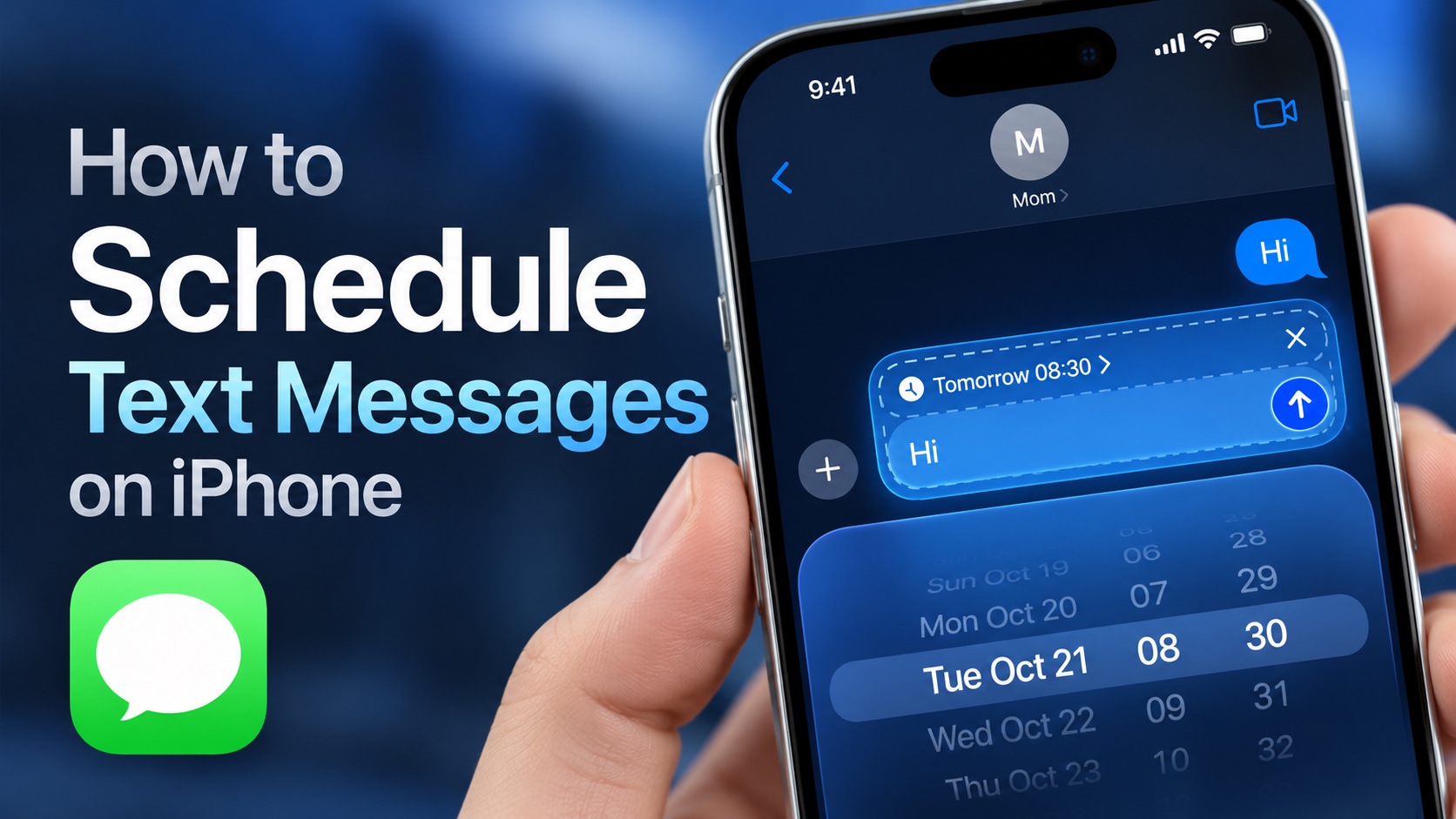
The Messages app allows you to schedule text messages on your iPhone. When you schedule a text message, it is sent automatically to its recipient at your specified date and time.
In this guide, we will show you how you can set up a scheduled message on an iPhone with the Send Later feature, edit a scheduled message or cancel it before it is sent out.
This feature is great for sending out reminders, wishing someone a birthday, and more.
Schedule a Text Message on iPhone
- Launch the Messages app on your iPhone.
- Open the conversation thread where you want to send a your scheduled message.
- Tap on the ‘+’ button next to the text field.
- Scroll up and tap on Send Later.
- Now type your message for Send Later and tap on where it says Today to select a different date and time.
- After selecting date and time, and typing your message hit the Send button.
Your text message is now scheduled and will be delivered to the recipient at your desired time.
Edit or delete a scheduled text message
If you want to modify a scheduled text message or stop it from getting sent, then you can follow these steps.
- Open the Messages app and go to the conversation with the scheduled message.
- Find the scheduled message and tap on the Edit button.
- From the menu tap on Edit Time to change its schedule or tap Delete Message to delete it.
Disclosure: iOSHacker may receive a commission if you purchase products through our affiliate links. For more visit our privacy policy page.

