


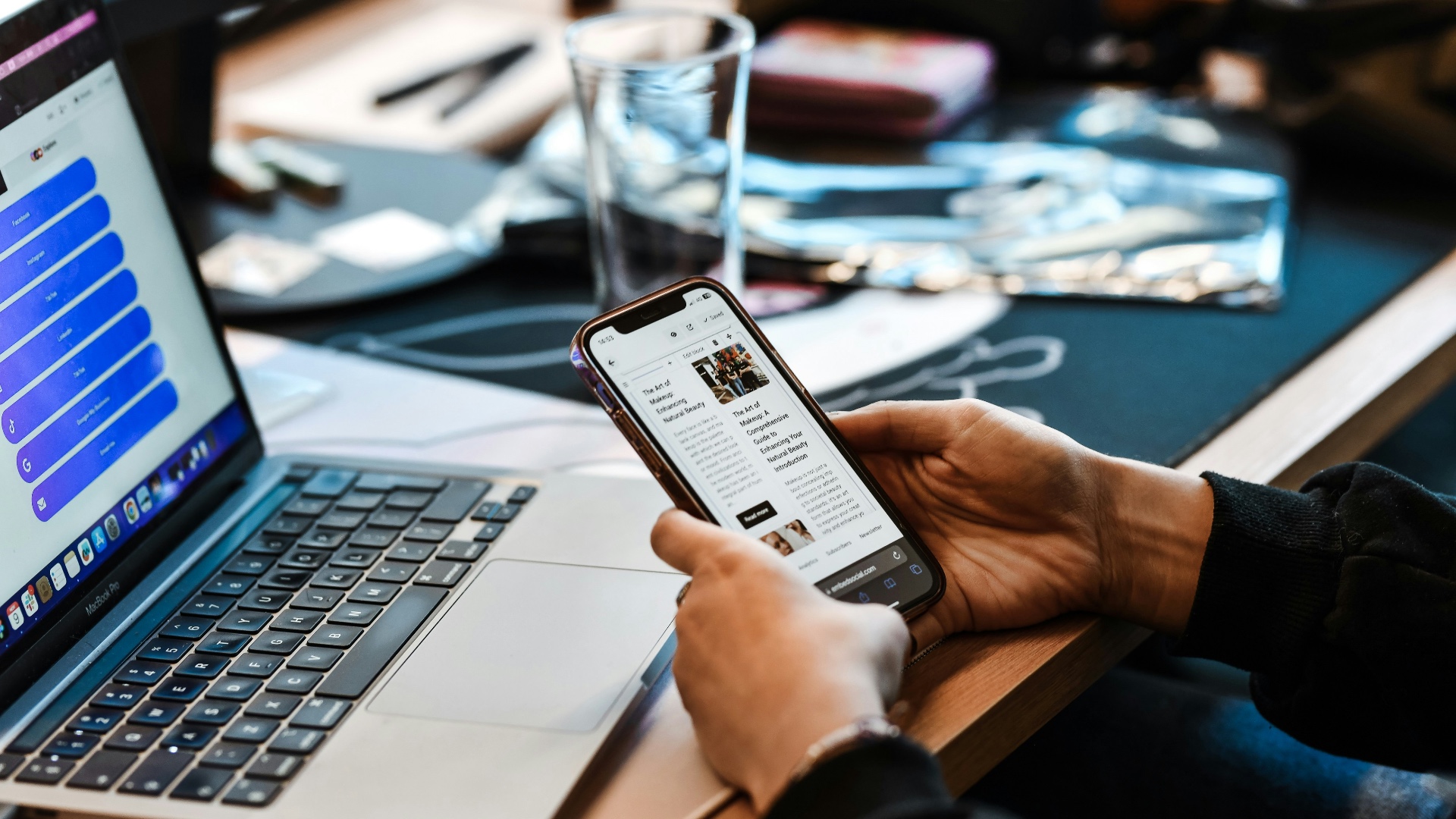
Most risky browsing does not feel risky while it is happening. The iPhone is in your hand, the page loads fast, Face ID works, and nothing looks broken. A train station Wi-Fi page, a restaurant QR menu, a fake support notice, a delivery update – each one can look normal long enough to earn a tap. Browsing on iPhone securely does not entail distrusting all things but rather recognizing the rare occasions where a site asks for a bit too much trust.
Start with the part nobody looks at first
The page gets all the attention, but the connection comes first. A public network can be fine for reading news or checking a map. It deserves more caution when passwords, work apps, payment details, or private messages are involved.
This is where a tool such as an iPhone VPN service fits naturally. It gives iPhone users an extra privacy layer when they browse through networks they do not control. That is useful in hotels, airports, cafés, conference halls, and shared workspaces. It does not make a fake website safe. It simply reduces one common weak point: trusting an unknown connection too easily.
| Small moment | What a careful user does |
| Wi-Fi name looks familiar but not exact | Checks the official network name. |
| QR code opens a long strange URL | Reads the domain before using it. |
| Website asks for location | Allows it only when needed. |
| Login page appears after a text | Opens the real app instead. |
That small check before browsing is often where secure browsing on iPhone either starts or fails.
Safari settings should not be treated like furniture
Many people set up an iPhone once and then never look at browser permissions again. That is understandable. Safari usually just works. Still, old permissions have a way of hanging around long after they stop making sense.
A recipe site may still have notification access. A one-time upload page may have been allowed camera access. A shopping page may have location access because the user tapped too quickly. None of these things means the phone is in danger. They do mean the browser has collected small pieces of trust over time.
Useful cleanup points:
- Remove website permissions you no longer understand.
- Keep fraudulent website warnings turned on.
- Avoid allowing notifications from random sites.
- Use Private Browsing when local history should not be saved.
- Do not save card details on unfamiliar checkout pages.
- Close tabs that opened from ads or unexpected messages.
Private Browsing is helpful, but it is not magic. It hides less from the internet than many users think. It mainly helps with what is saved on the device.
Links are the place where people get rushed
A bad link rarely looks dramatic. It usually looks like admin work. Pay a fee. Confirm a parcel. Unlock an account. Update a card. Review a login. The wording is boring on purpose because boring feels believable.
A better habit is to break the chain. Do not use the link for anything important. Open the bank app. Type the store address. Go through a saved bookmark. Search for the company yourself. That one extra step feels annoying, but it removes the stranger from the middle.
This is browsing securely on an iPhone in plain language: when the message creates pressure, do not let the message choose the doorway.
A one-minute check before entering private details
Use this before signing in, paying, uploading documents, checking work tools, or opening personal accounts on a network outside your usual routine.
- Check the network name before joining.
- Use mobile data when the Wi-Fi feels questionable.
- Turn on VPN for public or shared networks.
- Open sensitive accounts from the app or bookmark.
- Read the domain before typing a password.
- Decline permissions that do not fit the page.
- Leave pages that push urgent buttons or profile installs.
This short routine keeps secure browsing on iPhone realistic. It does not ask the user to become a security expert. It just removes the easiest mistakes.
When “almost normal” is the warning sign
Some unsafe pages look cheap. Those are easy to leave. The harder ones look almost right. A logo is close. The color is close. The message sounds official. The domain is only a little odd. That is enough to catch someone who is tired, traveling, or trying to finish something quickly.
| What feels off | Why it matters | Better response | Quick test |
| Page asks for payment too early | The flow may be fake | Stop before entering card details | Visit the site directly. |
| Safari shows a scare warning inside the page | It may be a trick | Close the tab | Do not tap the big button. |
| Website asks to install a profile | Device settings may be affected | Leave the page | Check with the real provider. |
| Brand name appears in a strange domain | Could be imitation | Do not log in | Compare with the official domain. |
A real service usually gives more than one safe way to reach your account. A suspicious page tries to keep you moving in one narrow direction.
The best habit is a small delay
Good iPhone security is not loud. Most of it is quiet hesitation. Wait before joining the network. Wait before entering the password. Wait before allowing location. Wait before believing a page that says something is urgent.
Secure browsing on iPhone works best when the phone’s tools and the user’s habits meet in the middle. Safari can warn. iOS can manage permissions. A VPN can protect the connection. The user still decides whether the page deserves trust.
That is the part worth remembering. Safer iPhone browsing is not built from one perfect setting. It is built from a few ordinary refusals: not this network, not this link, not this permission, not this rushed login. Small choices, made early, keep the browser from becoming the weakest part of the phone.


