


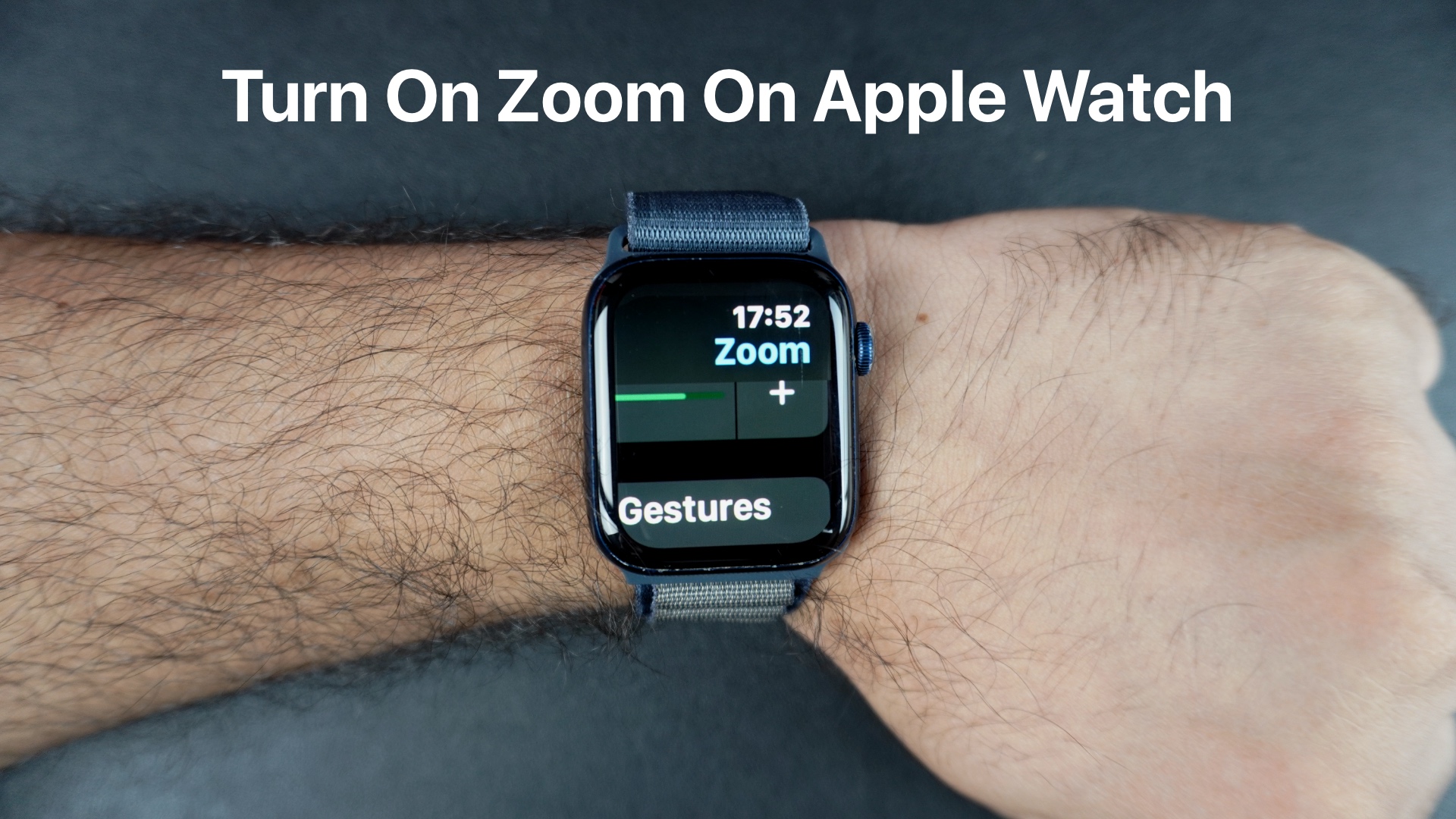
If you find it difficult to read or see things on your Apple Watch’s small screen, then you need to start using its Zoom feature. The Zoom feature is an accessibility tool of watchOS that allows users to see small text or details more clearly by zooming in on them.
Turn on Zoom feature on Apple Watch
You can easily turn on the Zoom feature and start using it by following the steps below.
- On your Apple Watch, press the Digital Crown button to access Home Screen.
- Find and tap on the Settings app icon.
- Here, tap on the Accessibility option.
- On the next page, tap on the Zoom option.
- Finally, turn on the toggle for Zoom.
Scroll down on the Zoom settings page and change the Maximum Zoom Level setting. Move its slider left or right according to your preference.
Using the Zoom feature on Apple Watch
Now that the Zoom feature has been activated, here’s how you can start using it.
- Double-tap on the screen with two fingers to Zoom in.
- Move around the screen by sliding on the screen with two fingers.
- To exit the Zoom mode, double-tap on the screen with two fingers once again.
That’s it, this is how you can start using the Zoom feature on your Apple Watch and make reading text and viewing details easier.
Disclosure: iOSHacker may receive a commission if you purchase products through our affiliate links. For more visit our privacy policy page.


