


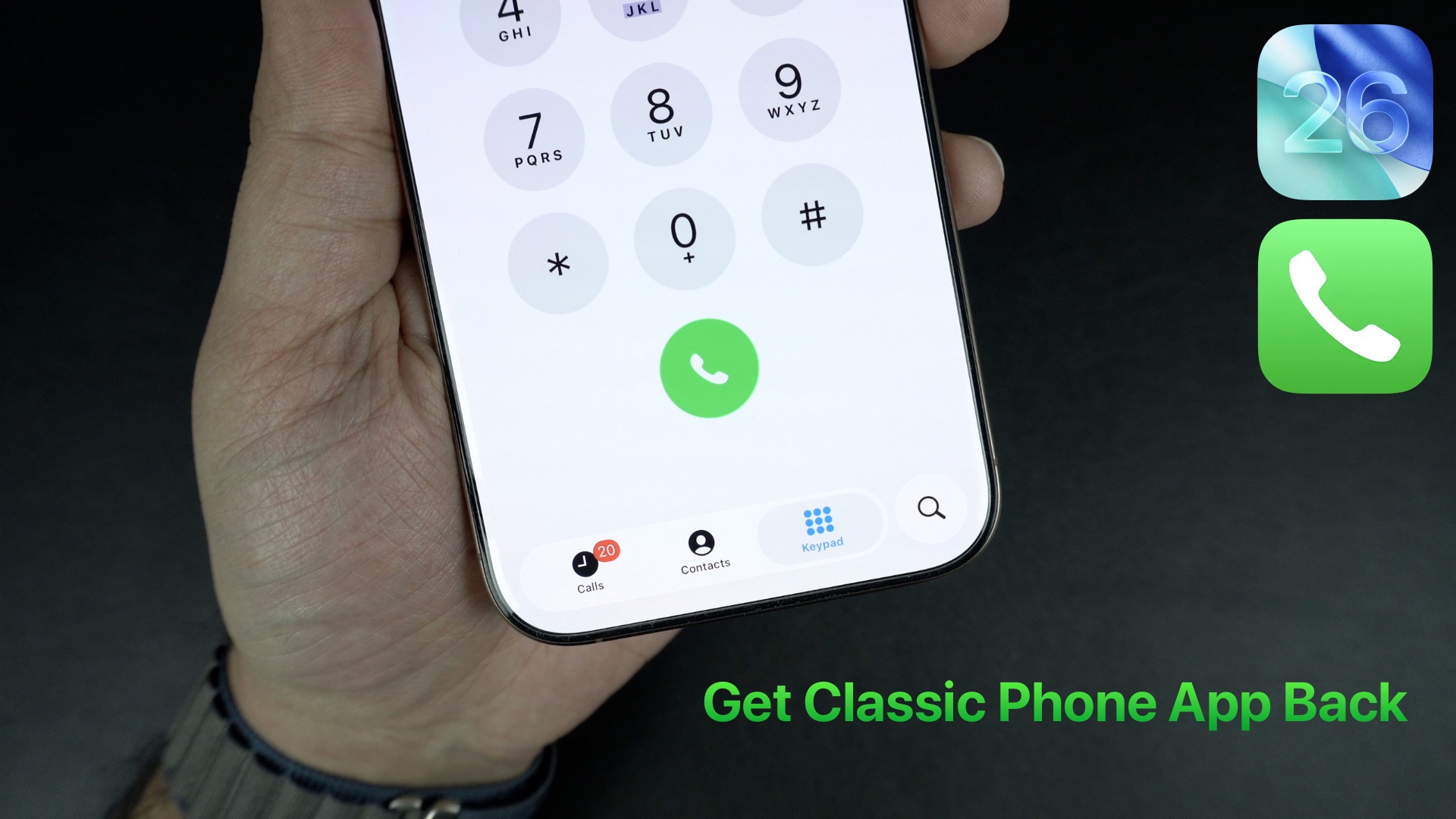
In this guide, we show you how you can switch between the Unified and Classic looks of the Phone app.
In iOS 26, Apple has redesigned the Phone app and introduced a new Unified look. This look, which is selected by default, replaces the Recents tab with the Calls tab while removing the Favorites and Voicemail options from the button bar.
If you don’t like this new and unified look and want to get the old look of the Phone app back, then follow these steps.
- Start by launching the Phone app and accessing the Calls screen by tapping on its button from the bottom bar.
- Now you have to tap on the menu button located in the top right corner of the screen (it has three lines).
- From the menu, simply tap on the Classic option.
As soon as you do this, the Calls tab will disappear and you will get Favorites, Recents, and Voicemail options back, along with the Contacts and Keypad options.
That’s it, this is how you can switch between Unified and Classic Looks of the Phone app.
Disclosure: iOSHacker may receive a commission if you purchase products through our affiliate links. For more visit our privacy policy page.


