


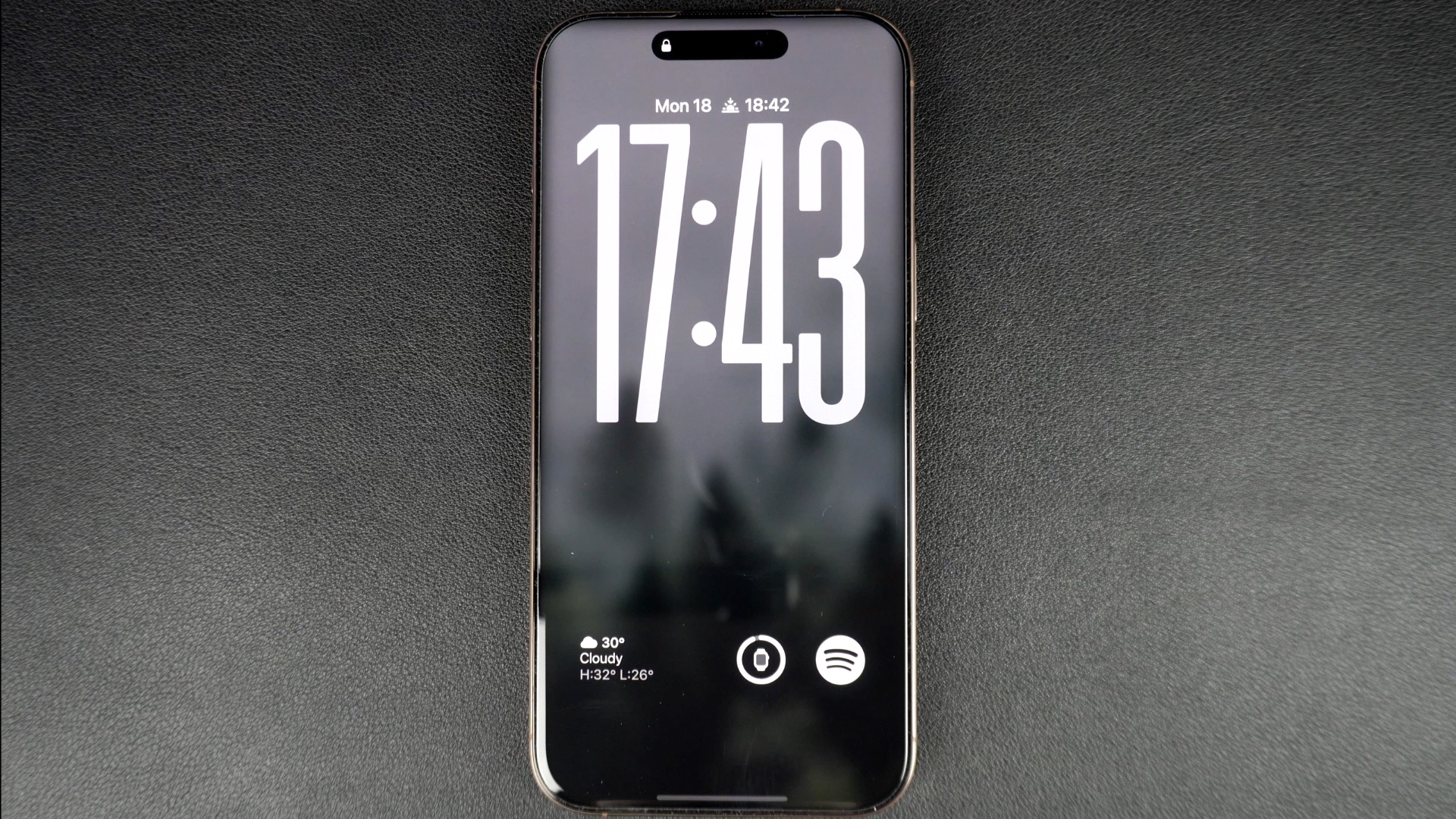
In this tutorial, we show you how to stop your iPhone from blurring the lock screen wallpaper on a device that supports Always-on display.
In iOS 26 or later, Apple has added a new setting for the Always On display feature, which blurs the wallpaper photo. This is designed to make the clock and widgets more prominent when your device is locked and the always-on display is showing.
If you don’t want this and want to see your lock screen wallpaper clearly, then follow these steps.
Remove wallpaper blur from iOS 26’s always-on lock screen
- Launch the Settings app and tap on the Display & Brightness option.
- On the next screen, tap on the Always On Display option.
- Now, under the Customize section, turn off the toggle for Blur Wallpaper Photo.
As soon as you do this, your iPhone’s lock screen wallpaper will no longer become blurry, and the photo will show clearly, even when the lock screen has dimmed.
That’s it, this is how you can prevent iOS 26 or later from adding blur to your wallpaper when using always-on display.


