


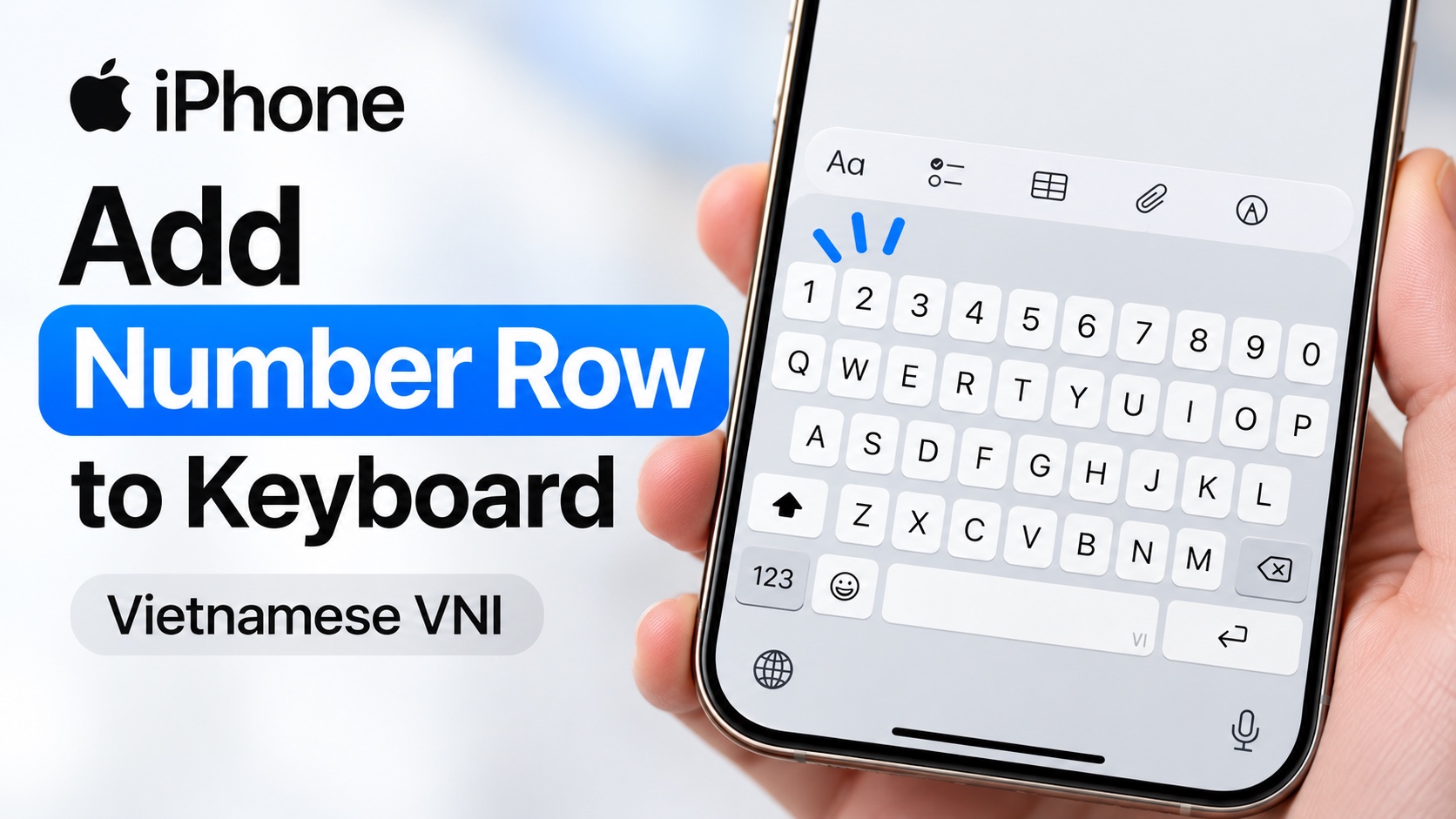
Do you want to add a full number row on top of your iPhone keyboard? Then this trick is for you. In this guide, we have shared instructions on how you can add a complete number row right above your iPhone’s keyboard and use it to easily enter numbers.
This is made possible thanks to the Vietnamese VNI keyboard, which you can add to your iPhone’s keyboard from the Settings app. Read on for complete steps.
Having a number row above your iPhone keyboard is useful if you frequently type passwords, phone numbers, dates, numbers etc. With the number row added, you no longer need to switch keyboard layouts every time you need to enter a number.
Add Number Row to Keyboard
- Launch Settings and go to General.
- Go to Keyboard and tap on Keyboards.
- Tap on Add New Keyboard and scroll down, tap on Vietnamese.
- When prompted make sure to select VNI.
- Now exit Settings and open any app where you can type like Notes or Messages.
- Tap on the Globe icon from the bottom left corner of the screen.
- Select Vietnamese VNI from the list
You will now see a number row on top of your iPhone keyboard, giving you quick access to numbers while typing.
You can switch back to your regular keyboard by tapping on the same Globe button.
