


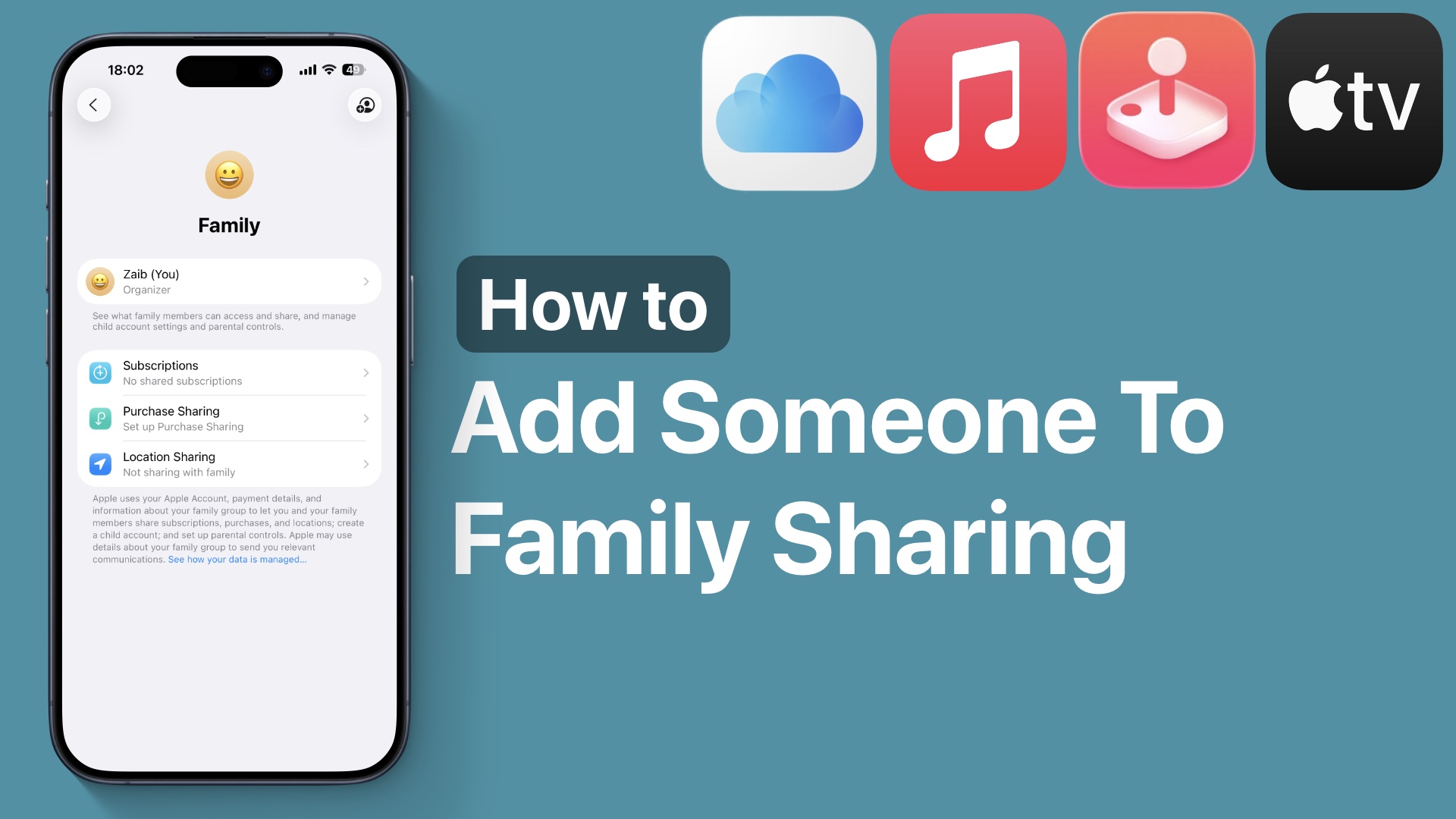
If you’re looking for instructions on how to add someone to your Family Sharing account and share Apple Subscriptions with them, then this tutorial is for you.
Here you will learn how you can add a family sharing member, and share Apple Music, Apple TV+, Apple Arcade, iCloud Storage, App Purchases, and more with them.
Add Someone to Family Sharing
- On your iPhone, open the Settings app.
- Tap on your name from the top and then tap on Family.
- If you have not set up Family Sharing before, then you will be prompted to do so. If its set up already, tap on the Add Member button from the top right corner.
- Tap on Invite Others or tap a contact from the Suggestions.
- Invite a family member with iMessage, Mail, or quickly add them if they are nearby by tapping on Invite in Person.

After you have sent your invitation, ask the receiving user to accept it. After they have accepted to be part of your Apple Family Sharing group, they will get access to your purchases, subscriptions, and storage.
Disclosure: iOSHacker may receive a commission if you purchase products through our affiliate links. For more visit our privacy policy page.


