


iPhone is stuck in boot loop or keeps randomly restarting? If you are facing this annoying problem, then you are in the right place as in this guide we will walk you through the steps to fix these issues.
Whether the issue is caused by a bad app, a software bug, or a hardware problem, we will try to fix it in this tutorial. So without any further ado, let’s get right into it.
Fix iPhone Boot Loop and Random Restart issue
Force restart iPhone
The first and often effective method of fixing the iPhone boot loop problem, or a device that keeps crashing, is through a force restart. This isn’t just a normal restart as it refreshes the deeper system and can break a restart loop of a device that gets stuck on the Apple logo.
To force restart an iPhone, simply follow these steps.
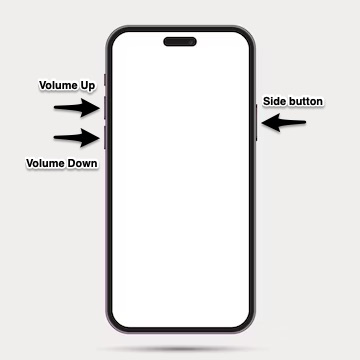
- Press and release the Volume Up button.
- Press and release the Volume Down button.
- Press and hold the Side button until the Apple logo appears.
Check for iOS updates
If your iPhone stays on for long enough, then head over to Settings -> General -> Software Update and install any available updates.
If you can’t update over the air, then you can also manually update your iPhone on your computer using Finder or iTunes for Windows.
Loop for problematic apps
Some apps might be causing your iPhone’s system to crash repeatedly. Open Settings -> Privacy & Security -> Analytics & Improvements -> Analytics Data and check for crash logs. If you repeatedly see the same app’s name in the crash logs, then uninstall it to see if your iPhone stabilizes after this.
Uninstall Recently Installed Apps
If you have recently installed apps, then try uninstalling them to see if that helps. Sometimes apps are buggy or incompatible with your version of iOS, which can cause them to crash the whole system.
To delete an app, simply long-press on its icon and hit the Remove App option. Then tap on Delete.
Disable Background App Refresh
The Background App Refresh feature might be causing your iPhone to restart. This is caused due to some buggy apps that are running in the background with your knowledge.
To disable this feature, go to Settings -> General -> Background App Refresh and turn this feature off for all apps. Check if the situation improves and turn the feature back on after testing.
Check Battery Health
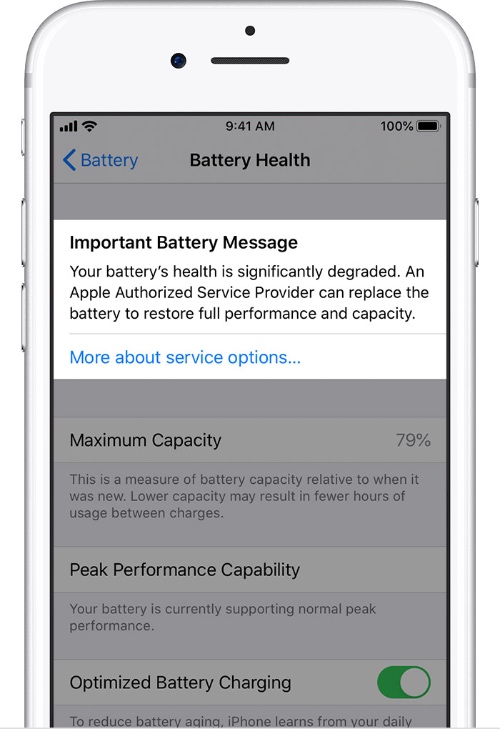
A failing or weak battery can cause your iPhone to randomly shut down or crash. You can check your iPhone’s Battery Health by going to Settings -> Battery -> Battery Health.
If your device’s battery maximum capacity has fallen below 80% and you see the ‘Service Recommended’ text on the screen, then it is time to replace it.
Reset All Settings
Resetting iPhone settings can fix the boot loop and crashing issue. It can also undo a bad setting or delete a bad config file that is causing the system to crash repeatedly.
Simply go to Settings -> General -> Transfer or Reset iPhone -> Reset -> Reset All Settings. This will not delete your data or photos. However, various system preferences like Wi-Fi passwords, privacy settings etc, will get reset.
Restore iPhone using a computer
If you have not been able to fix the iPhone crashing or boot loop issue so far, then it is time to restore it using iTunes or Finder.
First, put your iPhone in Recovery Mode by following the steps below.
- Connect your iPhone to your computer with a USB-C or Lightning cable.
- Press the Volume Up button and release. Then press the Volume Down button and release. Now press and hold the Side button as your iPhone begins to reboot.
- Keep the Side button pressed as the Apple logo appears on the iPhone 16’s screen.
- You should see a ‘Connect to Computer’ message on your device screen. At this point, let go of the Side button and open Finder on Mac and iTunes on Windows.
- Restore your iPhone 16 or update it to the latest version of iOS.
Contact Apple Support
Problem still not resolved? Now it is time to visit your nearest Apple Store or an Apple Authorized Service Provider and have your device checked by a professional.
Conclusion
The iPhone stuck in boot loop and iPhone keeps restarting are both super annoying problems that can disrupt your life. Thankfully by following the easy to follow instructions shared in this guide, you can solve this problem in a few minutes without even leaving your house. However if the problem gets out of hands and cannot be solved with the solutions, then having a professional check your iPhone is the way to go.


