


If your iPhone’s camera has stopped working and it is showing a black screen, then this guide is for you. Whether you are dealing with blurry photos or an unresponsive camera app, you will find the right fix in this article.
iPhone’s camera app can stop working or become unresponsive for several reasons. More often than not, this is due to a software glitch that can be solved easily right at home. Read on to learn about the fixes that will help you solve the iPhone camera not working issue.
Fix iPhone Camera Not Working
Switch between front and rear cameras
The first and most easy fix to solve the iPhone camera not working problem is switching between the front and rear cameras. Just tap on the camera switch button located at the bottom right corner of the screen. After switching to the front or rear camera, tap on the switch button once again.
Force kill the Camera app
Sometimes, a Camera app glitch can cause your iPhone’s camera to stop working and display a black screen. In this case, simply force kill the app by accessing the App Switcher (swipe up from the bottom of the screen) and then swipe up on the Camera app’s card.
After killing the Camera app, launch it again from its icon.
Restart iPhone
To fix any software issues or hardware glitches a simple iPhone restart can be helpful. Just hold the Volume Up and Side buttons and slide to power off. Wait for a few seconds and turn the device back on.
Check Camera permissions

The next thing you need to do is check if the right permissions are granted on your device to the apps. All apps, including third-party apps, require permission before they can access your device’s camera. You can check if the right permissions are granted by following these steps.
- Open Settings and go to Privacy & Security.
- Here, tap on the Camera option.
- On the next screen, make sure the toggle next to the app you are using the camera with is enabled.
Clean the lenses
If your iPhone’s camera lens is dirty or it has fingerprints on it, then this could result in blurry photos. The photos and videos can also become out of focus. You can fix this by cleaning all lenses with a soft cloth.
Use manual focus

If your iPhone’s photos are still blurry, then use manual focus mode. You can manually focus on anything that’s in your camera’s viewfinder by tapping on it.
Disable the VoiceOver feature
If you are using the VoiceOver feature on your iPhone, then it might be affecting how your camera behaves. Turn this feature off by going to Settings -> Accessibility -> VoiceOver and turn this feature off.
Use a third-party app
If you are facing camera issues in the stock Camera app, then download a third-party camera app like Snapseed or Halide and see if the camera is working in these apps properly or not. If the camera is working fine, then the issue is with software and its not a hardware fault.
Reset All Settings
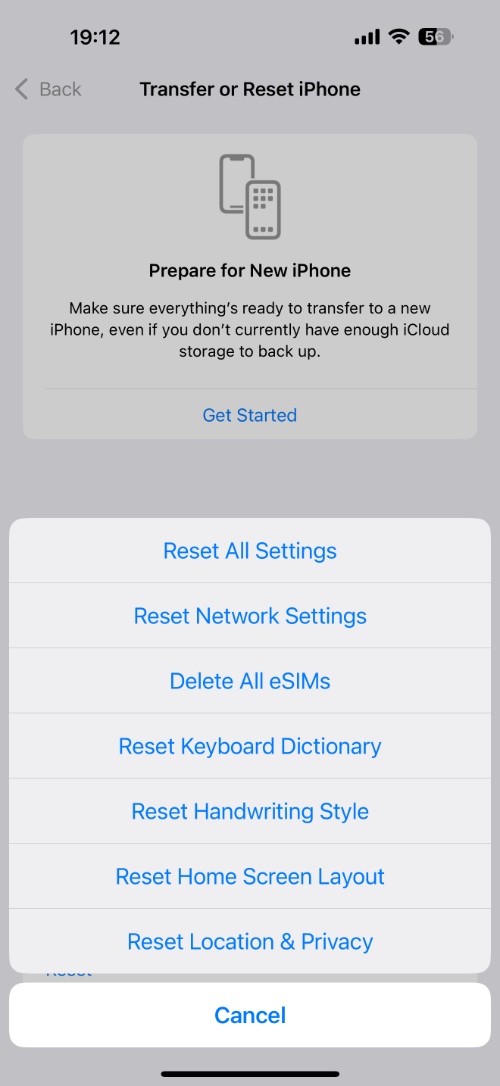
If the problem persists, then try resetting your iPhone’s system settings. This can be done by going to Settings -> General -> Transfer or Reset iPhone -> Reset -> Reset All Settings.
Contact Apple Support
If nothing has helped so far, then the issue might be with your iPhone’s hardware. Visit your nearest Apple Store or an Apple Authorized Service Provider and have your device checked.


