


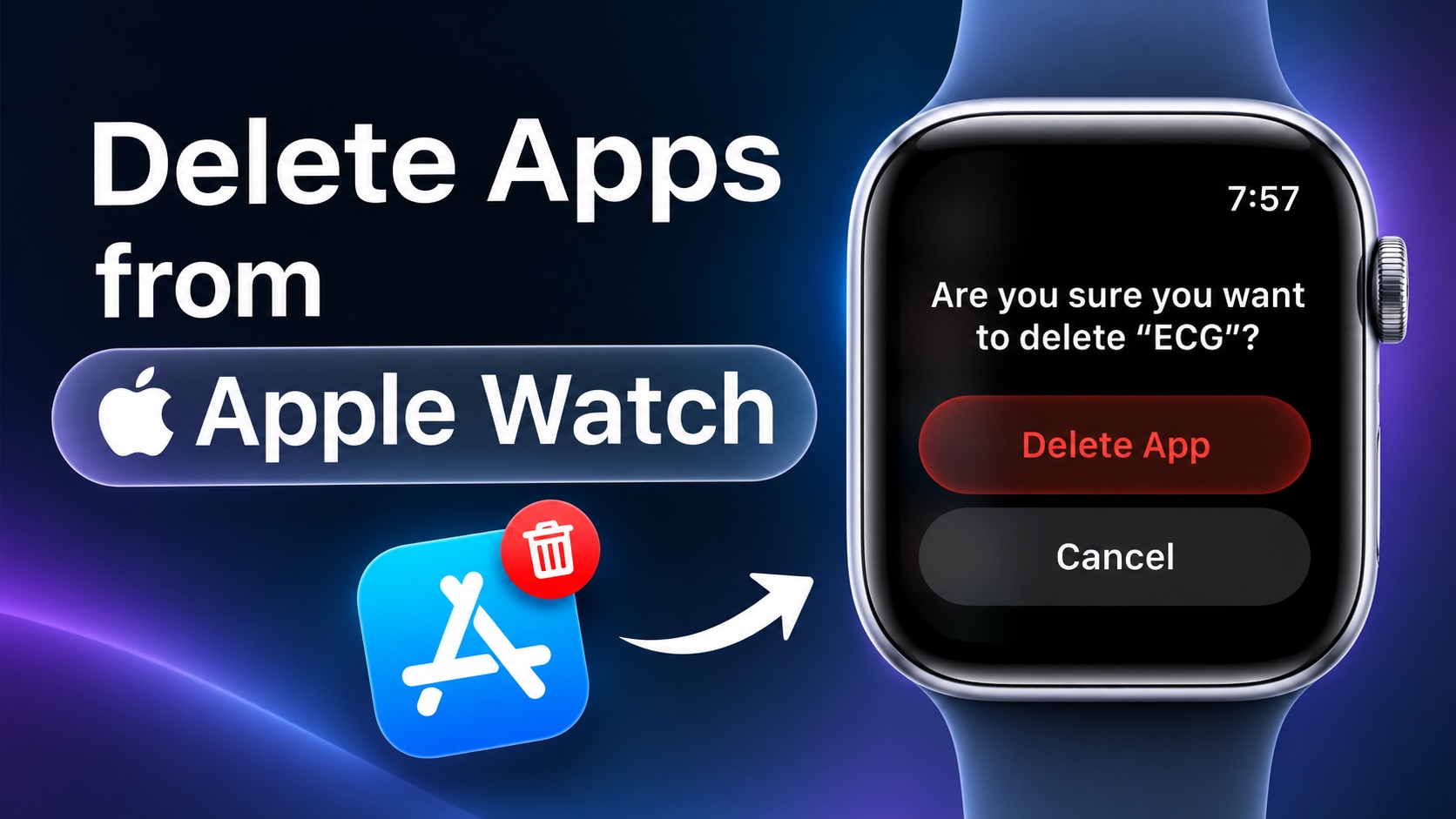
If you have Apple Watch apps installed on your device that you no longer use, and you want to free up Apple Watch storage or remove clutter from your device, then this guide is for you.
Here, we will show you how you can remove installed apps from your Apple Watch using two different methods.
The first method lets you delete apps right from the Apple Watch while the second method lets you do it from the iPhone.
This guide works for all models of Apple Watch including the latest Apple Watch Series 12 and Apple Watch Ultra 4 running watchOS 27 or later.
Delete Apps on Apple Watch
Method 1: Delete Directly from Apple Watch
- Press the Digital Crown button to access the Dynamic App Grid screen.
- Swipe up or rotate the Digital Crown button to access the home screen.
- Here, long press on an app icon or an empty area until icons start to wiggle.
- Press on the ‘x’ button on the app you want to remove.
- Finally, tap the Delete App option to confirm.
Method 2: Delete from paired iPhone
- Open the Watch app.
- Go to the My Watch tab.
- Scroll down and tap on Apps.
- Scroll down and tap on the app you want to remove.
- Turn off the toggle for ‘Show App on Apple Watch’.
Disclosure: iOSHacker may receive a commission if you purchase products through our affiliate links. For more visit our privacy policy page.
