



If you are looking for the right way to close an app on your Apple Watch, then this tutorial is for you. Here, we will show you how you can access the App Switcher in watchOS 27.2 or later and quit apps that you no longer want to use.
With the release of watchOS 27 Apple had removed the ability to quit apps on Apple Watch. That functionality has finally been brought back in watchOS 27.
Here’s how you can use the new App Switcher and quit apps.
Access App Switcher and close apps in watchOS 27
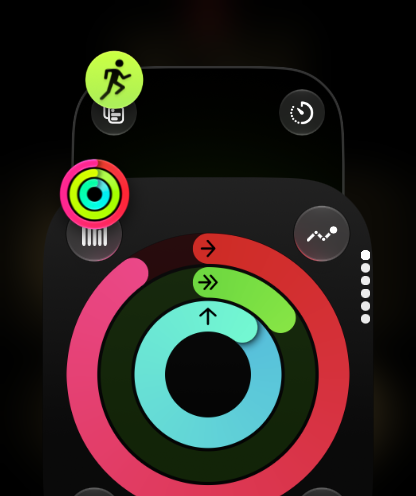
- Open any app.
- Touch and press and hold the very bottom edge of the screen.
- Keep hold until the App Switcher appears.
- Scroll through the App Switcher to find the app you want to close.
- Swipe left on the app and then tap on the X button. This will close the app.
Note: The App Switcher can only be accessed from inside apps. You cannot access the App Switcher from the home screen or a watch face.
Force quit unresponsive apps
You can also force quit apps on your Apple Watch. Here’s how you can do it.
- Open the app you want to force quit.
- Press and hold the Side button until power off screen appears.
- Now Press and hold the Digital Crown button until the Watch Face appears.
This will make the app force quit. You can reopen the app after it and see if the problem is resolved.
Also read: How to Delete Apps on Apple Watch (2-Methods)
