


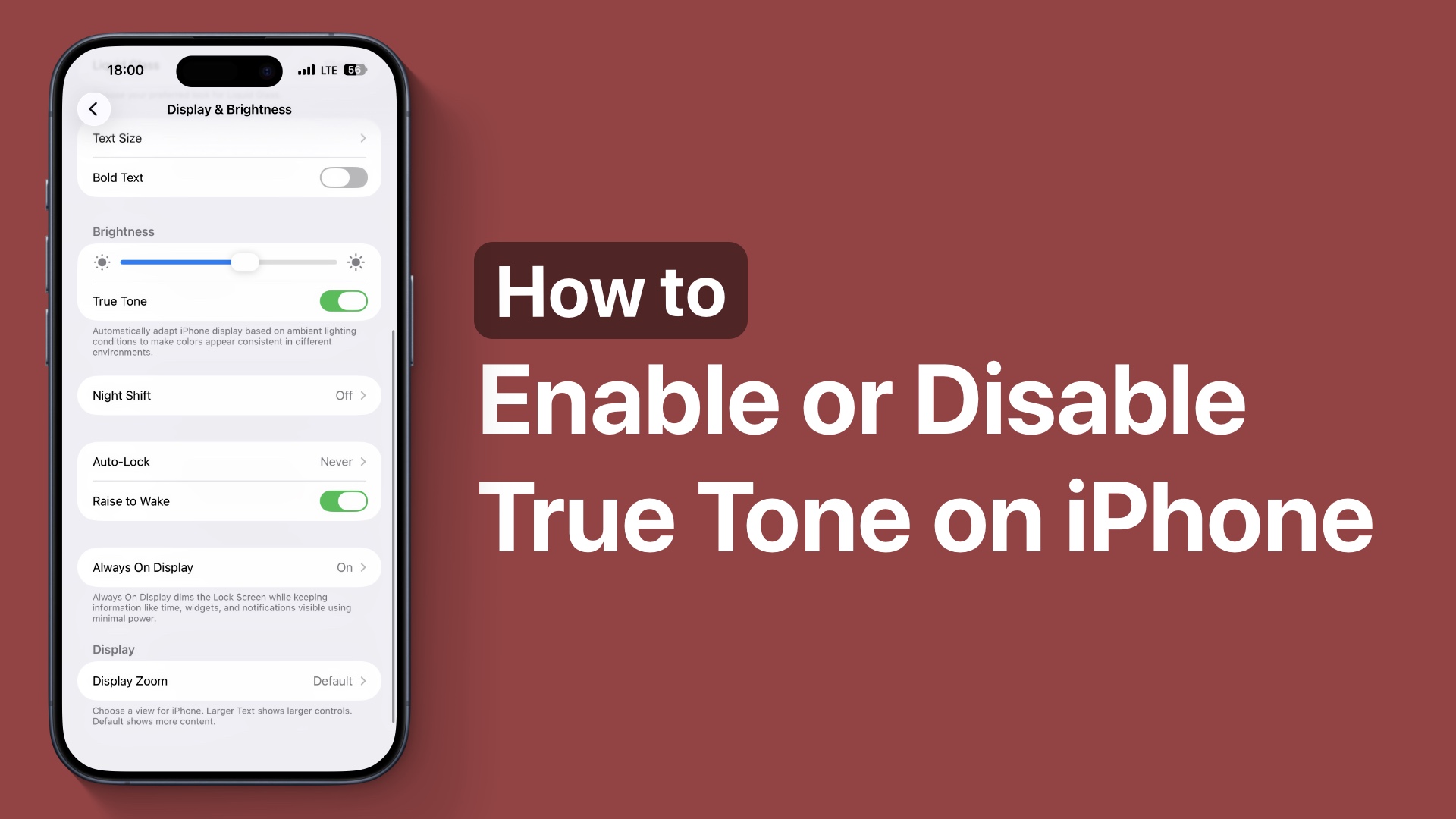
In this guide, we will show you how you can enable or disable the True Tone feature on your iPhone 17 or iPhone 17 Pro in just a few simple steps.
Are you experiencing the issue in which your iPhone’s display looks too warm or yellow? That might be due to the True Tone feature.
What is True Tone on iPhone?
The True Tone feature automatically adjusts the iPhone’s display based on the lighting around you. iPhone uses advanced sensors to match the color temperature of your environment so that the screen becomes easier on your eyes.
While this is a useful feature, it can also make your iPhone display appear too yellowish or les vibrant, and make images and videos look less accurate.
Enable or disable True Tone on iPhone
- Unlock your iPhone and open the Settings app.
- Go to the Display & Brightness option.
- Look for the True Tone toggle.
- Turn it off to disable True Tone.
- Turn it on to enable True Tone.

That’s it, your iPhone will instantly adjust its screen based on your choice.
You can also toggle True Tone on and off from the Control Center. Simply swipe down from the top right corner of the screen. Now press and hold the Brightness slider. There you should find the True Tone button. Tap on it to turn the feature on and off.


