


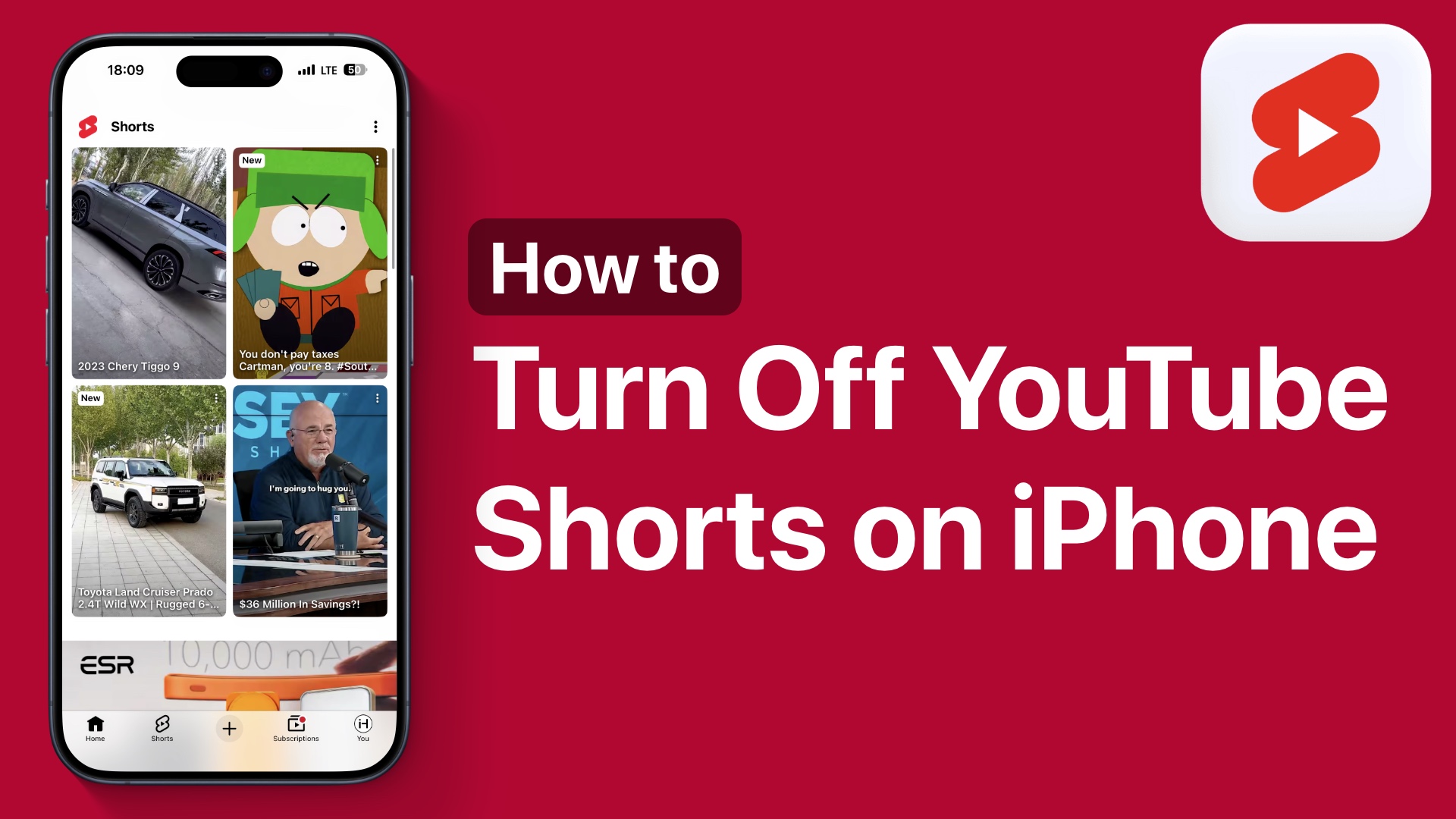
Are you tired of seeing YouTube Shorts cluttering your feed? While previously you could not completely remove Shorts from the YouTube app, a new update to the YouTube App lets you block YouTube Shorts from your device.
Turn off YouTube Shorts on iPhone
Here’s how you can do this on your iPhone. Before you begin, make sure that you are running the latest version of the YouTube app on your device.
Step 1: Open YouTube and Access Your Profile
Launch the YouTube app and tap on the You button at the bottom.
Step 2: Go to Settings
Next, tap on the gear style settings button in the top right corner. This will bring you to the YouTube in-app settings section.
Step 3: Open Time Management Settings
Here, tap on Time Management.
Step 4: Enable Shorts Feed Limit
Now, under Daily limits, turn on the toggle for Shorts Feed Limit. This will bring up a menu. Here, you have to select the 0 minutes option, which will essentially completely block YouTube Shorts from appearing on the home page.

Important Note About Feature Rollout
Remember, YouTube is still rolling out this feature, so if you don’t see the 0 minutes as an option, then either update the app or wait a few days for the option to roll out to your account.
Step 5: Refresh Your Home Feed
After selecting 0 minutes, simply go back to the main YouTube page and tap on the home tab.
When this page is refreshed, you will notice that the YouTube Shorts section will disappear and will never come back.
What Happens to the Shorts Tab?
You will still see the Shorts tab at the bottom, but it won’t let you watch shorts and warn you that you have reached your shorts feed limit. You can still ignore the limit, so I hope YouTube allows users to remove the Shorts tab from the app altogether.
Conclusion
That’s it! While you can’t fully disable YouTube Shorts yet, these methods will help you significantly reduce or avoid them.


