


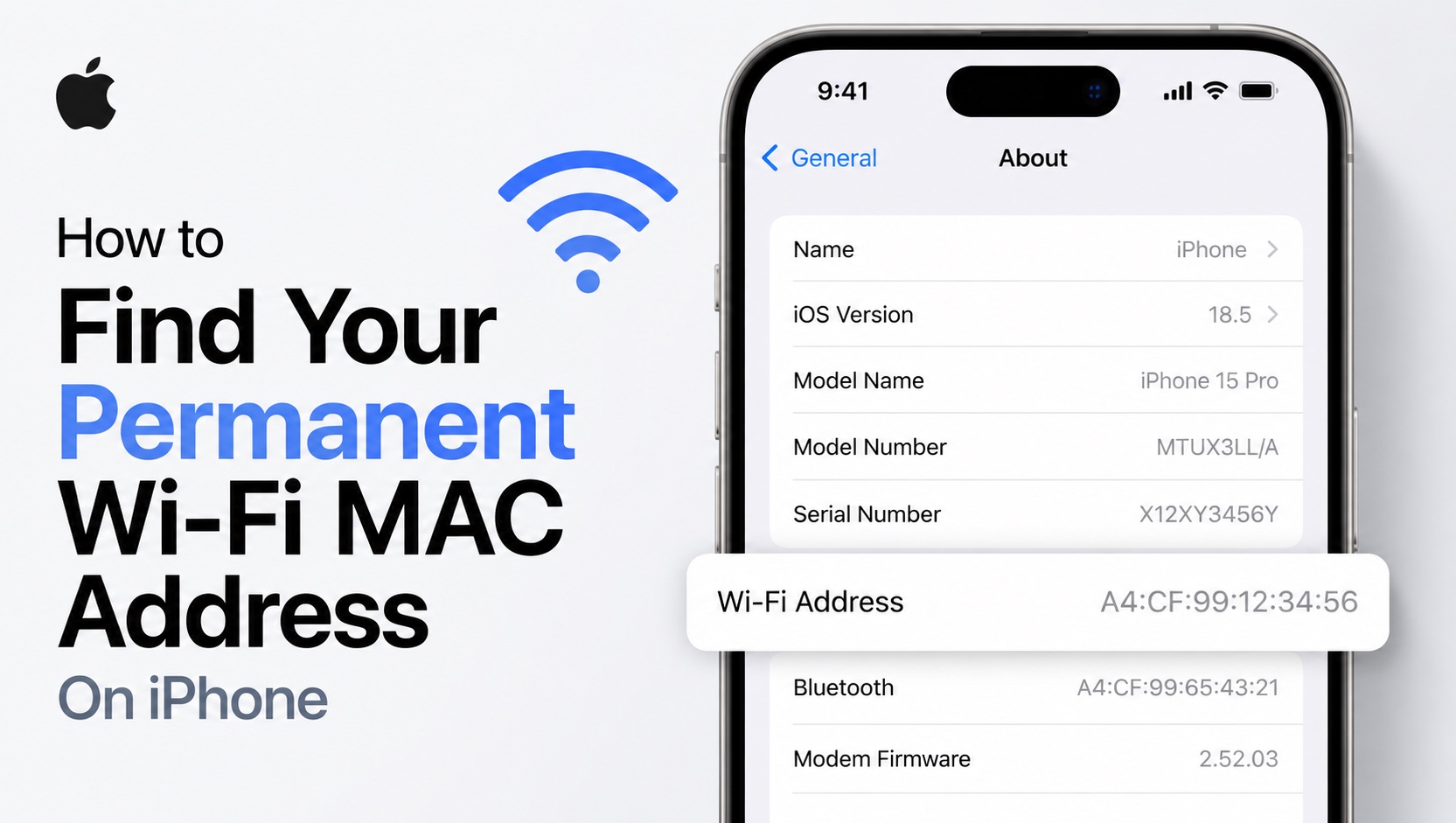
If you want to know your iPhone’s permanent Wi-Fi Mac address so you can share it for parental controls, network registration, router settings, or IT support, then follow this guide.
Modern versions of iOS, which includes iOS 26 generate unique MAC address for each Wi-Fi network you join. However your iPhone’s hardware also has a permanent address that you can find by following these steps. This address is unique to your device and does not change.
Find Permanent Wi-Fi Mac Address on iPhone
- Open Settings.
- Go to General.
- Tap on About.
- Scroll down. You will find your iPhone’s Permanent Wi-Fi Mac address next to Wi-Fi Address.
You can tap and hold on the Wi-Fi Address and copy it to clipboard, which makes it easy to share it with other people.
Find current Wi-Fi network’s Wi-Fi- Mac Address
You can also check the Wi-Fi address currently being used by your specific Wi-Fi network by following these steps.
- Open Settings.
- Go to Wi-Fi.
- Tap on the ‘i’ button located next to your Wi-Fi’s name.
- Here scroll down and find your Wi-Fi Mac Address next to Wi-Fi Address.
That’s it, this is how you can easily find the permanent Wi-Fi MAC address for your Mac. We also showed you how you can locate the Wi-Fi MAC address generated by your iPhone for your Wi-Fi network.


