


A VPN that keeps disconnecting on your iPhone can quickly become frustrating. One moment, you’re browsing securely. The next, your VPN drops, reconnects, or stops working altogether. This can happen while switching networks, using public Wi-Fi, or simply leaving your phone locked for a while.
The good news? Most VPN connection problems have straightforward fixes. Whether you’re using a paid service or free VPN software, the issue often comes down to network stability, server performance, or a few iPhone settings.
Here’s what causes these interruptions and how to get your VPN working properly again.
Why Does My VPN Keep Disconnecting on My iPhone?
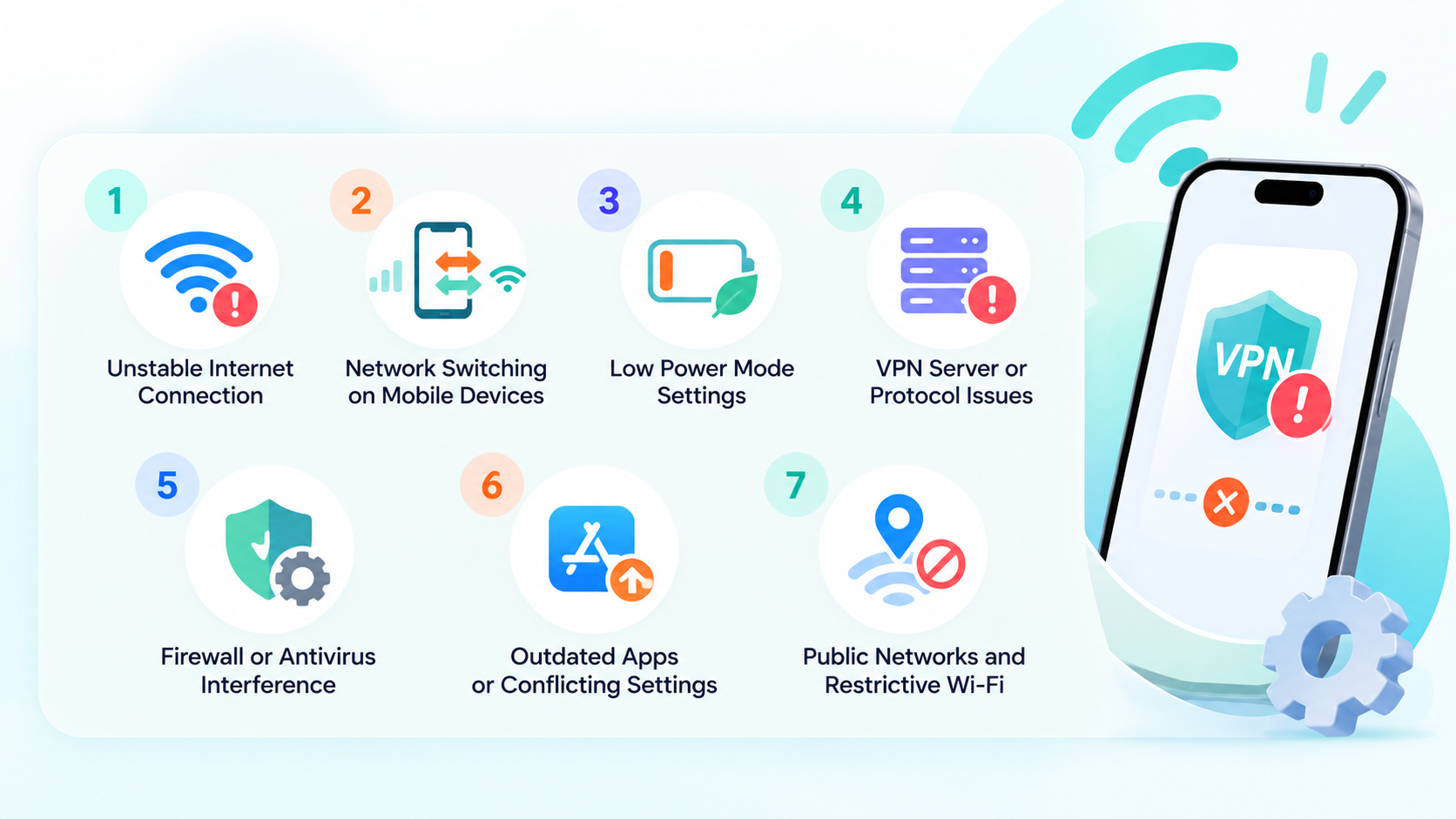
VPN disconnections happen for several reasons. Some are related to your internet connection, while others involve your VPN app or iOS settings.
Here are five common causes worth checking.
1. Unstable Wi-Fi or Cellular Connection
Your VPN relies on an active internet connection to maintain its encrypted tunnel. When your Wi-Fi signal weakens or your cellular connection becomes unstable, the VPN may disconnect.
This often happens on crowded public networks, weak home Wi-Fi, or in areas with poor cellular coverage.
Even brief network interruptions can force your VPN to reconnect.
2. Switching Between Wi-Fi and Cellular Data
Your iPhone regularly switches between Wi-Fi and cellular data as you move around.
For example, when you leave home, your phone may drop its Wi-Fi connection and switch to 5G. During that transition, your VPN needs to establish a connection over the new network.
Some VPN apps handle this automatically. Others may briefly disconnect or require you to reconnect manually.
3. Low Power Mode and Background Restrictions
Low Power Mode helps your iPhone conserve battery by reducing certain background activities.
When enabled, it turns off Background App Refresh and limits other processes. Depending on how your VPN app manages its connection, these changes may contribute to unexpected behavior.
If your VPN seems to disconnect more frequently when your battery is low, your power settings are worth checking.
4. VPN Server or Protocol Issues
Sometimes, the problem comes from the VPN server rather than your iPhone.
Overloaded servers, unstable routes, or temporary server issues can interrupt your connection.
Your VPN protocol also matters. Different protocols handle network changes differently, and some may perform better on particular Wi-Fi or cellular networks.
Switching servers or protocols can often improve connection stability.
5. Outdated VPN Apps or Conflicting Settings
An outdated VPN app may experience compatibility problems with newer iOS versions.
Conflicts can also occur when multiple VPN configurations, security apps, or network filtering tools are installed on the same device.
These conflicts may cause repeated disconnections, failed connection attempts, or situations where your VPN appears connected but websites won’t load.
How to Fix a VPN That Keeps Disconnecting on iPhone
Now that you know the possible causes, it’s time to fix the problem.
Start with these simple troubleshooting steps before changing more advanced settings.
Step 1. Check Your Internet Connection
First, make sure your iPhone has a stable internet connection.
Open Safari and try loading a few websites without the VPN connected. If pages are slow or fail to load, your network may be causing the problem.
Here’s what to try:
- Turn Wi-Fi off and switch to cellular data.
- Check whether your VPN works on the cellular connection.
- Switch back to Wi-Fi and test again.
- Restart your router if the problem only happens on your home network.
If your VPN works on cellular data but disconnects on Wi-Fi, focus on troubleshooting that Wi-Fi network.
Step 2. Disconnect and Reconnect Your VPN
Sometimes, restarting your VPN connection is enough to clear a temporary issue.
Open your VPN app, tap Disconnect, wait a few seconds, and connect again.
You can also check your connection status by going to:
Settings > General > VPN & Device Management > VPN
Look for your VPN configuration and check whether it shows as connected.
If the connection keeps dropping, restart your iPhone before trying again. A fresh restart can clear temporary network problems that affect your VPN app.
Step 3. Switch to Another VPN Server or Protocol
If your internet works normally but the VPN keeps disconnecting, try another server.
Open your VPN app’s server list and choose a different available location. A nearby server is often a good starting point because shorter network routes can help reduce latency.
You can also choose a specific country when you need a particular IP location.
For example, if you’re traveling abroad and need an Australian IP address, X-VPN offers a free VPN for Australian IP with manual Australia server selection on iPhone.
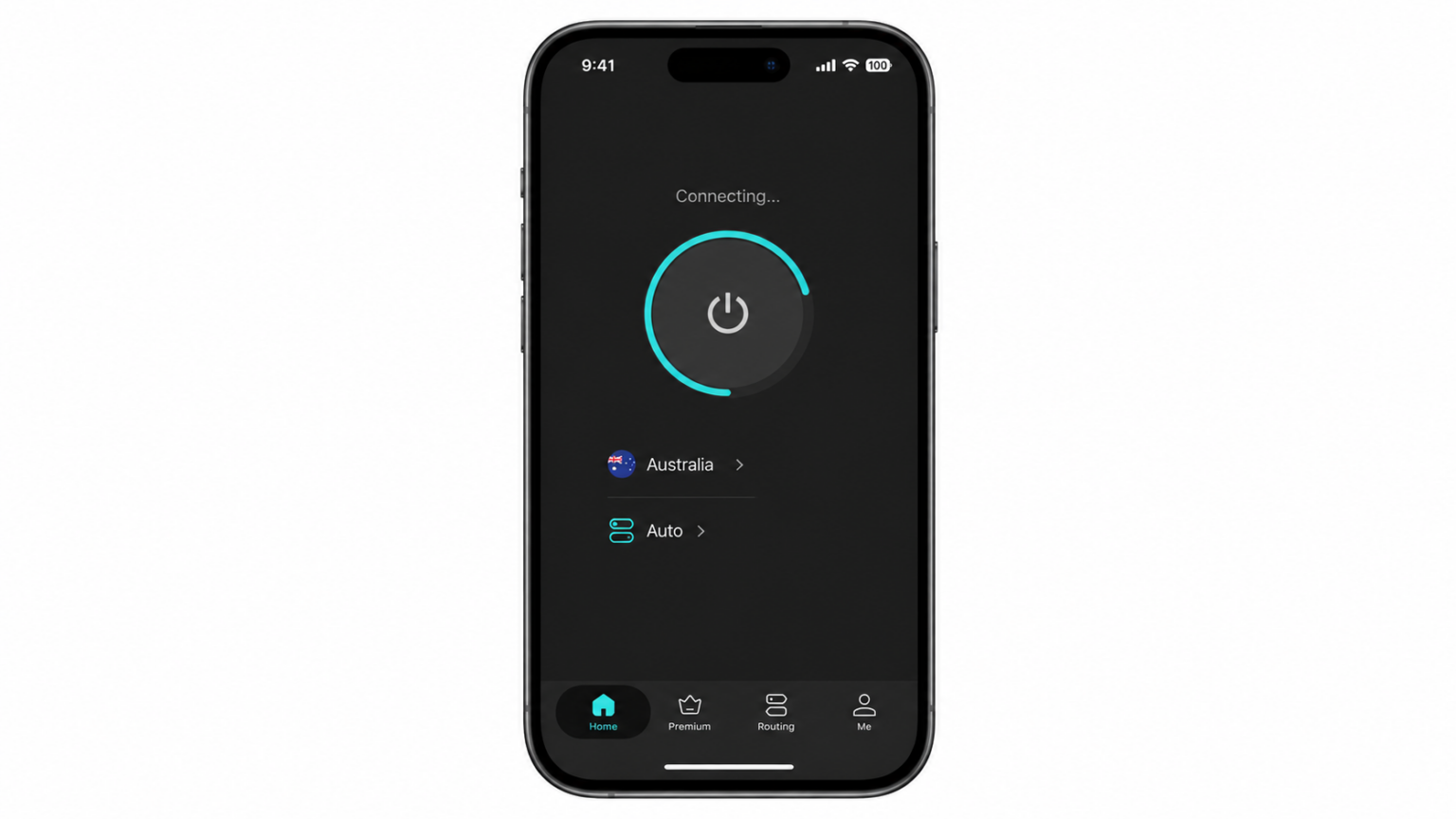
If switching servers doesn’t help, check whether your VPN app supports different protocols. Try another available protocol and test the connection again.
Step 4. Check Low Power Mode and VPN Settings
If your VPN disconnects when your battery runs low, temporarily turn off Low Power Mode to test whether it makes a difference.
On iPhone 15 and later:
Settings > Battery > Power Mode > Low Power Mode
On iPhone 14 and earlier:
Settings > Battery > Low Power Mode
Next, open your VPN app and look for automatic reconnection settings.
Some VPN apps also support Connect On Demand, which can automatically establish a VPN connection under configured conditions.
Enable the relevant option if it’s available, then check whether your connection becomes more consistent.
Step 5. Update Your VPN App and iOS
Software updates often include bug fixes and compatibility improvements.
Open the App Store, search for your VPN app, and install any available updates.
Then check for an iOS update:
Settings > General > Software Update
Install the latest compatible version if an update is available.
It’s also worth checking whether another VPN or network filtering app is running. Temporarily disable conflicting configurations and test your connection again.
Step 6. Try Another VPN App
If you’ve tried several servers and adjusted your settings without success, the VPN app itself may be the problem.
Try a different VPN provider and see whether the connection stays active under the same conditions.
Look for an app that offers reliable servers, multiple connection options, and automatic reconnection features.
After installing the new app, connect to a server and test it on both Wi-Fi and cellular data.
If the new VPN stays connected, you’ve narrowed down the issue to your previous app or its configuration.
Step 7. Reset Your iPhone’s Network Settings
Still experiencing disconnections? Resetting your network settings may help clear persistent configuration problems.
Follow these steps:
- Open Settings.
- Tap General.
- Select Transfer or Reset iPhone.
- Tap Reset.
- Choose Reset Network Settings.
- Enter your passcode and confirm.
This resets your network settings, including saved Wi-Fi networks and passwords, along with certain VPN configurations.
Your photos, apps, and personal files remain on your iPhone.
Once the reset is complete, reconnect to Wi-Fi, open your VPN app, and test the connection again.
How to Keep Your VPN Connected on iPhone
Fixing a VPN connection is one thing. Keeping it stable is just as important.
A few simple habits can help reduce future interruptions.
- Use a reliable network. Weak Wi-Fi and frequent network switching can interrupt VPN connections. Whenever possible, connect to a strong, stable network.
- Keep your VPN updated. Install app updates regularly and choose servers that offer consistent performance. If one server becomes unreliable, try another.
- Enable automatic reconnection. If your VPN supports automatic reconnection or Connect On Demand, configure it to reconnect when necessary. A Kill Switch can also help limit internet traffic while the VPN connection is interrupted.
If you regularly use your VPN while commuting or traveling, pay particular attention to how it handles switching between Wi-Fi and cellular data.
Frequently Asked Questions
Why Does My VPN Disconnect When My iPhone Is Locked?
If your VPN disconnects after locking your iPhone, the issue may involve network changes, power settings, or the VPN app’s connection management.
Start by updating your VPN app and checking its automatic reconnection settings.
You can also temporarily turn off Low Power Mode and lock your iPhone for a few minutes to see whether the behavior changes.
If the problem only occurs when the screen is locked, contact your VPN provider for app-specific troubleshooting.
Why Does My VPN Keep Disconnecting on Wi-Fi but Work on Cellular Data?
This usually points to a problem with the Wi-Fi network.
Your router may be experiencing connection issues, the network may be overloaded, or certain VPN traffic may be restricted.
Try restarting your router and reconnecting to Wi-Fi.
You can also test your VPN on another wireless network. If it works elsewhere, the original Wi-Fi connection is likely responsible.
Does Low Power Mode Disconnect VPN on iPhone?
Low Power Mode reduces background activity to save battery, but its effect on VPN connections varies depending on the app and configuration.
If you notice more frequent disconnections while Low Power Mode is enabled, temporarily switch it off and test your VPN again.
Also check whether your VPN app provides automatic reconnection features to help maintain a more consistent connection.
Conclusion
If your VPN keeps disconnecting on your iPhone, start by checking your internet connection. Then try reconnecting your VPN, switching servers, and reviewing your iPhone’s power settings.
Keeping your VPN app and iOS updated can also help prevent recurring issues.
Most connection problems can be resolved with a few simple adjustments. Once you’ve identified the cause, keeping your VPN connected becomes much easier.


