


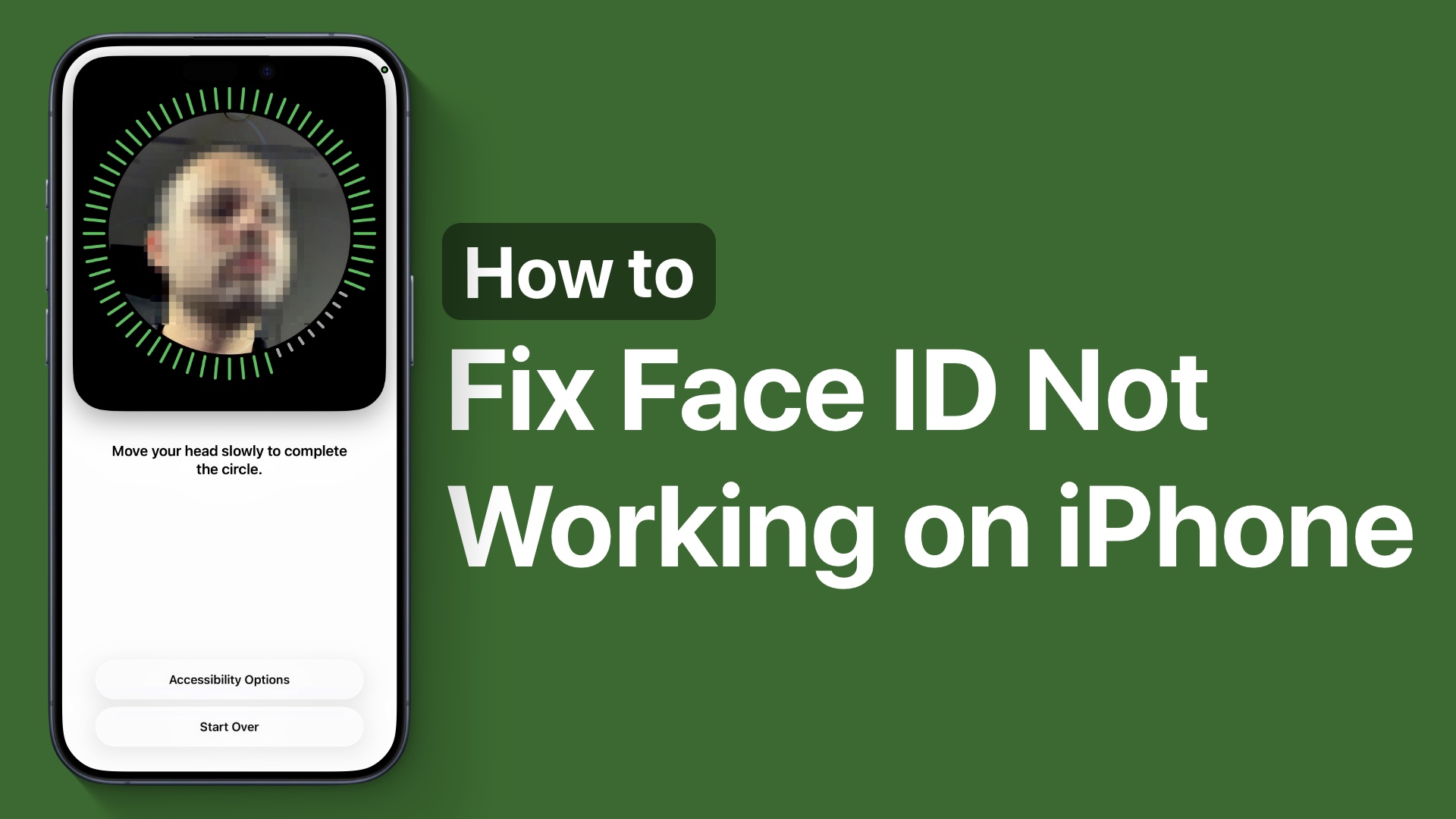
If you are having trouble with Face ID and it is not working on your iPhone properly, then this guide is for you. Here we will solve issues like Face ID not available, or Face ID suddenly can’t recognize your face. We will also look into issues in which Face ID fails to unlock your device.
So without any further ado, let’s get right into it.
Fix Face ID Not Working on iPhone
Fix 1: Clean the TrueDepth Camera
An easy fix to solve Face ID issues on your iPhone is by cleaning the TrueDepth Camera or the front-facing camera on your device. Face ID relies on sensors that are located at the top of your iPhone’s screen (inside the notch). Dust, fingerprints, or even a tiny smudge can cause the Face ID to stop working.
Use a clean and soft microfiber cloth to wipe the top of your iPhone’s screen. Make sure any case or screen protector is not blocking the front camera and Face ID sensors.
Fix 2: Check Face ID Settings
Did you recently change Face ID settings on your device? If yes, then it is a good idea to revisit them and check everything is in order.
You can check Face ID settings by going to the Settings app and tapping on the Face ID & Passcode option.
Here, make sure Face ID is enabled for things like
- iPhone Unlock
- App Store & iTunes
- Apple Pay
- Password Autofill
Fix 3: Make sure nothing is covering your Face
Face ID can fail to recognize your face if it is partially blocked. Wearable items like sunglasses, masks, hats, and even holding your phone too close can prevent proper scanning.
Try holding your device about 10-20 inches away from your face, and make sure your eyes, nose, and mouth are clearly visible during the scan.
Fix 4: Restart your iPhone
Rebooting your iPhone can solve temporary software glitches that are causing the Face ID to not work. By restarting your iPhone, you can fix Face ID issues.
- Press and hold the Side button and the Volume up or down buttons simultaneously.
- Slide your finger over the slider to power off.
- Wait 10-15 seconds and turn the device back on.
Fix 5: Reset Face ID
If Face ID is not working, try resetting it. To do this, go to Settings -> Face ID & Passcode and tap on Reset Face ID.
Next, select the Set Up Face ID option and scan your face again. Doing this can often fix Face ID issues.
Fix 6: Update iOS
Software bugs can cause Face ID problems on your device. You can fix this by going to Settings -> General -> Software Update and downloading the latest available version of iOS.
Fix 7: Reset All Settings
By resetting all settings on your device, you can fix the Face ID not working issue. Just go to Settings -> General -> Transfer or Reset iPhone -> Reset -> Reset All Settings.
This won’t delete your data, but it will reset settings, Wi-Fi passwords, system preferences, etc.
Fix 8: Check for hardware issues
If you are still seeing errors like ‘Face ID not available’, then the TrueDepth camera system might have a hardware issue. In this case, you should contact Apple Support and visit an Apple Store or an authorized service provider.
Conclusion
These are some of the ways you can fix the Face ID not working issue on your iPhone right at home. With these simple fixes, you can improve Face ID’s reliability and get it working again in just a few minutes.


