


In this guide, we show you how you can stop your iPhone screen from dimming automatically. If you are experiencing the annoying issue in which your iPhone display gets dimmed while you are still using it, here’s how to fix it.
The screen dimming issue on iPhone is caused due to a variety of reasons including Auto-Brightness, Attention Aware features, Low Power Mode, or your iPhone getting too warm..
Follow these tips to fix this issue in just few minutes.
Stop iPhone Screen Dimming
Turn off Auto Brightness
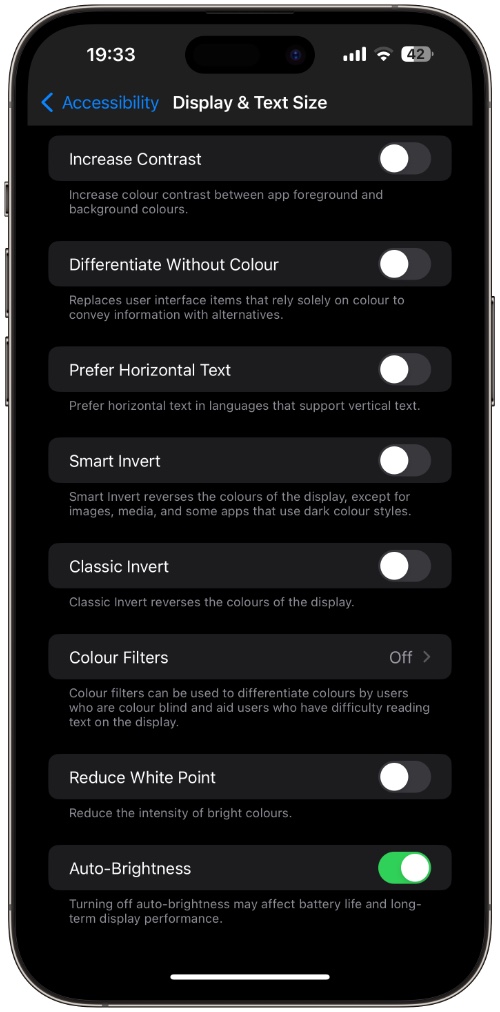
Auto-Brightness setting when enabled automatically dims or brightens your device’s screen brightness based on your sorrounding. If you want to disable this behaviour, then follow these steps.
- Open the Settings app.
- Scroll down and tap on Accessibility.
- Now tap on Display & Text Size.
- Scroll to the bottom and turn off the toggle for Auto-Brightness.
Disable Attention Aware Features
If you have a Face ID equipped iPhone, then your iPhone may be dimming its screen when it thinks you are no longer looking at the screen. You can fix this by following these steps.
- Open Settings.
- Go to Face ID & Passcode.
- Enter passcode if prompted.
- Scroll down and turn off the toggle for Attention Aware Features.
Turn Off Low Power Mode
Low Power Mode dims the screen to presever battery. Disable this mode to fix the screen dimming issue.
- Open Settings.
- Tap on Battery.
- Tap on Power Mode.
- On the next page turn off Low Power Mode.
Increase Brightness Manually
You can increase iPhone’s brightness manually by following these steps.
- Swipe down from the top right corner of the screen.
- Slide the Brightness slider up to increase brightness.
Check True Tone and Night Shift
Display settings like True Tone and Night Shift can make the iPhone display appear dimmer. Here’s how you can turn these features off.
- Go to Settings.
- Tap on Display & Brightness.
- Turn off the toggle for True Tone.
- Now tap on Night Shift and turn it off.
Let iPhone cool down
An iPhone that is overheating or has become too hot after heavy gaming, GPS, or being left in direct sunlight can reduce the brightness to protect internal components.
If this is the case, then let your iPhone cool down by bringing it to a cooler environment. Do not put your iPhone in refrigerator. If the iPhone is not cooling down after several minutes, then try restarting it.
This is how you can stop your iPhone from dimming its display. In most cases, turning off Auto-Brightness, disabling Attention Aware Features, or switching off Low Power Mode will solve the problem.


