


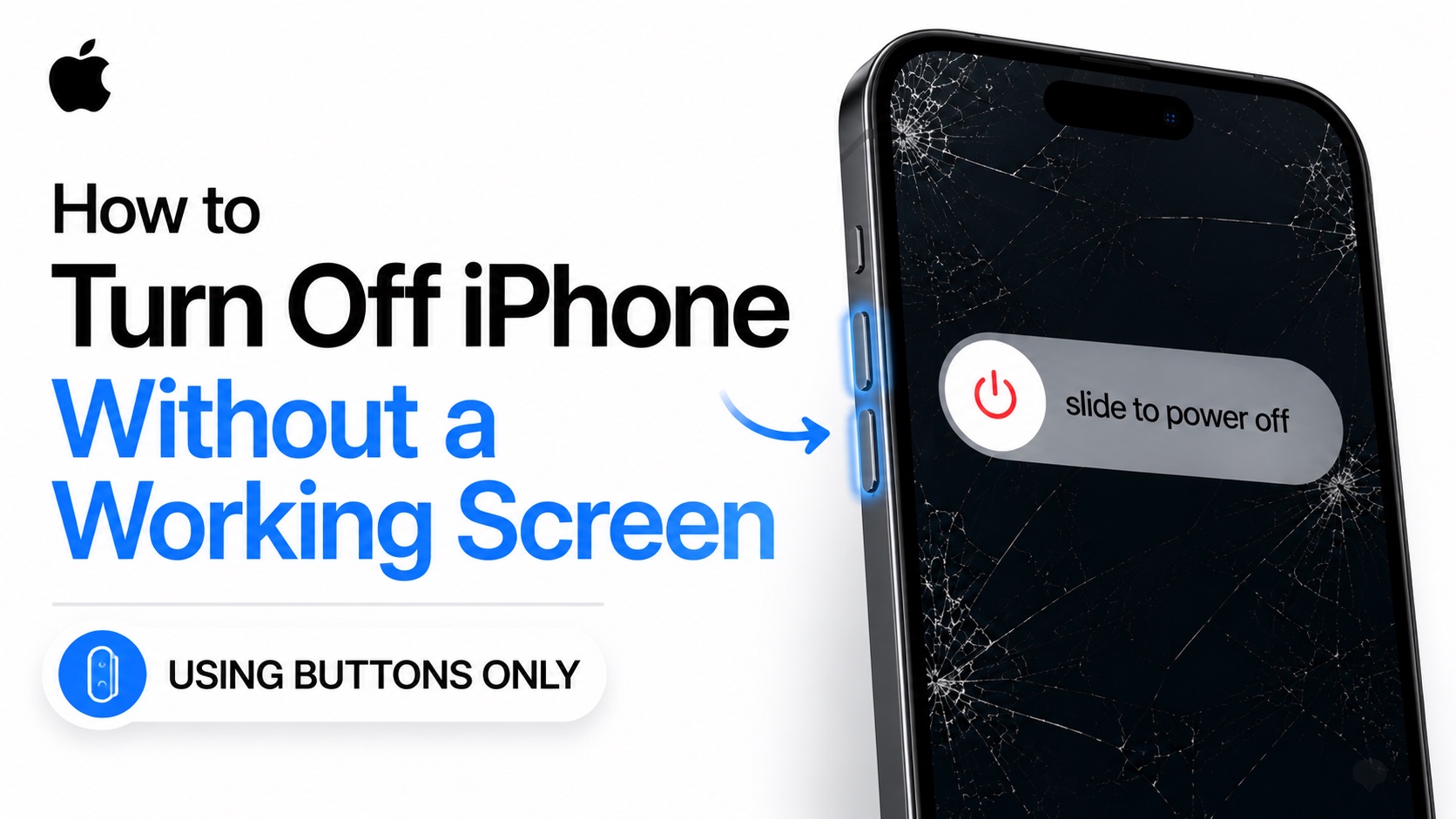
Is your iPhone screen completely unresponsive, cracked, frozen, or black, and now you’re wondering how to turn it off?
The good news is that you can still shut down your iPhone even if the touchscreen isn’t working. In this guide, I’ll show you the easy method that work on modern iPhones and older models.
With these steps you can turn off iPhone without using the touch screen and the device will not restart until you manually turn it on.
Turn off iPhone without touch screen
- Press the Volume Up button, then Volume Down button and then press and hold the Side button.
- You might see the power off screen on the display. Ignore it and keep holding the Side button until your device’s screen goes off.
- As soon as the iPhone’s Screen goes off, press the Volume Up button and the Side buttons together. Keep them pressed even when you see the Apple logo on the screen.
- After some time the screen will go black, which indicates your iPhone is now turned off. You can now let go off the buttons.
Turning the iPhone back on
Now to turn the device back on, simply press and hold the side button until you see the Apple logo and let go of the side button as soon as the Apple logo shows up.
That’s it, this is how you can easily turn off your iPhone without using the screen, and just using hardware buttons.
Disclosure: iOSHacker may receive a commission if you purchase products through our affiliate links. For more visit our privacy policy page.


