


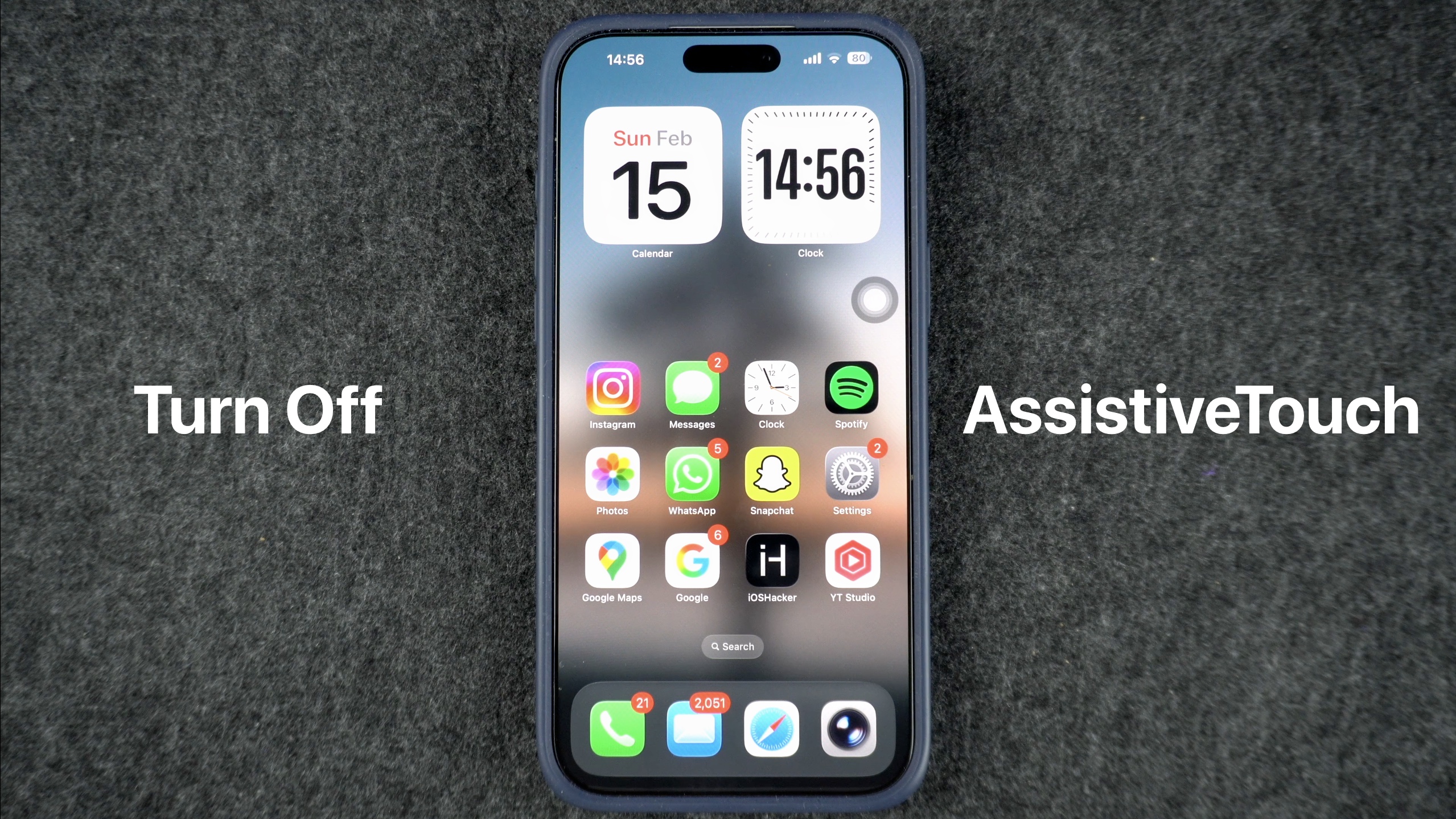
If you are tired of seeing a floating gray dot on your iPhone’s screen and want to turn it off, then you are in the right place. The gray dot that you see on the screen is the accessibility feature called AssistiveTouch.
It is super easy to turn AssistiveTouch off and get rid of the gray floating dot that appears on the iPhone’s screen. In this guide, that is exactly what we are going to show you.
So without any further delays, let’s get right into it.
Turn off AssistiveTouch from Settings
- Launch Settings and tap on Accessibility.
- Under the Physical and Motor section, tap on Touch.
- At the AssistiveTouch option.
- Finally, turn off the toggle for AssistiveTouch.
As soon as you turn off the AssistiveTouch toggle, the gray dot will disappear from the screen permanently.
You also have the option to ask Siri to turn off AssistiveTouch. Just say the phrase ‘Hey Siri, Turn off AssistiveTouch’. And Siri will turn this feature off for you.
Disable Accessibility Shortcut
If the AssistiveTouch gray dot keeps coming back, then you have to disable Accessibility Shortcut to turn it off. Just follow the steps below.
- Open Settings.
- Tap on Accessibility.
- Scroll down and tap on Accessibility Shortcut.
- If AssistiveTouch has a checkmark next ot it, tap it to remove the checkmark.
Now that you have disabled Accessibility Shortcut for AssistiveTouch, your iPhone will not enable it when you triple-press the side button.
That’s it, this is how you can turn off the AssistiveTouch feature on your iPhone and get rid of the gray dot.


